Additional Report Options
All Reports, Labels, and Statements provide a different set of options that you can use to adjust the report contents and format. These options are located in the same screen from which you are running the report, separated into tabs at the top left. For example: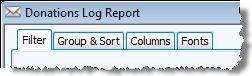
The purpose of the image above is to indicate a visual example of tabs where you can find additional report options. Though the above image only points out only some of these tabs, each report has its own set of tabs. Such tabs are also found in the Donation Browser Options screen.
Choose any of the following tabs to apply additional settings:
 Filter Tab
The Donation Browser Options, Donations Log Report, and the Giving Summary provide you with a tab of settings that you can use so that the report or screen shows you only the information that you seek.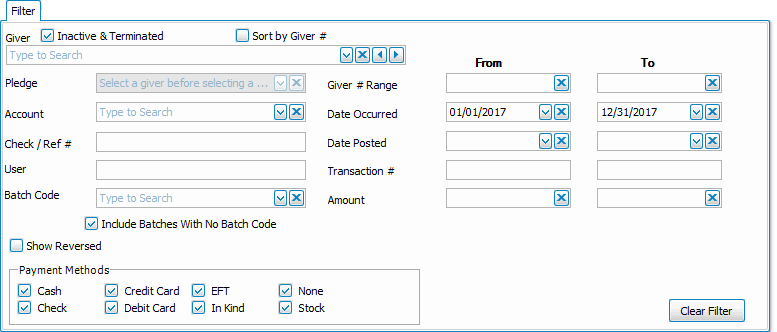
- Giver: The name of the Giver, Giver Number (if applicable), and type of Giver (individual or group)
- Pledge: The name of the pledge account and the date range for which the pledge is in effect.
- Account: The giving account and accompanying ID.
- Check / Ref #: The specific check or reference number.
- User: The name of one of your Users who enters Donations.
- Batch Code: The name of the batch and a description that identifies the code.
- Include Batches with No Batch Code: Place a check in this box if you want the report to include batches where a batch code was not recorded with the batch when originally entered in the software.
- Giver # Range: Enter the starting and ending Giver numbers that you want the report to show.
- Date Occurred: The date on which the actual donation took place.
- Date Posted: The date on which the donation was entered into the system.
- Transaction #: The number given by the software when the donation is entered.
- Amount #: The dollar amount recorded with the donation.
- Show Reversed: Place a
 checkmark in the box to display reversed donations on the report. Otherwise, reversed donations will not show on the report.
 - Payment Methods: Keep checkmarks next to all of the payment methods you want to be included.
Giving / Pledging Tab
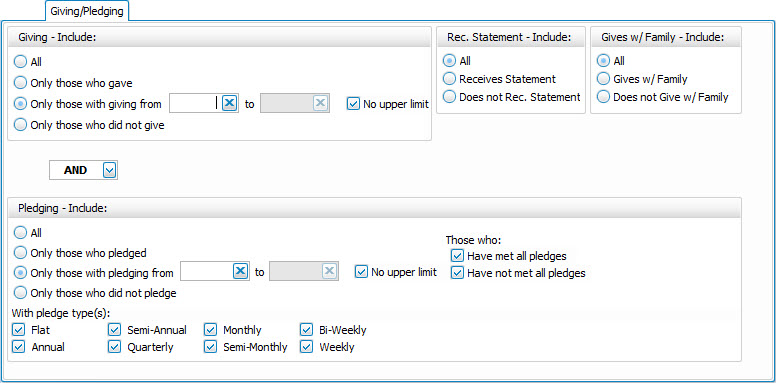
Every time you print Reports, Labels, and Statements, you can use the Giving / Pledging tab to further specify the pledge and/or giving requirements that Givers must meet in order to have Labels or Donation Statements printed for them. The specifications that you make will only affect the reports that you print, and will not affect the information originally stored on the Manage Givers screen.
Giving — Include
Choose the option that best describes the Giving information you wish to see:
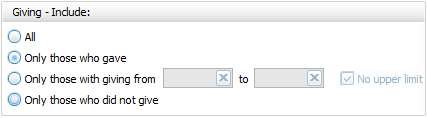
- All — Click this option to have all kinds of Givers regardless of their giving included.
- Only those with giving from — Enter a desired range of donation dollar amounts that you would like to include. If the range has no maximum amount, place a check in the No Upper Limit box.
- Only those who gave
- Only those who did not give
AND / OR
Between the Giving — Include and Pledging — Include areas of the screen, use the AND / OR dropdown box to specify how the criteria must be fulfilled:
- AND — Use to search for people who meet BOTH of the criteria, allowing less people to be included.
- OR — Use to search for people who meet EITHER of the criteria, allowing more people to be included.
Pledging — Include
Choose the option that best describes the information regarding Pledges that you wish to see on your report:
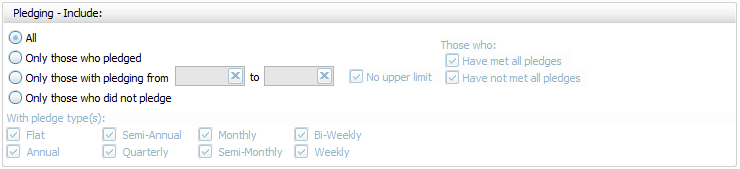
- All Givers — Includes all Givers regardless of Pledging.
- Only those with pledging from — Enter a desired range of pledge dollar amounts that you would like to include. If the range has no maximum amount, place a check in the No Upper Limit box.
- Only those who pledged
- Only those who did not pledge
- Those who:If applicable, place or remove a
 checkmark for Have Met All Pledges and/or Have Not Met All Pledges.
 - With Pledge Type(s): Place a checkmark next to any or all frequencies of pledges you want to include on the report.
Other Options
At the top right of the Giving / Pledging tab there are sometimes a few more options, these include:
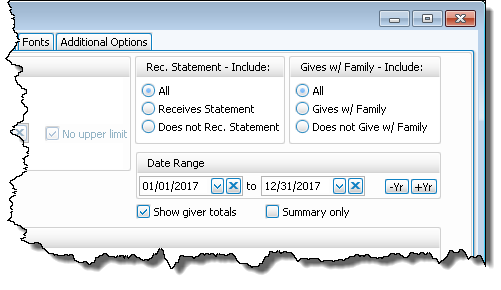
- Receives Statement — specify if you only want to see those who do or only those who do not receive statements. (This is not an option on Statements as Givers without "Receives Statement" checked cannot be included)
- Giving as a Family or Giving Separately — specify if you only want to see those who give alone or only those who give as a family.
- Date Range — select the time period that you want the report to present.
- Show Giver totals — if you want to see a total for each Giver on the report.
- Summary only — if you want to see only the summary, instead of an accompanying, individualized listing by Giver.
Accounts tab
The Pledge / Giving Analysis, Giving Comparison, Labels, and the Donation Statements screens provide you with a tab called Accounts. Use the Accounts tab if you want the items you are printing to contain information that pertains only to certain giving accounts where money had been given.
Click to select an account from the Available Accounts list on the left side of the Accounts tab. Click the  right button and it will appear in the Selected Accounts list on the right side. To remove any account from the Selected Accounts list, click it and then click the
  left button.
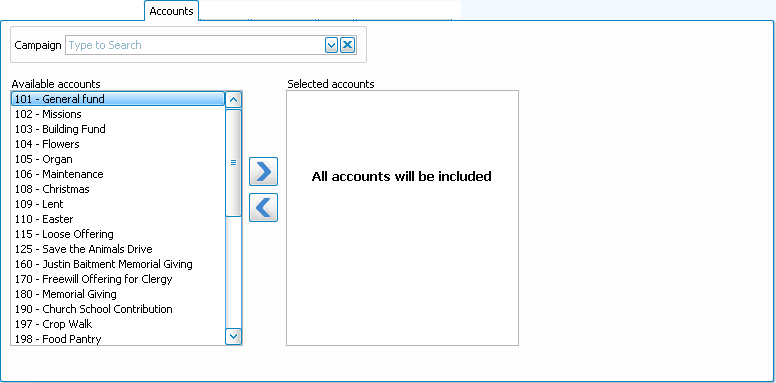
If no changes are made to the Accounts tab, the Selected Accounts list will read "All accounts will be selected ".
Givers / People Tab
The Pledge / Giving Analysis and the Giving Comparison report screens as well as various other screens provide you with a panel of adjustments that you can use to determine the kind of Givers to include on your reports. Use the following to choose Givers based on certain information that is currently being kept track of in The People File.
Note:
When you go to print Labels, the Givers tab is referred to as the People tab, but consists of the same screen layout (see image below).
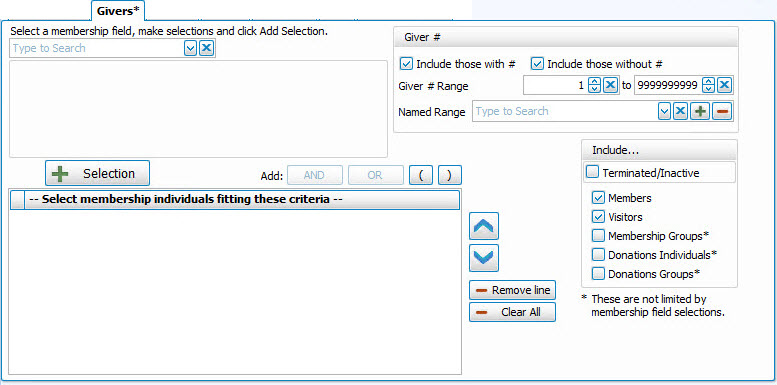
Choose any field in The Individual Record or The Family Record to compile a search query limiting the people who will be included on the report. To include everyone, do not make any selections.
The different Field Types will provide different "operator" choices, such as:

OR

The selections at the top of the list in [brackets] will open a separate window for your to enter your criteria, then press the  'Add to Selection' button to return to the People Selection Criteria screen. These selections include: In the Select a Membership field box, choose [Attendance]. , A separate window will open where you can select your desired [Groups / Classes]: Note:In either method, you may limit the Groups/Classes selection to any combination of Past, Present, or Future members by checking or unchecking the respective boxes., Or [Skills / Interests]:, In the Select a Membership field box, choose [Visits]. , or [Last Created/Updated]:
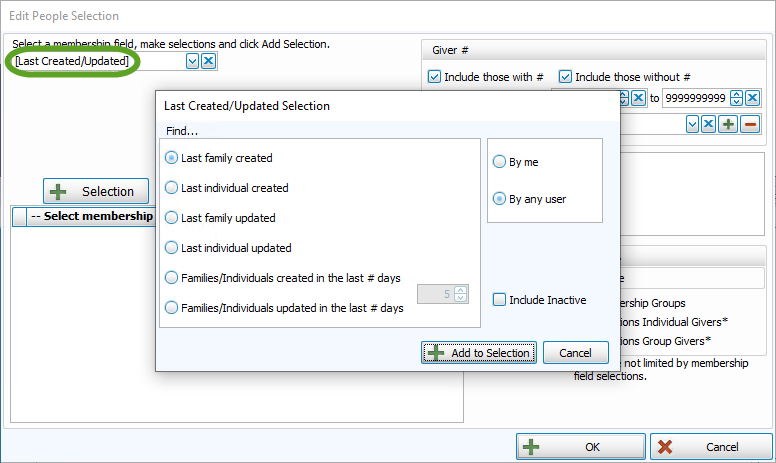
Once you make a Membership Field Selection, to add it to the search criteria click on the  'Add Selection' button. It will add it to the -- Select membership Individuals fitting these criteria -- box below.
For example, if you want to add ages greater than 65 to the criteria, just use the Membership Field dropdown to select Age like above, then select the "greater than" operator, and put 65 in the first box. Then click on the

Once you have at least one criteria added to your selection, you can either continue selecting other options for the report with just one criteria, or use the Membership Field dropdown again to select additional options.
Before you can click on the  button to add additional criteria, you must either click the AND or the OR button to the right of the button to specify how you want the selections applied:
- AND — Use to search for people who meet BOTH of the criteria, allowing less people to be included.
- OR — Use to search for people who meet EITHER of the criteria, allowing more people to be included.
- For more complex searches, you can also add parentheses to select people meeting either or both of several different combinations of criteria selections.
Then you will be able to click on the button.
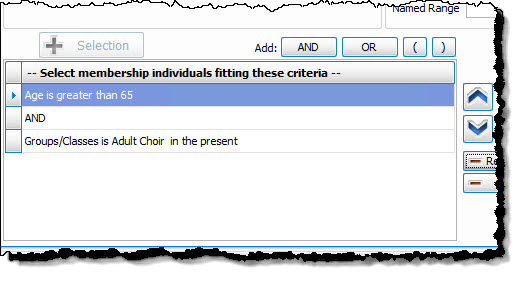
So for this example,
- Select age greater than 65
- Then click the
- Then select Groups / Classes and choose those presently in the adult choir
- Then click "AND"
- Then click the
Giver #
- If you would like to include all Givers, regardless of whether the Giver has a giving number stored on record, make sure that a check mark is placed in both Select Givers with # and Select Givers without # boxes. Otherwise, place a check mark in only one of the two boxes. (If needed, see Assign Giver Numbers)
- Use the Giver # Range boxes to choose the range of Giver numbers for the labels or statements you want to print.
- If you have saved a Giver # Range in the past and would like to reuse it, select it from the Named Range box.
- You can also add a new Named Range by clicking the
 Add button. Or, if you no longer need a Named Range that currently exists in the list, select it and click the
  button.
Categories
If you wish to exclude Visitors (or people in other Family Categories you may have added), click the checkbox to uncheck the Categories you do not want to see on the report.
Include...
- If you wish to include Inactive givers in the report, click the box to place a checkmark. With a checkmark in the box, the report will show both of the following:
- Givers that have been marked as Inactive on the Manage Givers screen of the Donations Module.
- Givers that have been marked Inactive with an Inactive Reason (formerly Reason for Termination) on
The Individual Record in the
Membership Module.
- Place a checkmark in the boxes if you also wish to include:
- Membership Groups / Classes,
- Donations Individual Givers*
- Donations Group Givers*
(The asterisk * next to Donations Individual and Group Givers indicates that the Membership criteria selections will not be applied to them and they will be included on the report regardless.)
Sort / Group & Sort Tab
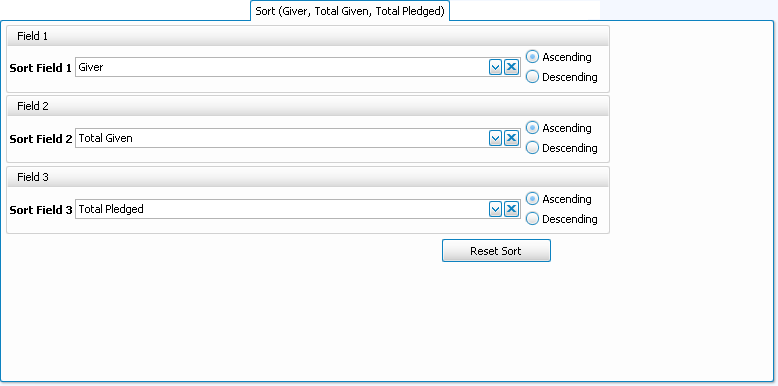
Use this tab to sort the results by up to three columns (sort fields). Whether you are viewing the Group & Sort tab, or the Sort tab, use the following options to change the order of the contents of your list:
- Sort Fields:
Choose the name of the field(s) by which to sort the contents of the report:- The field chosen in Sort Field 1 will sort the entire list by that field first.
- Then, choose a field from Sort Field 2 if you want sort the list further within the order chosen in Sort Field 1.
- To sort the list in an additional order within the order chosen in Sort Field 2, choose a field from Sort Field 3.
For example, you could choose Zip Code for Sort Field 1, then within each Zip Code you could make Sort Field 2Status Code, then within each Status Code grouping you could sort by Name for Sort Field 3.
- Ascending & Descending:
Choose the order in which you want the contents to be sorted:- Ascending — lowest to highest / alphabetical
- Descending — highest to lowest / reverse alphabetical
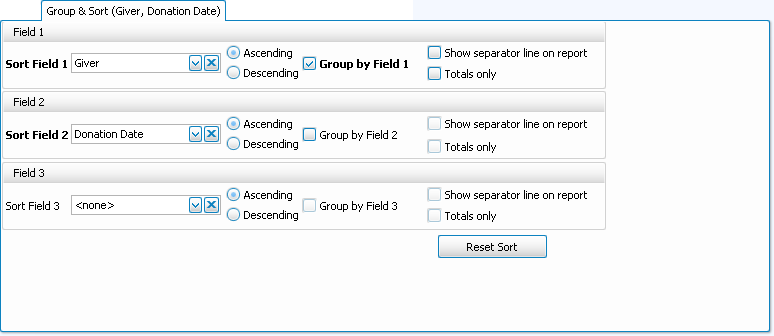
The following choices appear only on the Group & Sort tab, place a checkmark in the box to select that option:
- Group by Field — Group the contents of the report by the item selected in that sort field.
- Show Separator Line on Report — Show a short horizontal line in between each grouping of information.
- Totals Only — Show only a total to represent the donations grouped by the selected sort field.
Click the Reset Sort button to change the selections back to their original state.
Columns Tab
The Column Selector or Columns Tab allows you to decide which fields from The Individual Record or The Family Record will be visible on the report and which will not be visible.
On the left hand side Available Columns are the columns that are not showing but are available to be shown if desired. On the right side Visible Columns are the columns that are currently selected to be shown:
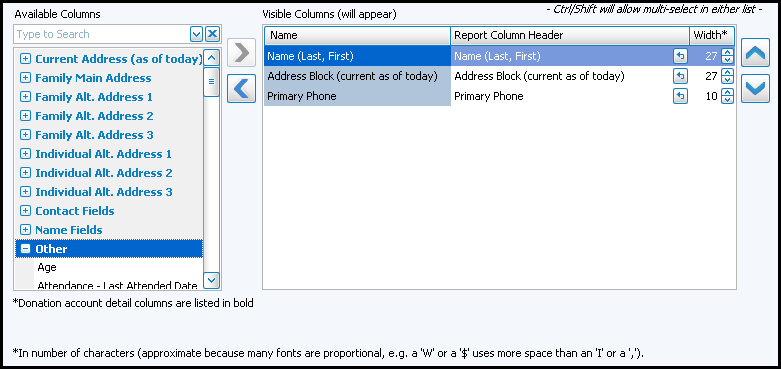
- If needed, to browse the Available Columns, click the
 to expand a group of fields or use the "Type to Search" dropdown
  box to choose a column.
 - You can either highlight the column and use the left and right arrow buttons to bring it back and forth, or double click on it to move it to the opposite side of the screen.
- Use the
 up and down arrow buttons to rearrange the order of the columns.
 - Underneath the Visible Columns on the right is a space for the "Report Column Header". You can edit this text to label that field differently on your printed / exported report without changing the actual column name in the database.
For example, you could remove "(current as of today)" from the Address field's Report Column Header, as it would likely be unnecessary to include on the report.
- Each column is set to print at a certain column width automatically. You can also change the width of the columns that show on the report. Raise or lower the number in the Width* column according to your preference.
- Click OK when you are satisfied with your column selections.
- You can click on the 'Select Fields' button to the right of the report name dropdown list to reopen the Column Selector and make additional changes later.
Fonts Tab
Change the size and style of the font that prints on the report by clicking the Fonts tab, choosing the Page Header, Column Headings, and/or Body Text settings, and applying your selections.
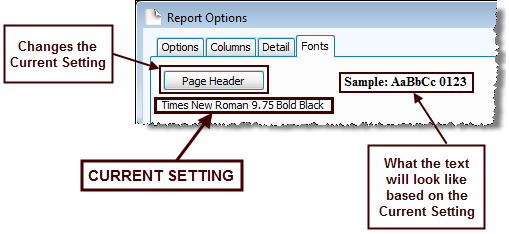
Choose the setting for the item you wish to change, and another screen will appear for you to change the font.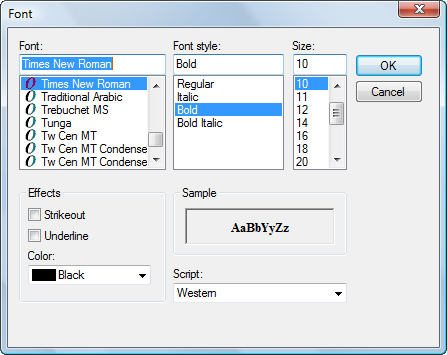
Change to the desired font settings and click OK. When you click OK, a sample set of text will show you how the report text will print due to the selections you made. Click Reset to Default to change all fonts to their original settings.
Additional/Report Options Tab
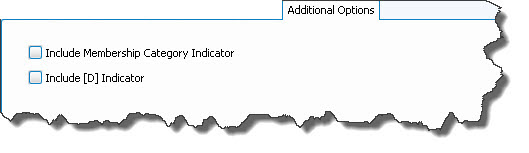
Many reports will offer the option of including a letter in brackets after the names of people on the report to indicate their assigned Family Categories (e.g. [V] for Visitor, [D] for Donor, etc.):