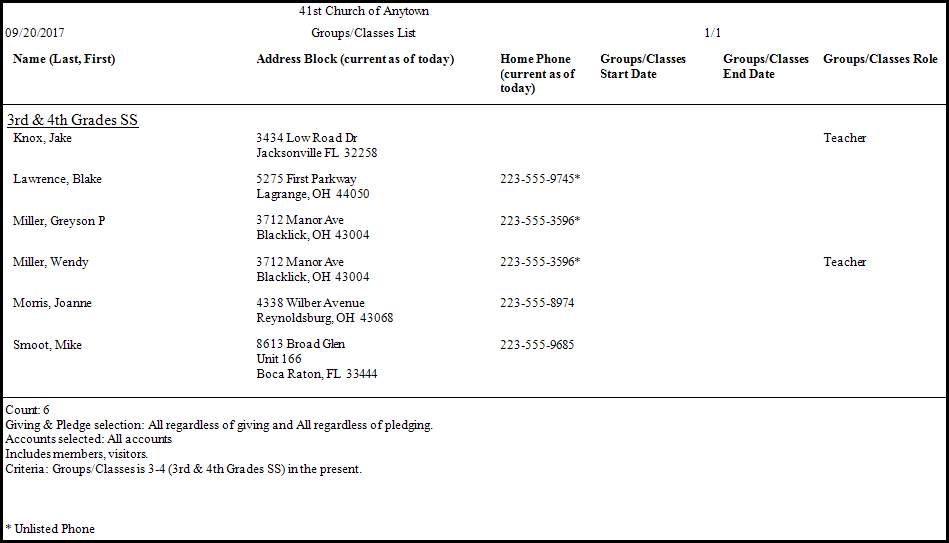
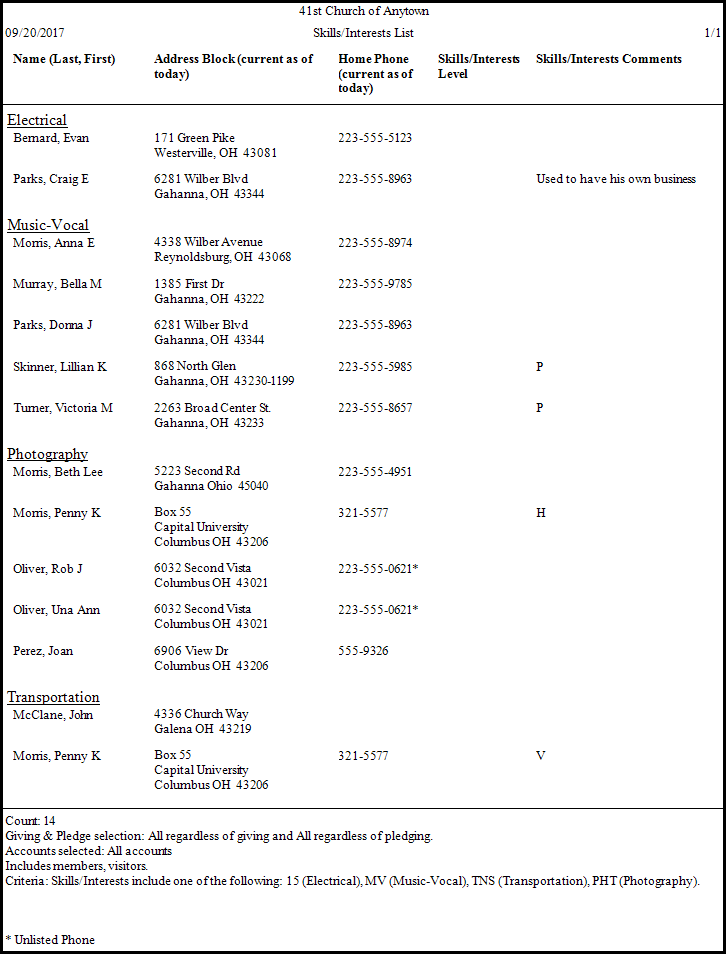
Groups / Classes and Skills / Interests Reports
There are a few ways to create
Reports / Directory / Exports,
Labels, or
Send Email specifically for your
Groups/Classes and Skills/Interests, either from the Groups / Classes & Skills / Interests Assignment screen or from the Reports / Exports menu
in the Button Bar at the top of the screen.
To view or print the Groups / Classes and Skills / Interests Reports:
- From The Initial Portal of Church Windows choose Membership.
- Then,
in the Button Bar at the top of the screen choose either:
- Groups / Skills
- Then select either Assign Groups or Assign Skills.
- Based on your choice it will open to either the Groups / Classes or Skills / Interests tab.
- Choose the Group / Class or Skill / Interest you want to report on.
- Then click the Print button at the top of the screen and choose either Report, Labels, or Send Email.
- Choosing Reports will open to the Sort Tab .
- Select a sort order for the group / skill data.
- When you're finished, click the → Next button.
- Reports / Exports
- Then click Groups.
- Choose either Groups / Classes or Skills / Interests.
- Then choose either Report, Labels, or Send Email.
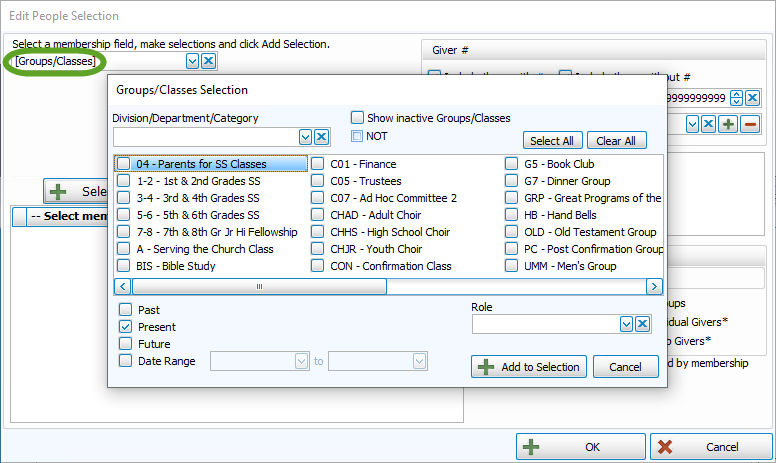
- A separate window will open where you can select your desired [Groups / Classes]:
Note:
In either method, you may limit the Groups/Classes selection to any combination of Past, Present, or Future members by checking or unchecking the respective boxes.
 - Or [Skills / Interests]:
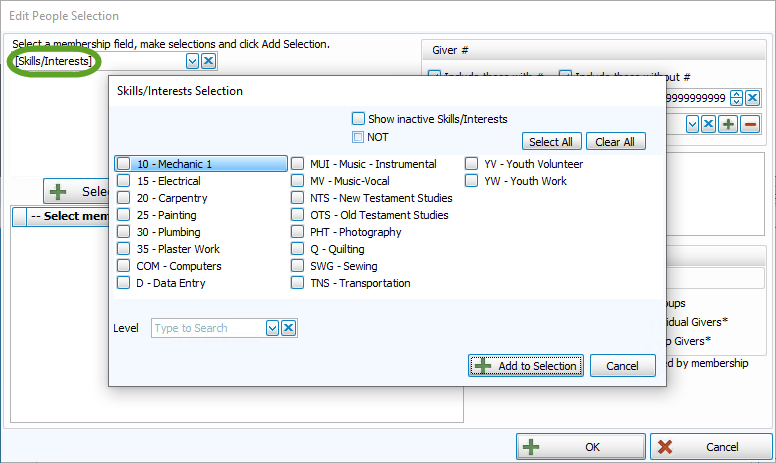
- If needed, add any additional People Selection Criteria and/or Giving / Pledging Selection Criteria.
- When you're finished, click the → Next button.
OR
- The Step 2 — Select the report layout/format screen for your selection will appear with the selected group or skill members listed in the bottom half of the screen.
- You will then be able to select from your Report Templates or Mail Merge / Directory Export.
- Once you have made all of your selections, click Print to view a Print Preview and then proceed in sending the file to your printer. You can also Export most reports and/or Send via Email as a file to be used outside of Church Windows.
Emailing the Parents of Children
You are now able to email just the parents of the children in a family! All you need to do is check the "Send to parents in family" box on the Step 2 — Select the email settings, message and signature screen:
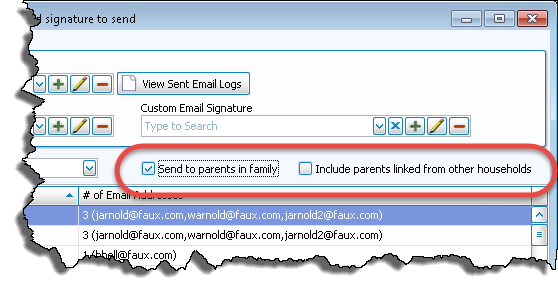
- This will use the email address(es) of the 1 — Primary and 2 — Secondary family member(s) only.
- If you wish to send emails to both the parents and the children, you will need to send two separate emails.
- You can also check the box to "Include parents linked from other households" if you have used the Link another child to this family feature to link children to multiple households and you want those parents included in the email as well.
 Click here to see an example Group / Class Report