The Family Record
In The People File of Church Windows Membership, the Family record contains all of the information that pertains to all members of that family. It is possible to change or update this information at any time as needed, by simply making the necessary change in any Family Record Fields. Changes are saved automatically as they are made, however there a Save button you can click if it makes you feel more secure.
To access the The Family Record screen:
- From The Initial Portal of Church Windows choose Membership
- From the
in the center of the screen, choose People
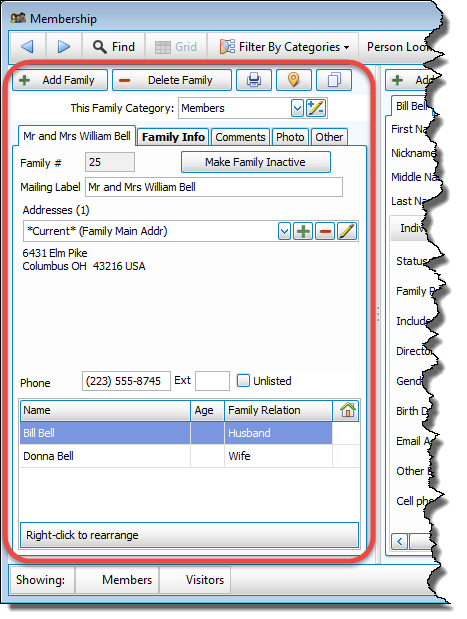
- The Family Record Fields are on the left side of the People screen:
- There are several buttons across the top of the window, these buttons are as follows:
 Add a Family
Add a Family
- Even if you are only adding a single person, you must first add a Family record for them.
- Click the + Add Family button.
- First, a window will pop up where you must choose one of the Family Categories from the pop-up window (e.g. Members or Visitors or a custom category) and click the OK:
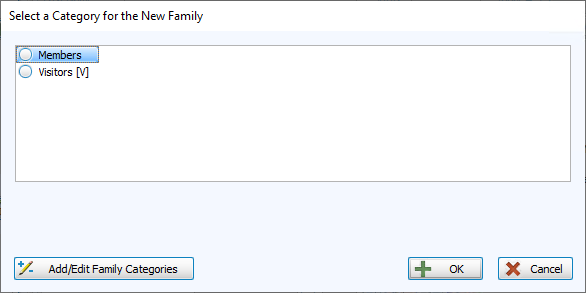
If needed, click the Add/Edit Family Categories button in the bottom left to Add New Categories or edit existing category names, codes, or colors.Note:
Once you select a category, you will have the option of saving that Category as the default Category for new Families by checking the box that appears. This setting is specific to each of your Users and can be changed at any time in Membership Settings.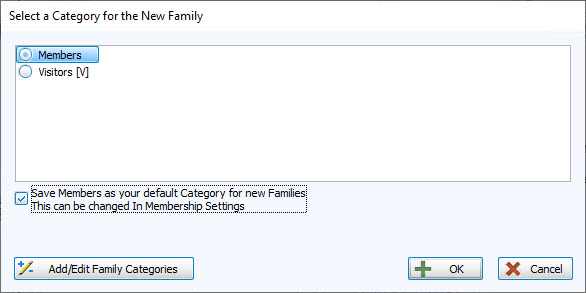
- Then you will fill out the Family Record Fields, staring with the Mailing Label field. Enter the family name as you would like it to appear
on Labels.
Examples:
Mr. and Mrs. William Smith
Ms. Joan Thomas
Casey and Dana Miller
The Jones Family
- Continue to enter the rest of the Family Record Fields information on each of the Family information tabs.
- You must click the
 Add button to enter the Addresses.
 - When you have finished entering Family information, then you are ready to click the Add an Individual button and fill out the Individual Record Fields.
Delete a Family
Caution!
Deleting a family permanently removes that family’s records from your database. Once you delete a family, there is no way to recover the information it contained. If the individuals in the family have left your organization, you may want to complete the Make Family Inactive procedure instead.
Delete a family and all individuals within the family
- Make sure that the correct family record appears on the screen.
- Click — Delete Family.
- Church Windows will show a confirmation screen:
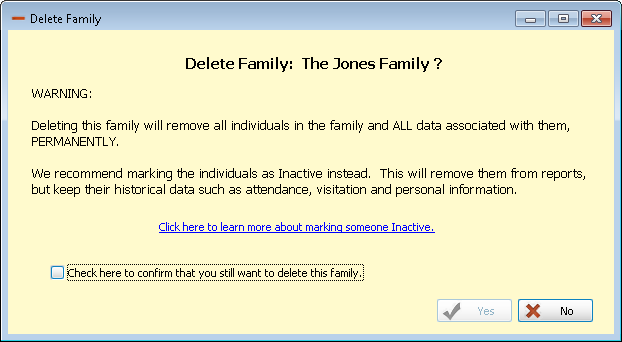
- If you are sure you'd like to delete this family, click to mark the Check here to confirm the deletion, then click OK box, then click OK.
Note:
Church Windows will not allow a record to be deleted if there has ever been any giving credited to that individual (or family) in the Donations Module, therefore if a donor terminates their membership, you must either Inactivate Records or Make Family Inactive if you wish to remove them from the active data.
Again, keep in mind that it is not necessary to "delete" a person to keep them from appearing on reports or labels. If a person who passes away or leaves the
Church is deleted as soon as they leave, then you will not be able to use
Church Windows to create your end-of-the-year reports that need to know how many people left the
Church during the year. A better way to remove these people from your system is to
Inactivate Records by giving them a checkmark  in the Inactive field and a code in the Inactive Reason field.
Print, Map, or Copy Family Info
-
 Print
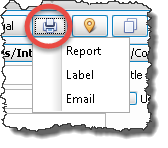
Print - Clicking this Print button will give you three choices: Report, Labels, or Email.
- Each will take you to the respective settings options.
- Once you have made all of your desired selections, either:
- Click Print to view a Print Preview and then proceed in sending the report or labels to your printer
- Click Export to save the file
- Click Send Email
-
 Map Address
 -
 Copy Address
If you would like to print information for this family only, for example you'd like just one quick label, then click the small printer button that appears to the right of the add and delete family buttons:
This will take you to the internet to Create Maps from Addresses for the Family or Individual using any of the addresses in their record.
The Copy Address button allows you to copy any of the addresses for the Family or Individual to paste into another location, document, or application on your computer.
Category
The dropdown field called This Family's Category: will display the Category currently assigned to the family (e.g. Members, Visitors, or any additional Family Categories you may have added). Clicking the  dropdown button will allow you to change their assigned Category and clicking the
  Edit button allows you to edit, delete, or
Add New Categories to the list of available Categories for all of your families:
Edit button allows you to edit, delete, or
Add New Categories to the list of available Categories for all of your families:
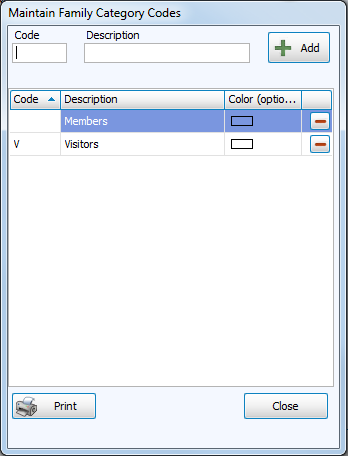
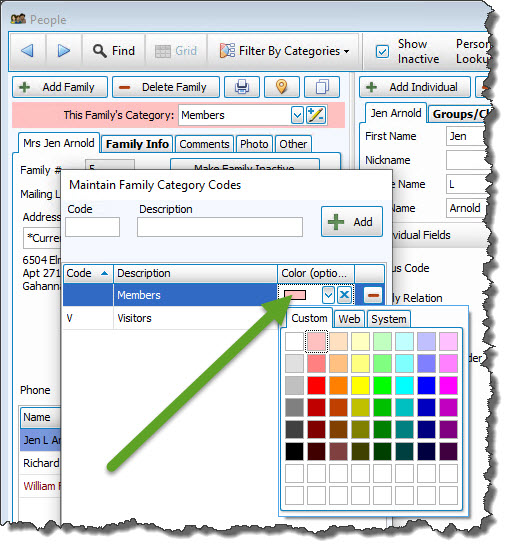
To add a highlight of color to help you quickly differentiate between Categories while browsing The People File, click your mouse in the rectangle in the Color column and choose a color (pastels are recommended for best visuals), for example: