List Giver #s
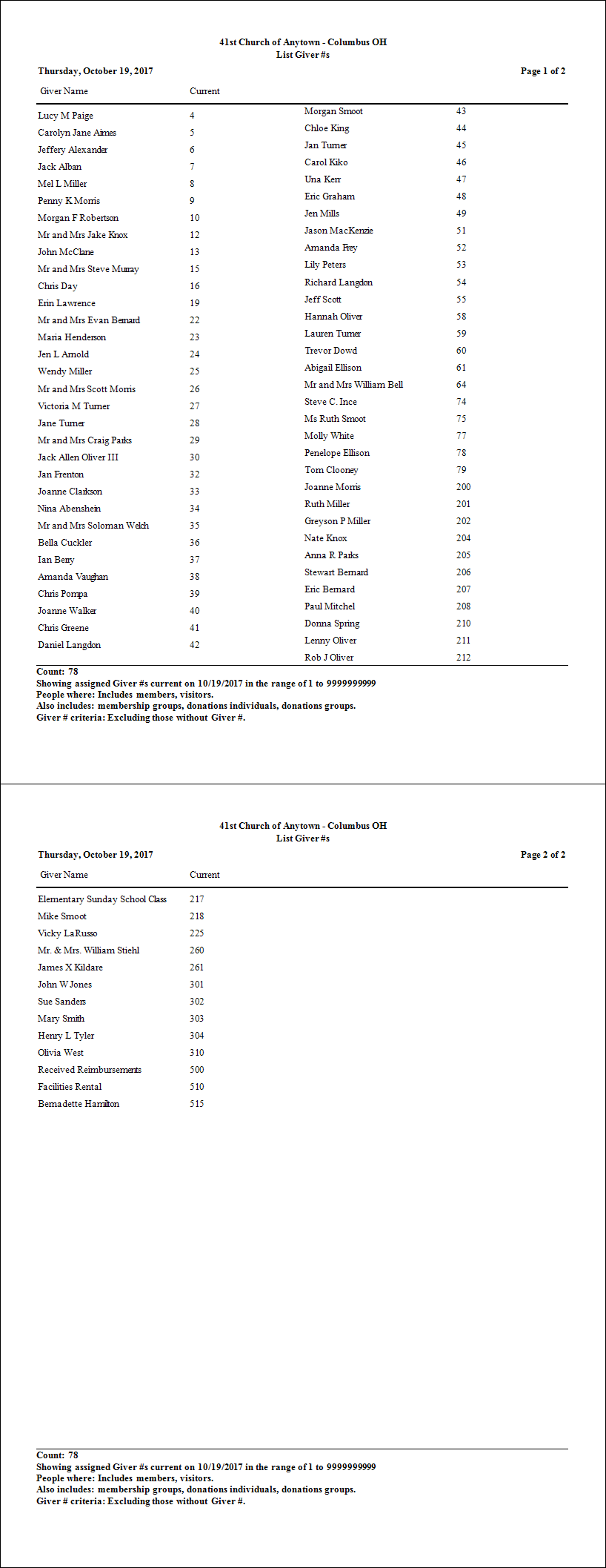
Use the List Giver #s feature to generate a report of Giver numbers that are currently either assigned to a specific Giver, or unassigned — making the number available for future use. Use Manage Giver Numbers for adding or removing Giver numbers.
To run the report:
- From The Initial Portal of Church Windows choose Donations
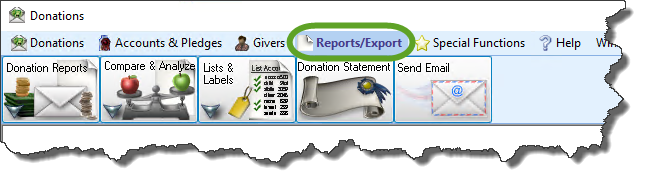
- Click Reports/Export in the Button Bar at the top of the screen.
- Click the Lists & Labels button that appears below.
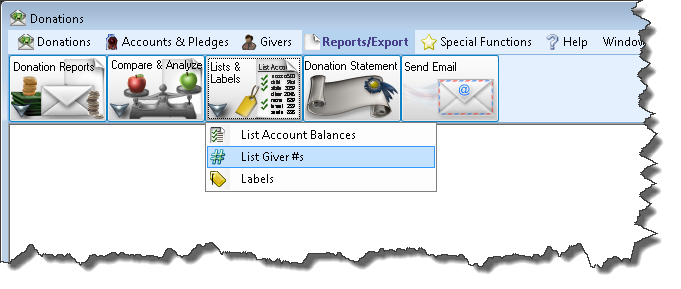
- Click the List Giver #’s button that appears in the adjacent menu.
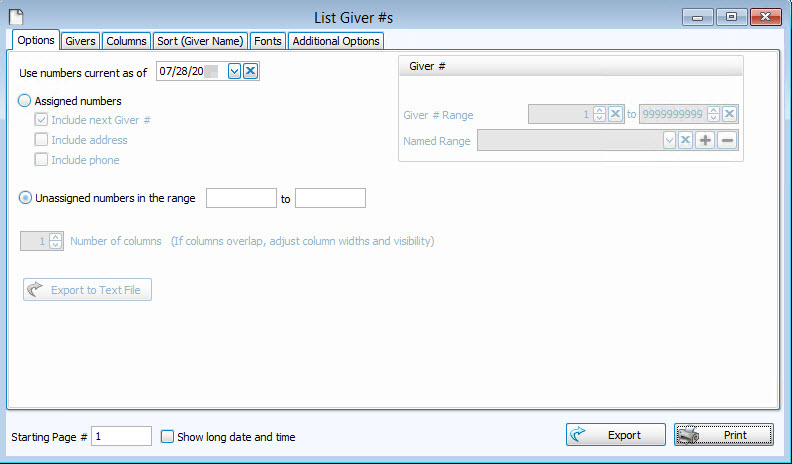
Click the Use numbers current as of option if you want a list of numbers in the past or future and enter the desired date in the box, otherwise leave today's date in that box.
You then have two choices for the type of Giver numbers to list:
- Assigned numbers — those currently in use.
- Enter the Giver Number Range to show only the selected span of numbers on the report. If want to use a saved a range of numbers under a reserved name, choose it from the Named Range box.
- Place a check in the box next to any of these options:
- Include next Giver # will prepare the report to show the Giver # assigned after the currently assigned number expires, if any has been assigned.
- Include Address shows the address of the Giver on the report.
- Include phone shows the phone of the Giver on the report.
- To conserve space on the printed report, you can change from a single column layout to a multi-column by changing the Number of columns.
- To save the list in a text file, click the Export to Text File button.
- Unassigned numbers — those not currently used by any Givers.
- Enter the number range desired:

Choose any of the following tabs to apply additional settings:
To specify certain Membership characteristics of the people you want to include. The characteristics for you to choose are actual fields that store people's information in The People File. This tab is the exact same as the People Selection Criteria in Membership Reports / Directory / Exports.
Determines the order and the appearance of the columns displayed.
Organizes the information into the desired order (and groupings).
Sets the style and size of the typeface used to display the contents of the report.
Place a
checkmark to select which, if any, Family Categories indicators you want to include (e.g. [V] for Visitor, [D] for Donor, etc.)
Once you have made all of your selections, click Print to view a Print Preview and then proceed in sending the file to your printer. You can also Export most reports and/or Send via Email as a file to be used outside of Church Windows.
 Click to see an example Giver Number List