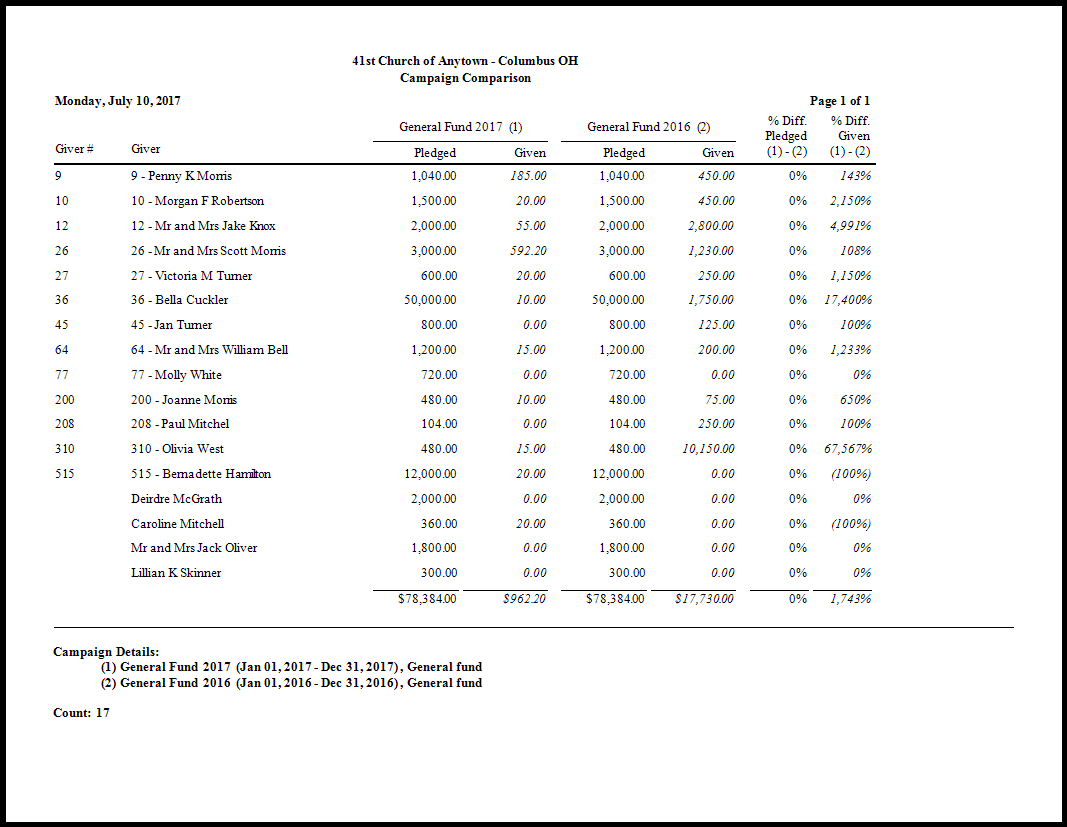
Campaign Comparison
The Campaign Comparison is a report that shows the similarities or differences between pledging campaigns and its participants.
To view or print the Campaign Comparison:
- Click Reports/Export in the Button Bar at the top of the screen.
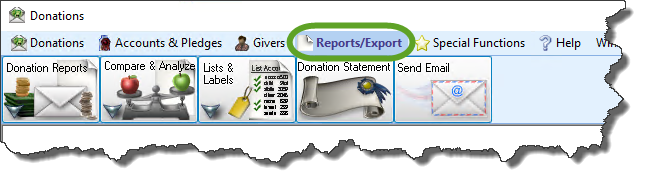
- Click the Compare & Analyze button that appears below.

- Click the Campaign Comparison button that appears in the adjacent menu.
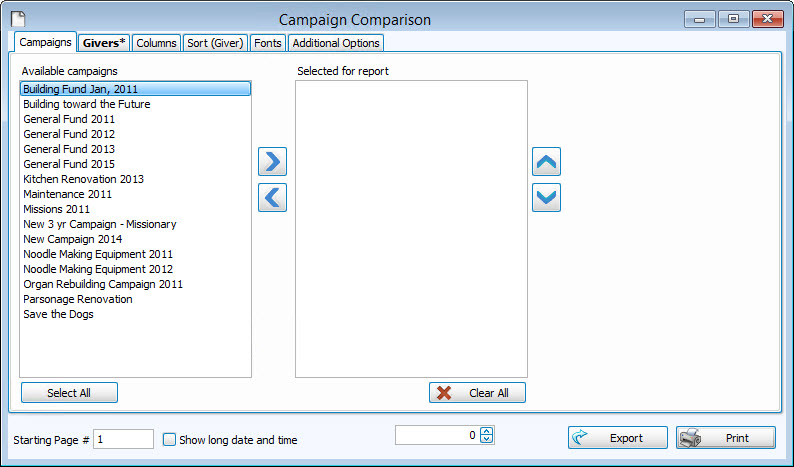
From the list of Available campaigns click the pledge campaign(s) that you want the report to show and click the  right button. The campaigns that show in the Selected for report list will appear on the report. For any items that you do not want the report to show, click the desired campaign name and click the
  left button.
Choose any of the following tabs to apply additional settings:
To specify certain Membership characteristics of the people you want to include. The characteristics for you to choose are actual fields that store people's information in The People File. This tab is the exact same as the People Selection Criteria in Membership Reports / Directory / Exports.
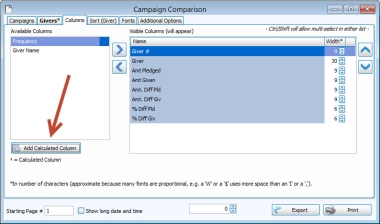
Determines the order and the appearance of the columns displayed.
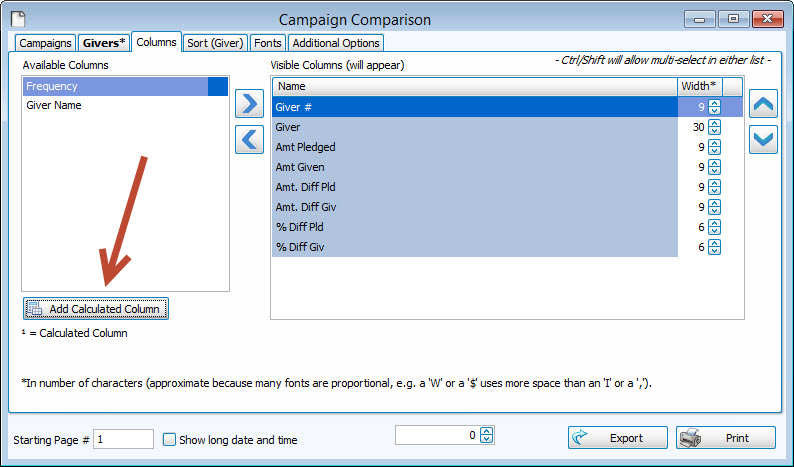
Additionally, this tab gives you the ability to add custom calculated columns:
Add Calculated Column
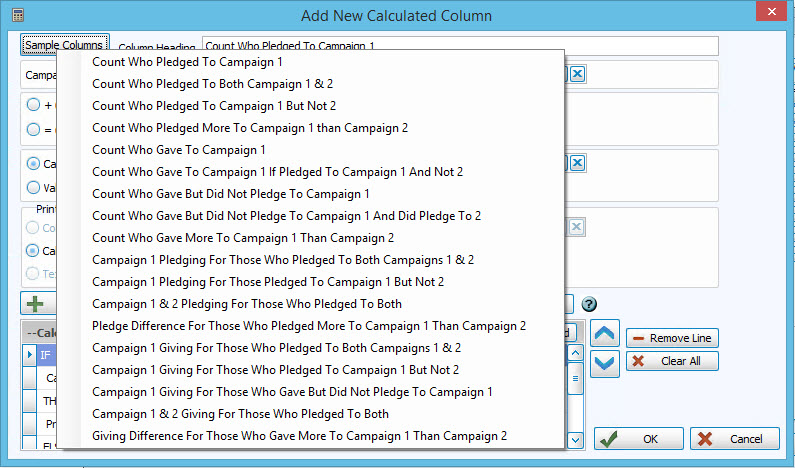
The Sample Columns button at the top left will give you common calculations that might be desired:
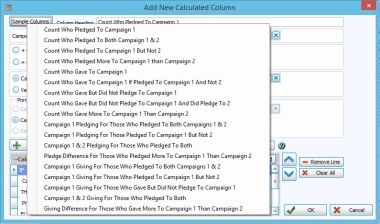
Selecting any of these will automatically fill in the fields with the specific calculation details to save time. You could also manually select calculations.
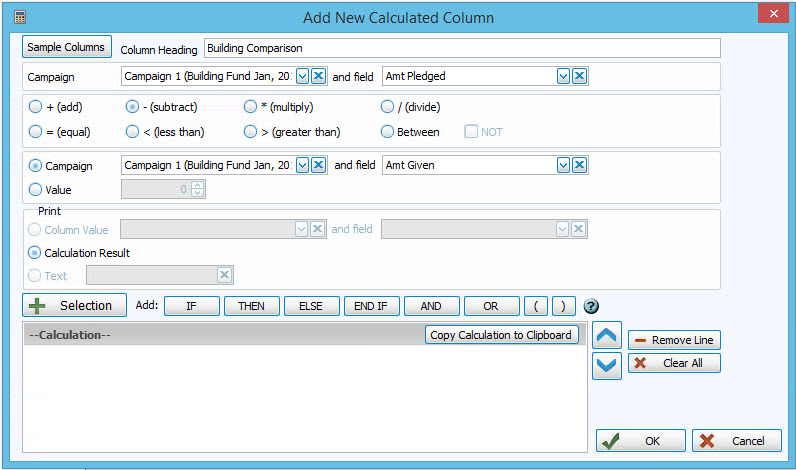
For example, to subtract an amount given from amount pledged n a building campaign, as shown:
You can click on the
Add button to add the calculated selection below. You can add multiple calculated columns or just one, as needed.
Organizes the information into the desired order (and groupings).
Sets the style and size of the typeface used to display the contents of the report.
Place a
checkmark to select which, if any, Family Categories indicators you want to include (e.g. [V] for Visitor, [D] for Donor, etc.)
Once you have made all of your selections, click Print to view a Print Preview and then proceed in sending the file to your printer. You can also Export most reports and/or Send via Email as a file to be used outside of Church Windows.