System Information
In Church Windows, the System Information screen contains your organization's name and address, and also gives you the opportunity to customize your copy of Church Windows.
Many of the changes you make on this screen will not take effect until you exit Church Windows and re-open the program.
To access the System Information screen:
- From The Initial Portal of Church Windows choose Administration.
- Choose Sys Info from the popup buttons that appear above it.
- The System Information screen will appear:

 Organization Info
Organization Name and Address
The Church name and address that appear here on the System Information screen were entered as the name and address of your Church when Church Windows was first installed.
To change your organization's name, address, and/or phone number, click the appropriate fields and make your changes. This information appears at the top of Church Windows Reports / Directory / Exports and as the return address on Donation Statements and Labels. If you choose to Use organization City, State, Zip Code and Area Code for new records when you enter a new family, the City, State and Zip code entered here will be the default address information automatically added to a new record which you can either leave or edit as needed.
Country (USA or Canada)
If you are a US customer, then leave the Country field at USA.
If you are a Canadian customer, then on the System Information screen, click the  dropdown button in the Country field and select Canada. Once you make this change, then the City, State field will change to City, Province, the Zip Code field will become Postal Code, and the Tax ID number will become Registration Number.
This change also affects Donation Statements, which are renamed to "Donation Receipts" and comply with Revenue Canada requirements. (See Canada Settings for detailed information about using Church Windows in Canada.)
Tax ID Number (for non-profit organizations)
In the Tax ID Number field on the System Information screen, enter your organization’s tax identification number, if you have one. This number will print on Donation Statements printed from the Donations Module and on Form 1099 MISC’s printed from the Accounting Module.
If the Country field is set to Canada on the System Information screen, this field will be called Registration Number.
Product Improvement Program
There is a  checkmark at the bottom of this screen for this option. This program helps Computer Helper Publishing improve this product for you.
The information that is gathered cannot be used to identify you or your organization or contact you, nor is any of the data entered by your organization collected.
Without interrupting you, this program periodically uploads information about your PC hardware and general usage data (to let us know which portions of the product are being used the most).
checkmark at the bottom of this screen for this option. This program helps Computer Helper Publishing improve this product for you.
The information that is gathered cannot be used to identify you or your organization or contact you, nor is any of the data entered by your organization collected.
Without interrupting you, this program periodically uploads information about your PC hardware and general usage data (to let us know which portions of the product are being used the most).
Users Settings
There is a checkmark on the right side of this screen for the option to "Always ask me to confirm closing a Module". This determines if a Module will close right away when you click the red X in the upper right to close that Module or if it will first show a confirmation popup before closing the Module, like this: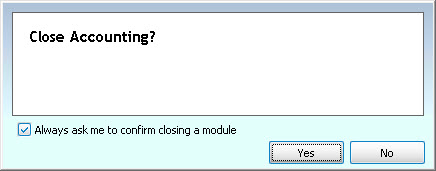
Licensing
This tab will give you information regarding which products you have licensed:
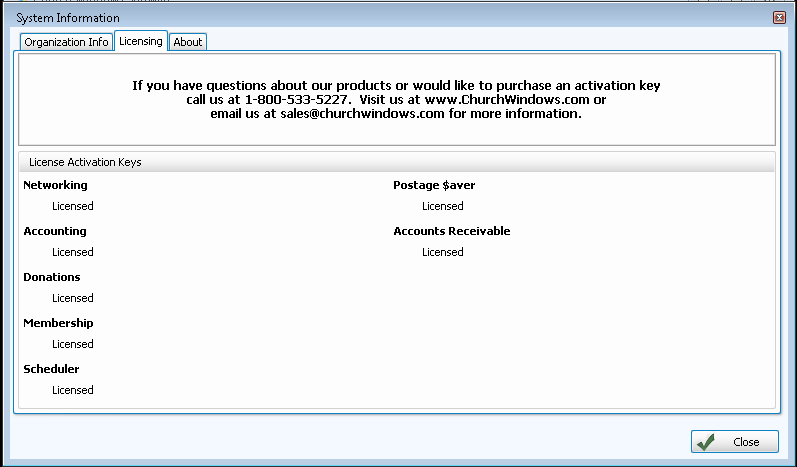
Accounts Receivable and Postage $aver are optional add-ons to the main set of Church Windows Modules. If you would like to start using any of the unlicensed Modules, contact support for more information at 800.533.5227.
About
This tab shows information about Church Windows and how to contact us:

