Import Donations from Vanco
Church Windows and Vanco offer two types of integration options.
-
Import via Download
With a download option, you can choose your date range to import donations and download them right into the Donations module. To obtain log in credentials from Vanco, submit a Web Services request.
-
Import via File
With the file option, Vanco will email you a file containing the donation data.
Import via Download
-
Go to Donations > Import Donations > Vanco > Import via download.
-
Choose a date range for your download.
Beneath the date fields, you'll see **Last downloaded up to [date]**. This is for informational purposes and references the last download rather than the last donations created and/or posted.
-
Click
 .
. -
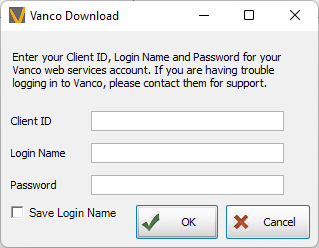
Confirm the date range and enter your Vanco credentials.
Import via File
On the Imported Donations tab, click  to browse to the Vanco import file.
Unmatched Items from Import
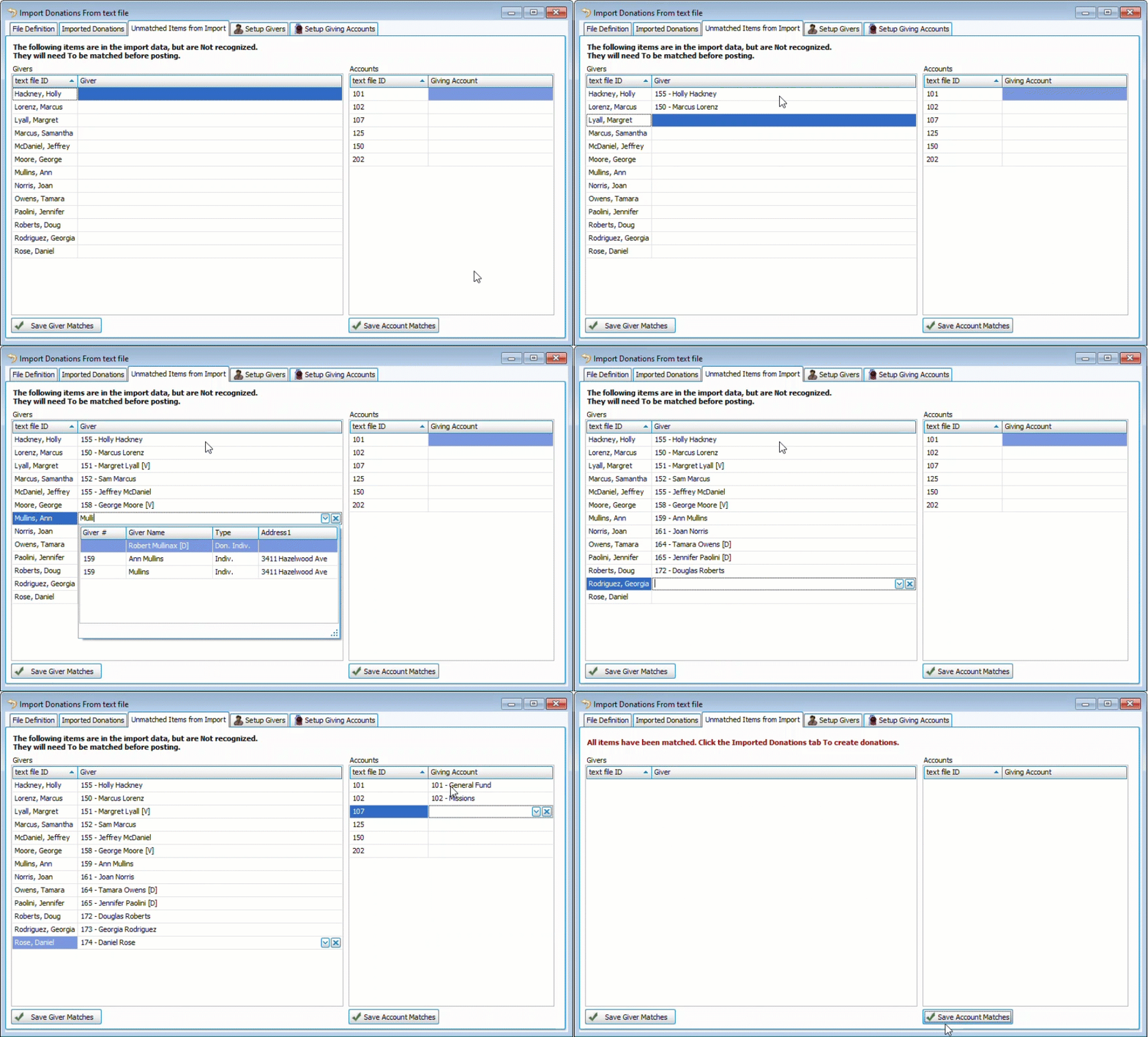
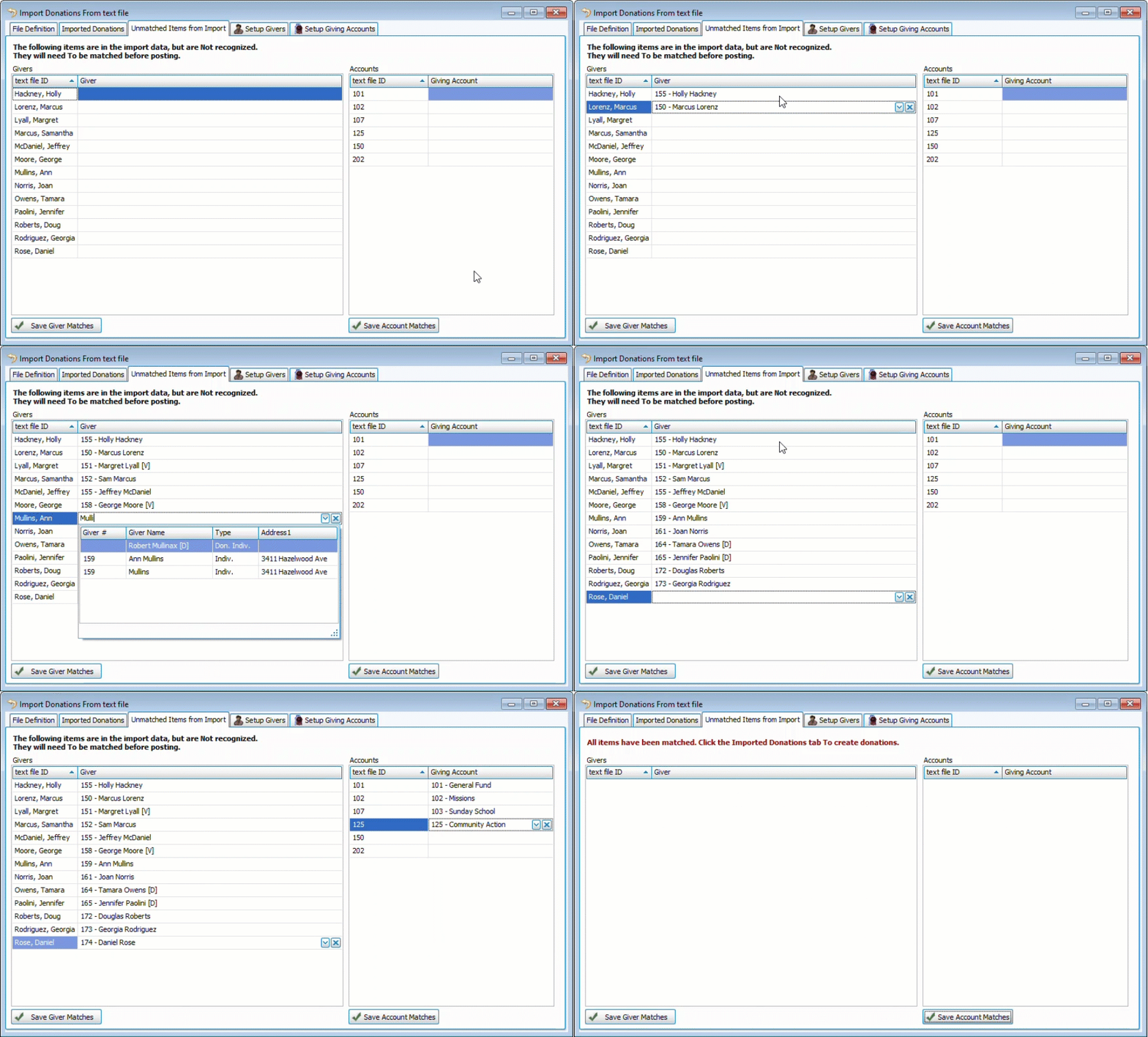
If there are new givers or accounts in the text, file they'll be included the Unmatched Items from Import tab to be matched to their corresponding giver record or giving account. Click  and/or
  to link the import information to your data.
These links can be managed from the Setup Givers and Setup Giving Accounts tabs.
Click  to create batches.
Donations that have an exact match on Giver, Date, Amount, and Account will be identified as duplicate entries and will not be imported. 
Post Batches
Once you've created donations, they can be found in Unposted Batches or you can assign batch codes and post from this screen. You can then Transfer to Accounting as you would for any other batch.