Import Donations from Text File
Donation Imports via Text allows you to import spreadsheets of donations. These spreadsheets can be in one of two formats;
-
.TXT - Tab Delimited File
-
.CSV - Comma Delimited File
Many services allow you to export data in one or both of these formats.
File Definition
Church Windows needs 4 essential pieces of information to create donations from your text file. You may optionally include a transaction number.
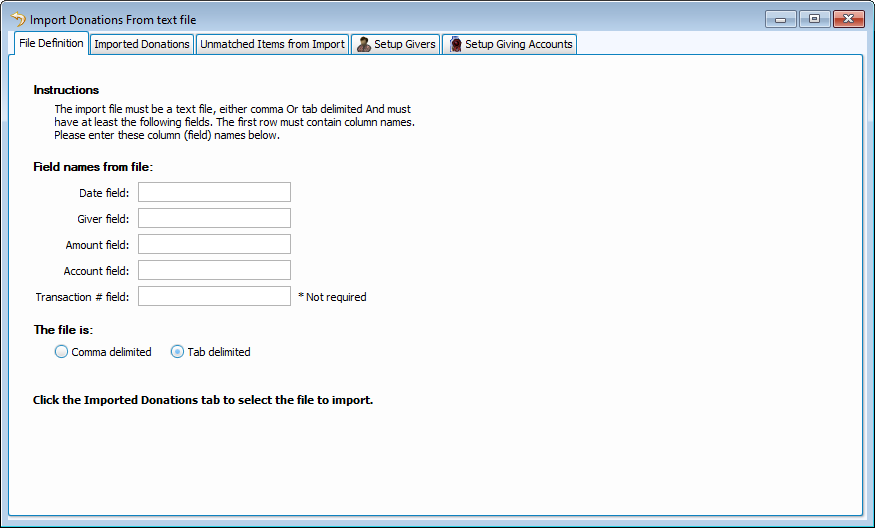
Enter the column heading from your import file for each piece of date, giver, amount and account. Some services may allow you to define these column heading names during the data export. Church Windows will remember these columns headings and default to these on the next text file import.
Select  for .CSV files or
  for .TXT files.
Imported Donations
On the Imported Donations tab, click  to browse to the text file you want to import. Once imported, Church Windows will change the file name to indicate what has been imported and what hasn't.
Unmatched Items from Import
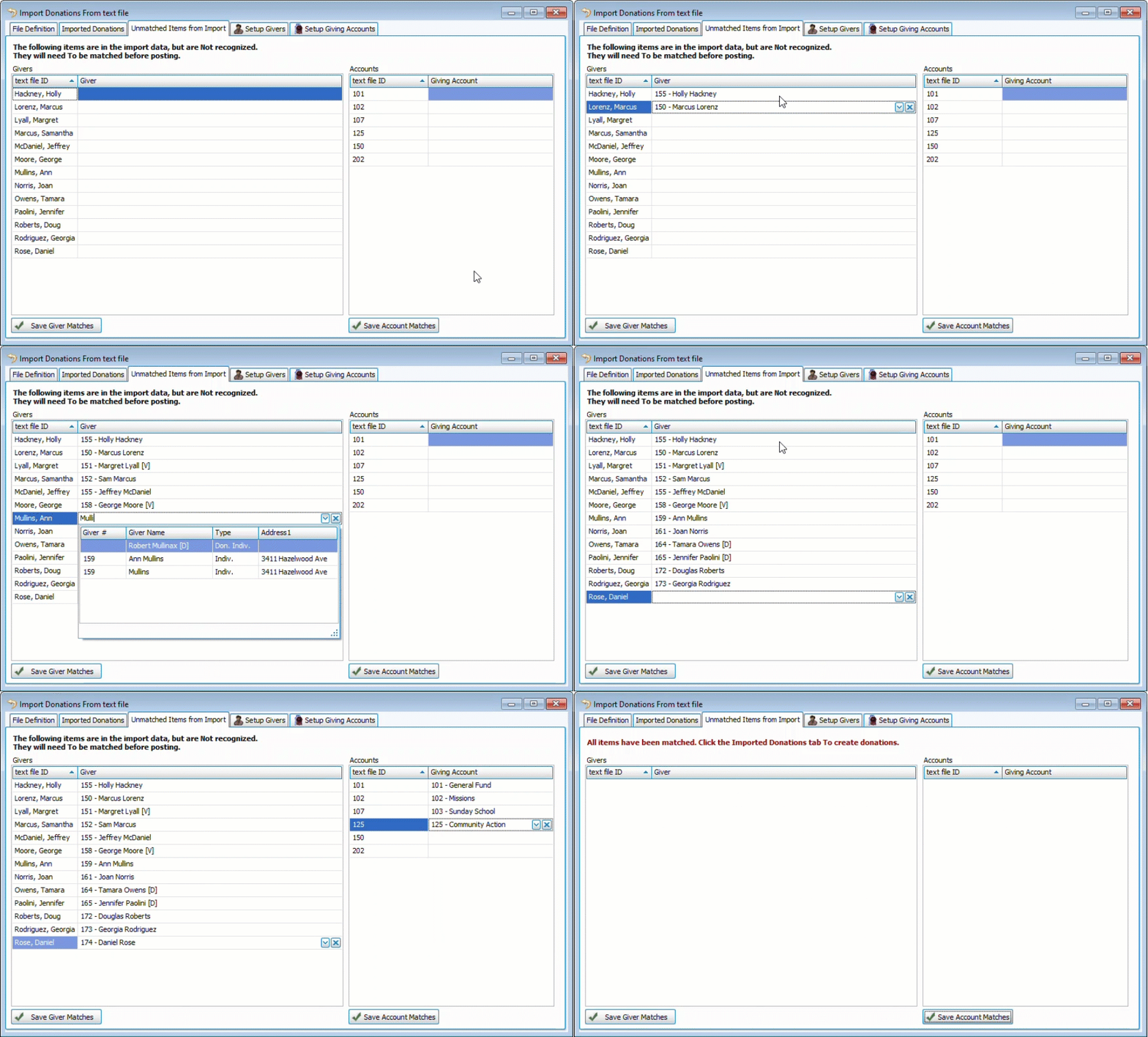
If there are new givers or accounts in the text, file they'll be included the Unmatched Items from Import tab to be matched to their corresponding giver record or giving account. Click  and/or
  to link the import information to your data.
These links can be managed from the Setup Givers and Setup Giving Accounts tabs.
Click  to create batches.
Donations that have an exact match on Giver, Date, Amount, and Account will be identified as duplicate entries and will not be imported. 
Post Batches
Once you've created donations, they can be found in Unposted Batches or you can assign batch codes and post from this screen. You can then Transfer to Accounting as you would for any other batch.