Enter Income
Use the Enter Income screen to register into Church Windows Accounting Module the money that a person or business has given to your organization. If you do not use the Donations Module, you may also use the Enter Income screen to post the total amount for each type of donation made to your organization. However, if you are using the Donations Module of Church Windows, make sure that you correctly Link Donations to Accounting to Accounting and only Enter Income from Accounting that has not already been entered into Donations.
To access the Enter Income screen:
- From The Initial Portal of Church Windows choose Accounting then either:
- Click Transactions in the Button Bar at the top of the screen, then click Enter Income
- Click on the Enter Income button in the of the Accounting Module
OR
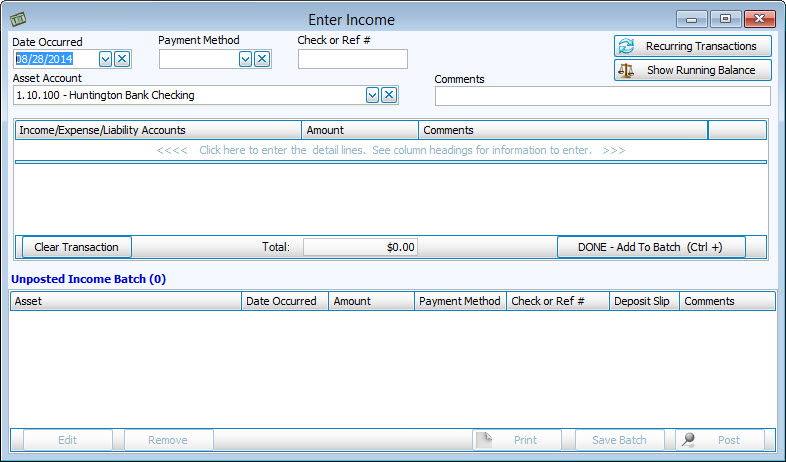
If you have set up Recurring Transactions to reuse in your transaction screens, click the button to open the screen and apply the transaction to your batch. While entering transactions, you can click the Show Running Balances button to do so for the items added to the batch.
- Date Occurred
If necessary, change the date in the box to the desired date. - Payment Method
Click the box to select the method by which this transaction is being made.- Type the Check or Ref #, if applicable.
- If you chose "Cash" or "Check" for your Payment Method, place a
 checkmark in the Print on Deposit Slip box if you plan to print a Deposit Slip with record of this transaction at a later time.
- Asset Account
Start typing the name or number of the account applicable to the transaction. You can also click the box to select it from the list. - Comments
Type an notes you wish to store with the transaction itself. (The comments entered here will show up on your Church Windows Accounting reports as Transaction Comments.) - <<<< Click here to enter the detail lines. See column headings for information to enter. >>>>
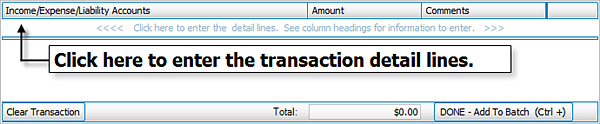
Click in this line to begin entering the information for the appropriate Income / Expense / Liabilities Accounts, Amount, and Comments (The comments entered on each detail line will show up on your Church Windows Accounting reports as Line Item Comments.)- When finished with the detail line, click the
 Add button to add the line item.
 - If the transaction you are entering contains additional components that are part of a whole transaction, click the next line and enter the line item.
- Click the
 Delete button to remove the line.
 - Click the
 Undo button to discard changes without saving.
 - When finished with all necessary detail lines, click the DONE — Add To Batch (CTRL +) button.
- When finished with the detail line, click the
Repeat these steps for every transaction until all your batch items have accumulated in the Unposted Income Batch list. You can make changes to, or remove any batch item. After you first click on the desired item, click either Edit to make changes or Remove to discard it.
Click the button to Save the batch for use at a later time, and/or Print to print a listing of the items. To finalize the posting of your batch items, click Post.
The automatically generated transaction number and the total dollar amount for the batch will display in a message asking you one last time if you wish to print the batch. Answer by clicking Yes or No.
Use the transaction number(s) in the message to look up the posted transaction(s) on the Browse Transactions screen. Each transaction item in the batch will appear as an INCM transaction.
If you choose to Print the batch, you will first be shown a Print Preview and then you can proceed in sending the file to your printer. You can also Export most reports and/or Send via Email as a file to be used outside of Church Windows.
