Beginning Balances
The balance of an account is initially determined by the Beginning Balance, the dollar amount set at the beginning of each Accounting Year. The Beginning Balances are either entered manually by the Users or the software can Update beginning balances from prior Accounting Year ending balances. By entering the accurate Beginning Balances and subsequent Transactions into the software, you define the foundation by which the software calculates its running and end-of-year balances that will be shown in the Chart of Accounts and presented on future Reports.
To manually enter the Beginning Balances:
- Click Manage Accounts in in the Button Bar at the top of the screen
- Click the Beginning Balance button:
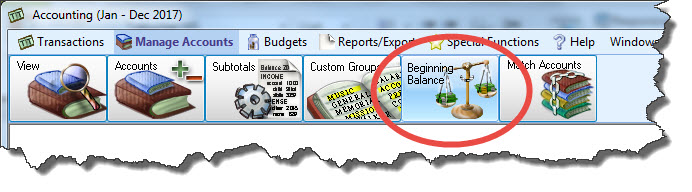
The Setup Chart of Accounts screen appears:
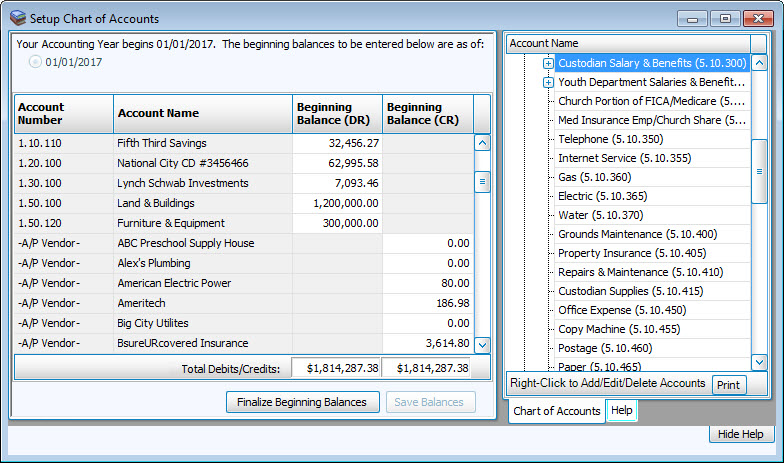
Type the Beginning Balance amount in the space provided for each account. When finished, click the Save Balances button. You can either close the screen to continue later, or proceed to Finalize Beginning Balances.
Finalize Beginning Balances
When you and your Church have determined that the Beginning Balances for the Accounting Year are correct, you can lock the balances in place to where they become unchangeable by clicking Finalize Beginning Balances button.
We strongly advise Making a Backup your Accounting data before clicking the Finalize Beginning Balances button. Clicking the button will display a prompt to warn you that, once finalized, any changes to a beginning balance must be recorded through a transaction entry. You can click No to refrain from going any further, or click Yes to Finalize Beginning Balances.
Beginning Balances Out of Balance
Review the two boxes listed next to Total Debits / Credits at the bottom of the screen. The sum of all Beginning Balance (DR) amounts must equal the sum of all Beginning Balance (CR) amounts for you to successfully complete the Finalize Beginning Balances feature. If the Total Debits do not match the Total Credits, you have the option to click Save Balances and further investigate your accounts, transactions, and totals for accuracy and make corrections you determine are necessary to balance the Total Debits with the Total Credits. You also have the option to click Finalize Beginning Balances, which will place the amount of money throwing the Chart of Accounts off balance into a new account.
- If you click the Finalize Beginning Balances button with the Totals out of balance, a message will appear to inform you that you are currently out of balance.
- Here, you have another chance to review and verify your balances by clicking the Back to Balances button.
- On the other hand, if you click the Balance button a message appear to inform you that the software will create an account called "TO BALANCE [followed by the Accounting Year]" to store the amount throwing the Chart of Accounts out of balance.
- Click Yes to proceed, or No to cancel. If you click Yes, you will have to enter a transaction to make any changes to the beginning balance you wish to record.
Once you finish the steps to Finalize Beginning Balances, the Beginning Balance button once found under the Manage Accounts menu will disappear.
