About Accounting
The Accounting Module of Church Windows provides your Church with an interface to apply the fund accounting methods and practices your Church has decided to use to keep track of its financial activities.
For each calendar or non-calendar (fiscal) Accounting Year, you will have a Chart of Accounts, to which you can apply Budgets and Budget Projection amounts and financial Transactions. You can also Print Checks, statements, and Reports that pull up financial information based on the transactions and the accounts they affect. While checks and statements can only be printed, Accounting provides Export features where you can either save the report contents to a file or send the contents in a file by email.
Additional features of the
Accounting Module include a
Bank Reconciliation, an optional way to
Transfer Donations to Accounting and/or the Payroll software, as well as printable tax form data for your Accounts Payable Vendors / Payees.
- From The Initial Portal of Church Windows choose Accounting.
- The Accounting Portal will have nine different in the center of the screen for the most commonly used functions.
- Access to every available option in the Accounting Module is available in the Button Bar at the top of the screen

? Help — This is the Help button which will open this help interface (you can also press the F1 key on your keyboard from anywhere in Church Windows to bring you to the relevant section of these help files).
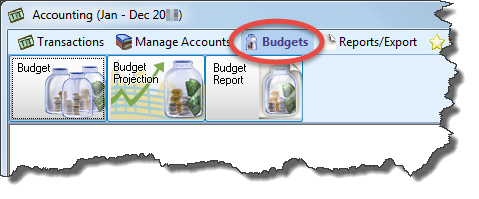
Manage Accounts, Reports, Budgets and Budget Projection, and Bank Reconciliation
Enter Income, Enter Bills, Pay Bills, and Print Checks
Button Bar

 Transactions
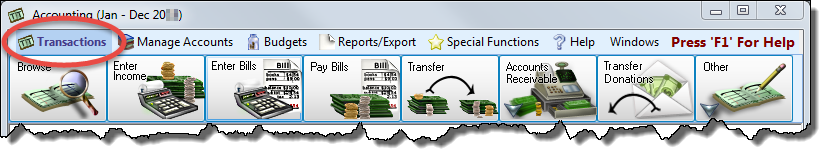
This menu includes:
Browse Transactions, Enter Income, Enter Bills, Pay Bills, Transfer, Accounts Receivable, Transfer Donations to Accounting
The "Other" button provides functions to Enter Spoiled Check Numbers (Voided Checks),
Adjust Asset Account, Payroll Journal Entry, and
Journal Entry Transactions: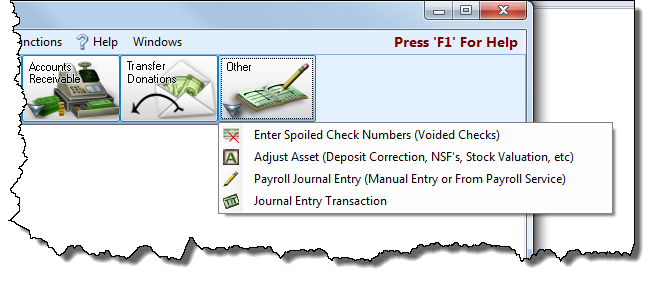
Note:
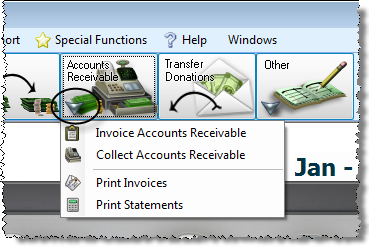
The software also provides an Accounts Receivable component that you can use only after activating the Licensing key to unlock its functions. If the key is successfully activated, the Assets will contain a separate Accounts Receivable ledger for you to keep track of each Client that pays your Church for services your provide. To obtain a key to activate Accounts Receivable, please call our toll-free Customer Service line at 800.533.5227 and ask about purchasing an Accounts Receivable activation key.
The
Accounts Receivable portion of the
Accounting Module provides the following additional options:
Manage Accounts
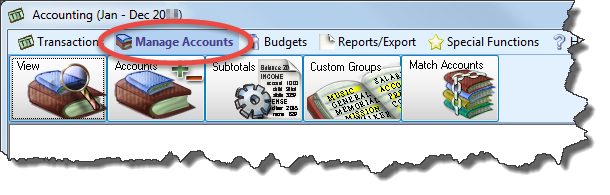
Choice here include View Accounts, Add an Account, Subtotals, Custom Account Groups, and Match Accounts.
Reports/Export
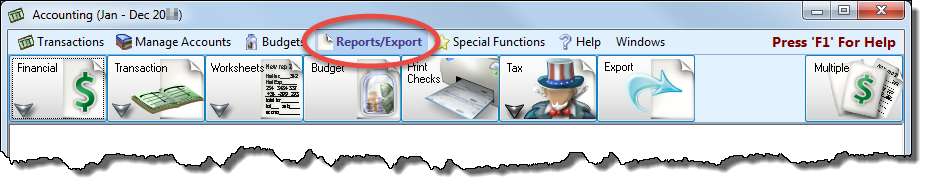
Here you have several categories of reports: Financial Reports, Transaction Reports, Worksheets, Budget Report, Print Checks, Tax Forms, and Export.
Special Functions
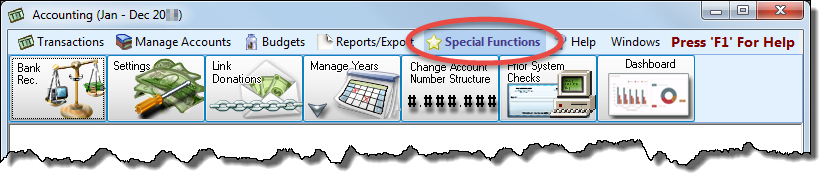
Special Functions include Bank Reconciliation, Accounting Settings, Link Donations to Accounting, Manage Years, Change Account Number Structure, and Prior System Checks.
Help and Windows
The final two options in the Button Bar across the top of the screen are Help and Windows.
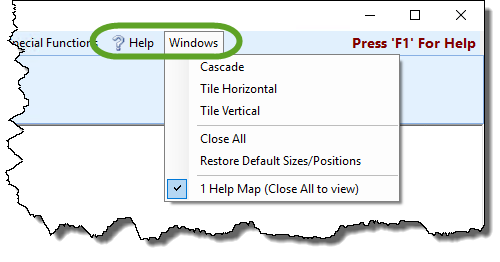
? Help is a quick link to bring you to these help files. You can also always press F1 on your keyboard to go to the specific area of these help files relevant to the screen where you pressed the F1 key.
The Windows dropdown menu is divided into three sections which allow you to adjust how your windows or screens appear in the current Module. These options are quite handy when multitasking with various functions in the software.
- The first section provides three choices for arranging the current set of open windows:
- Cascade
Displays the windows in a staggered formation, starting in the top left corner and continuing down and to the right in small increments: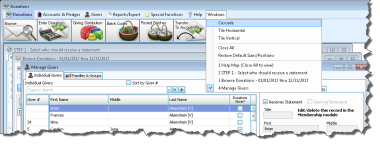
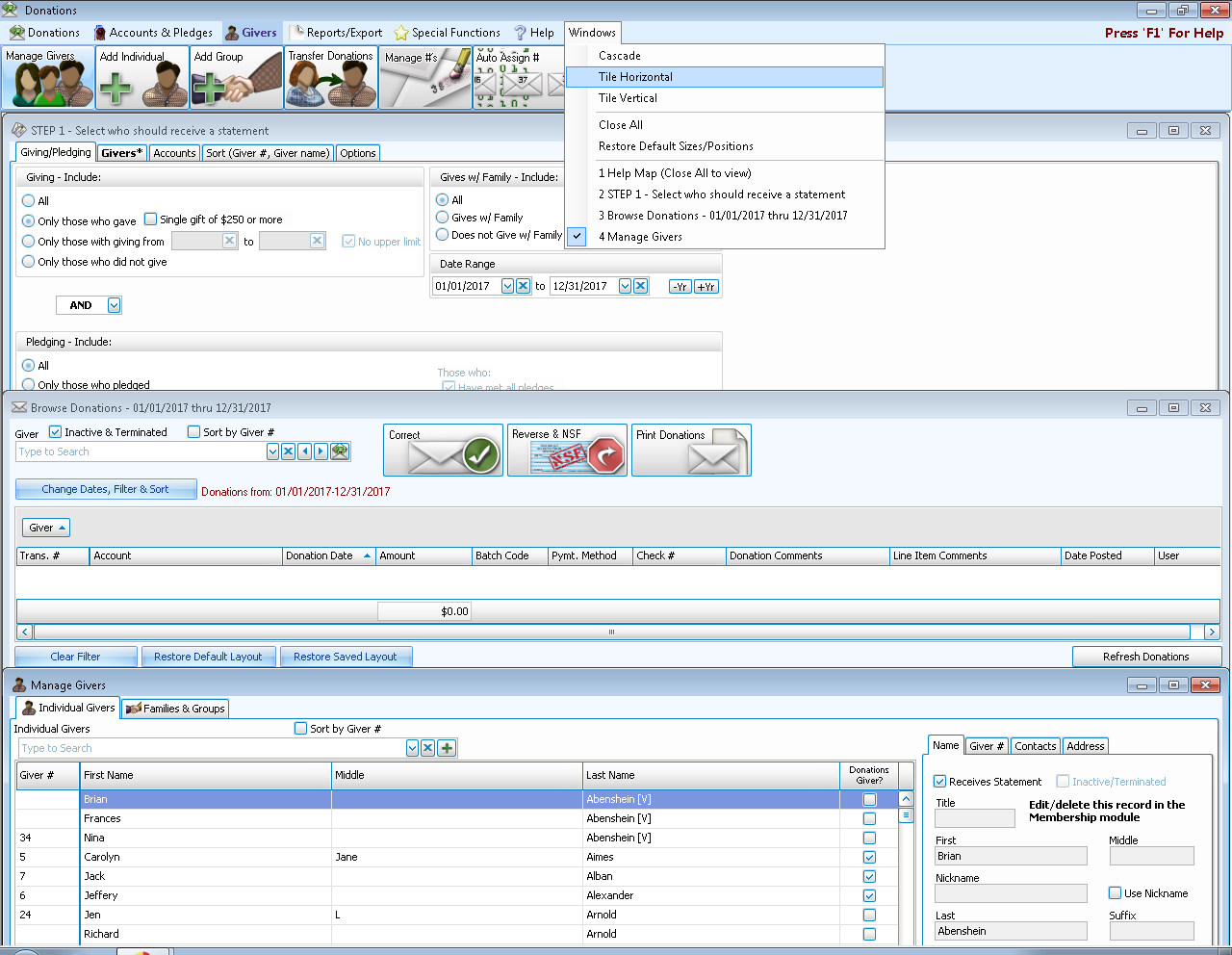
- Tile Horizontal
Displays the windows stretched horizontally, stacked top to bottom: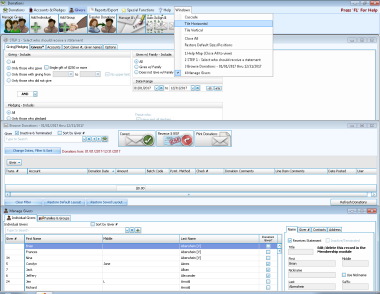
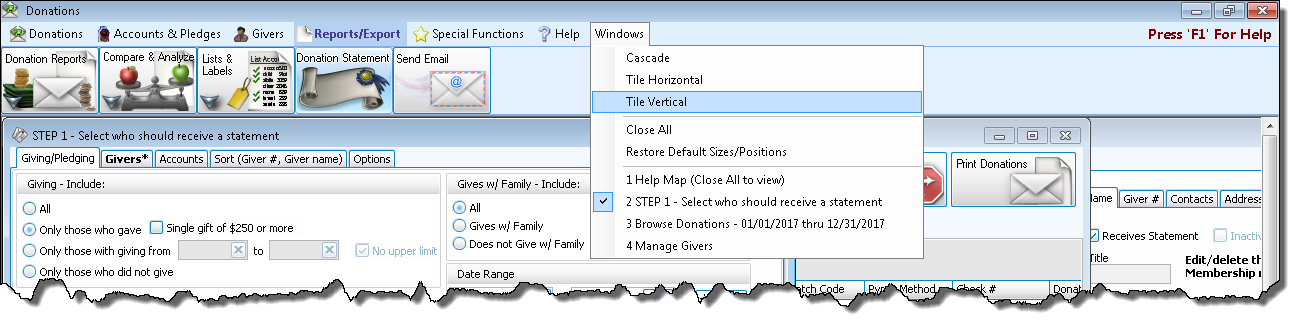
- Tile Vertical
Displays the windows stretched vertically, arranged side-by-side: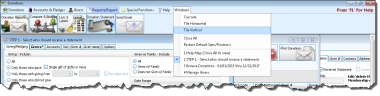
- The middle section in this menu includes two functions:
- Close All — This will close all open windows in the current Module (useful for functions that require you to close all other windows).
- Restore Default Sizes/Positions — This choice will Restore screens to their original size and position
- The bottom section contains a list of each of the windows that are currently open. Clicking on one of them will bring that window to view in front of the other open windows.