Auto Assign Numbers
If only a few numbers need added or changed, Manage Giver Numbers provides a quick way to end or change individual numbers. If however, new numbers are assigned every year or the goal is to abridge the list of numbers so that there aren't gaps and spaces in the sequence, Auto Assign Numbers provides a mass assignment option.
To review current assignments, List Giver #s has options to see assigned, unassigned, and future numbers.
Important!
We always recommend Making a Backup of your data before you begin this process.
Note:
Giver #s are not required. If your Church does not use physical envelopes or use numbers in your operations, you may elect to eliminate them. You can still enter, keep track of, and print Reports, Labels, and Statements for Givers without assigning them numbers.
To access the Auto Assign Numbers screen:
- From The Initial Portal of Church Windows choose Donations
- Click the Givers menu option in the Button Bar at the top of the screen
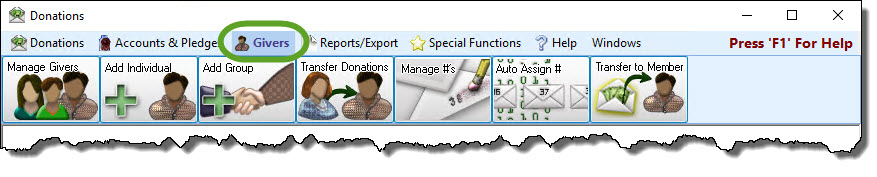
- Click the Auto Assign # button

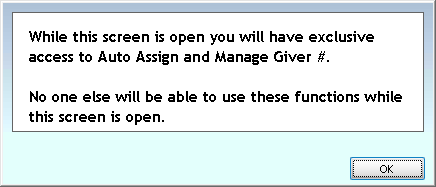
- A window will popup alerting you that only one of your Users can access this screen at one time, click OK:
- The Reassign Giver Numbers screen will default to a start date of January 1 of the next year, but you make this any date you'd like.

- By default, any number without a specified end date, will continue in perpetuity. All currently assigned numbers will be selected. They can be deselected, by unchecking the box in the left column.
Filter and Sort Options
-
Toggle the display of individuals and giving units by clicking the down arrow on the drop down in the upper left of the window. These filters adjust who displays below, but you won't lose changes or assignments you've made.

-
Sort the list by clicking on the Name or Current # on 12/31/21 column headers or by selecting your sort from the drop down at the top of the screen and clicking Apply Sort.
-
Check the box Show Only Selected to see the current list of people who will be receiving numbers.
Ending Numbers
-
End a number by clicking the End # button in the Current column. The default date will be 12/31 of the current year, but this can be changed to any date with the calendar. Click End # and that change will be immediately saved, even if you Cancel and Close the Reassign Giver Numbers window.
Assigning New Numbers
-
To assign a new number to someone, you can search for your giver using the search drop down or by scrolling the grid. Check the box in the left column. Givers that will be assigned a number will be highlighted in green.
-
Once you have your selections, click the Assign Selected button.

-
If you currently have rows hidden, check the box on the Assign button to reveal them.
-
New numbers will be assigned in the selected order. If there are any conflicts, those lines will appear in red and can be deleted or changed individually, or corrected and auto assigned again.
-
Click Save and Close to save your selections with the new assignments or click Cancel and Close to abandon those changes. Any numbers you've ended on this screen stay saved.
