Recurring Events
An event can be set up as repeating periodically when you are initially Adding a New Event or later by Editing or Deleting an Event.

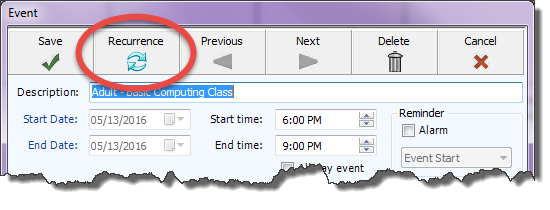
- Click the Recurrence button at the top of the screen:
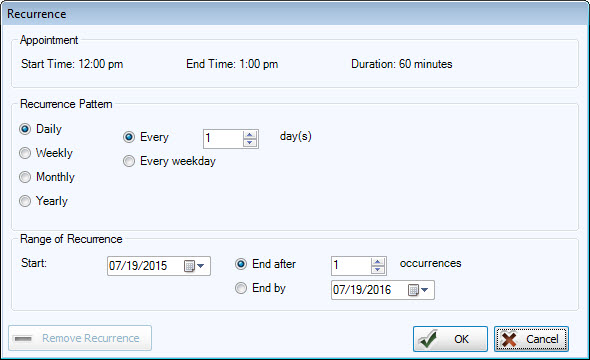
- The Recurrence screen will open:
- Recurrence Pattern — select how often the event will repeat:
- Daily
Select whether the event will repeat every day, every weekday, or in an interval that you create (for example, every 3 days). - Weekly
Indicates that the event should repeat every week (or in an interval that you specify such as every 2 weeks) and which day of the week the event should repeat. - Monthly
Choose between having the event repeat on a specific day of the month (day 8 for example) or on specific day of a specific week of the month (the first Tuesday) and how frequently (every month or every 3 months). - Yearly
Allows you to repeat the event once a year on a specific date (February 7) or on a specific day of a specific month (the First Tuesday in February). - Range of Recurrence
- The Start date selection will represent the first occurrence of the event.
- You can choose to end the recurrence either after a certain number of occurrences, or on a particular End by date.
- Click OK to save your new recurrence information or click Cancel to discard the changes you have entered.
The information you entered on the Recurrence screen will be
summarized on the Event Screen. Recurring events will be indicated
with a  recurring icon beside the event description on the grid.
Edit Recurring Events
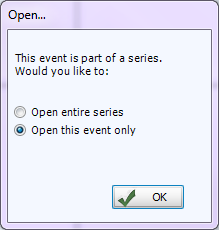
When you double-click an existing Recurring Event on the grid, a dialog box
will appear telling you that the event is part of a series. The screen
will then ask whether you want to open the entire series or this event
only. Click the  radio button beside your desired choice and click OK:
Open
entire series
You can edit not only this
date but also all of the future events in the series and the recurrence information.
Open
this event only
Any changes you make to
the event will affect the selected date only. The other events in the
series will remain unchanged.
To make this event a one-time occurrence:
- Click the Recurrence button at the top of the screen.
- When the Recurrence screen opens up, click Remove Recurrence.
- Click Save & Close to remove all dates from the series except the date being edited.
