Calendar
Scheduler will open to the Calendar/Event grid view. Double-click a day or time to add Events In calendar view, you can adjust what information you see in your calendar using:
Display

View grid by:
-
The default view is View by Date: Day, but the default can be changed in Options.
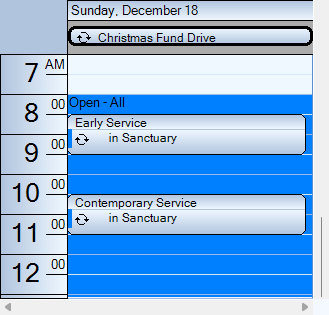
Day
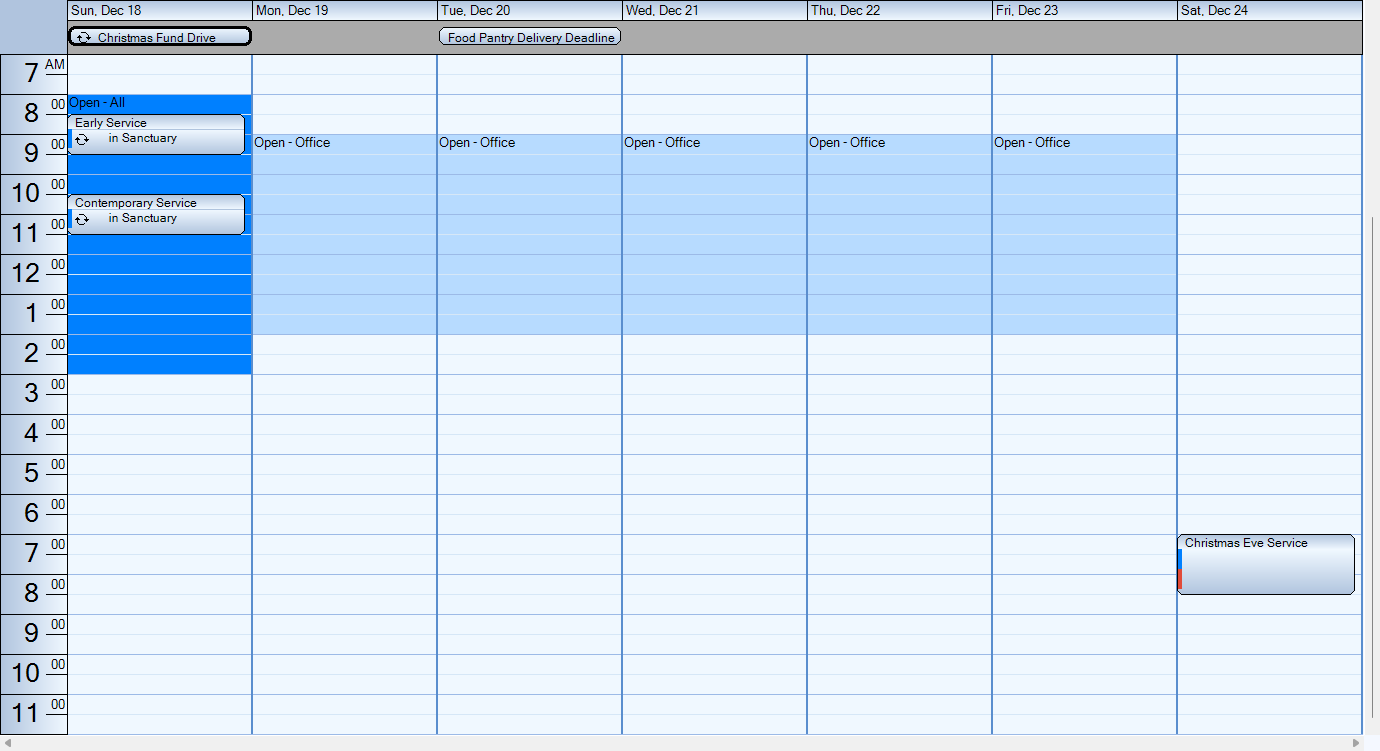
Week
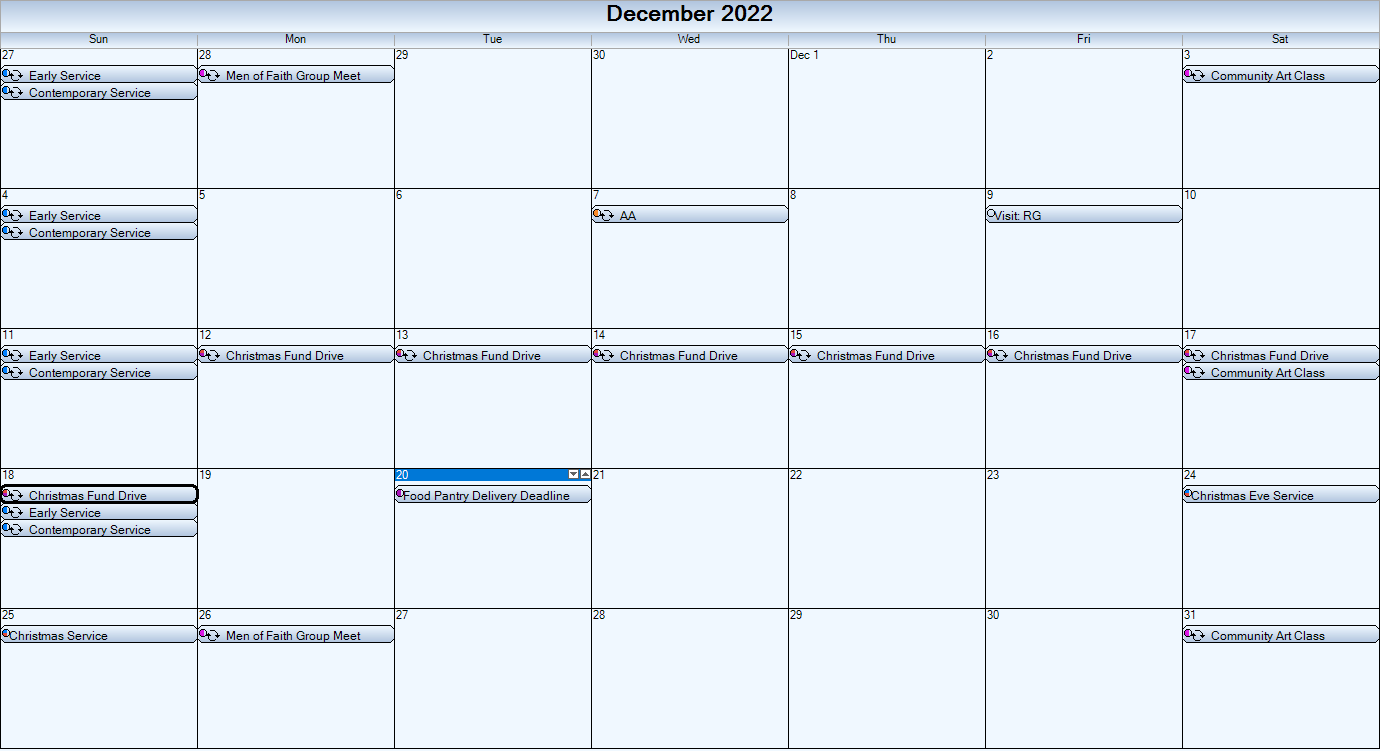
Month
View Events by:
-
Week and month views are not available in View Events By Equipment or Person
Date
See examples above for viewing by Day, Week, or Month.
Location
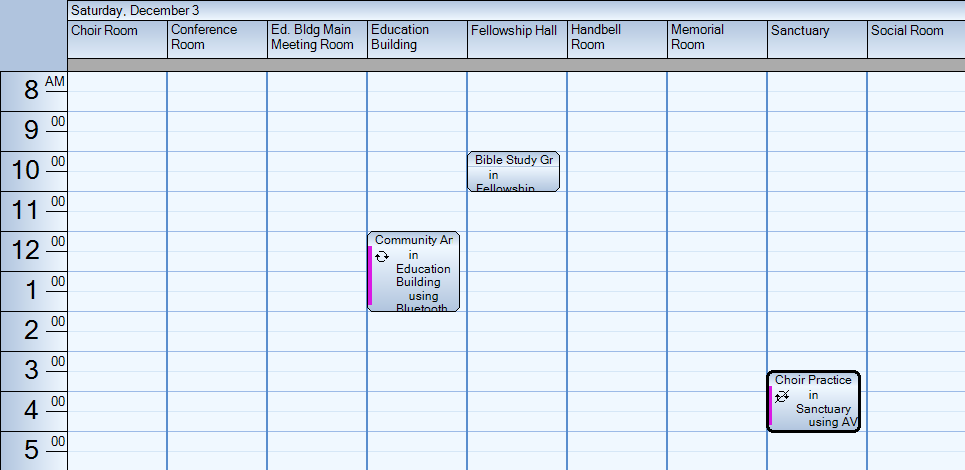
Equipment
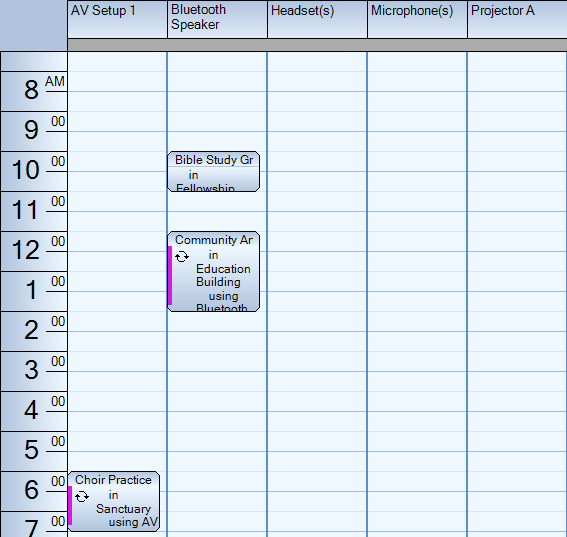
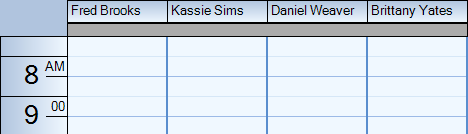
Person
Calendar
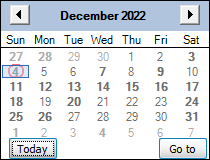
The mini-calendar in the upper right defaults to the current month. This default can be changed in Options. Today's date appears circled in red and the dates shown on the grid will appear highlighted in blue on the calendar.
-
Move months with the arrow buttons.
-
Click on a calendar date to view it in the grid.
-
Click the Today button to return to today's date.
-
Click the Go To button to enter a specific date.
Filter
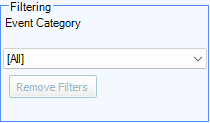
The filtering section in the lower right allows you to limit the events that appear within the grid by Category, Location, Equipment or People.
-
Use the Category drop down to show only events in the selected category.
-
Check the Show scheduled only box to display only the locations/equipment/people that have been assigned.

-
 when Calendar is set to View by Location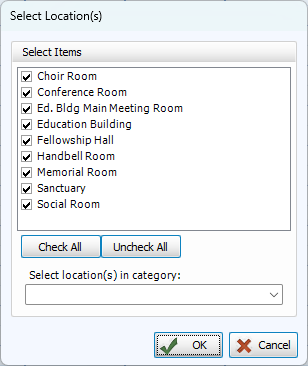
-
 when Calendar is set to View by Equipment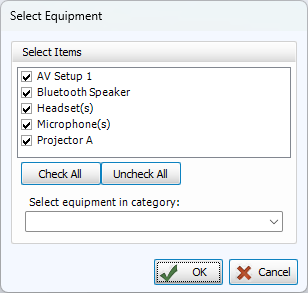
-
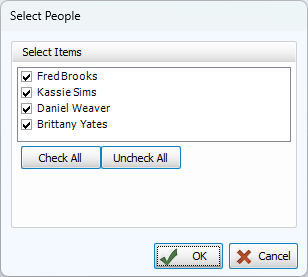
 when Calendar is set to View by Person