Accounts Receivable Invoices
Once you have prepared the
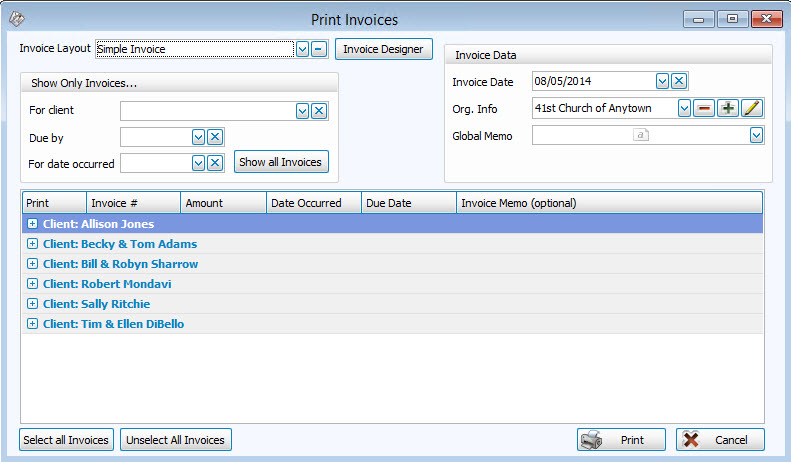
Invoice Accounts Receivable information for a Client who owes money to your organization, you can print the invoice to send it to the client. To print the invoice, use the Print Invoices screen. The Print Invoices screen will show you that you can set up a layout of how the invoice is to appear, which you can use time and time again.
- To access the screen, click the Accounts Receivable button in the Transactions menu.
- Then, click Print Invoices:
- Select the Invoice Layout from the dropdown box, or click Invoice Designer to design and save a new one using the
A/R Invoice and Statements Designer.
The default layouts that come with Church Windows will all say [Template] and then the name of the layout. These templates cannot be modified or replaced, however they can be used as a starting point as long as you enter a new name when you save the layout. Any layout that you modify or create cannot have [Template] before the name of the layout.
- Show Only Invoices...
Choose any or all of the dropdown boxes:- For Client name selected
- Due By a specific date
- For Date Occurred
- Show All Invoices that can be printed
- Invoice Data
- Invoice Date - Enter the desired date for your invoices.
- Org. Info - Specify the
Organization Info
you wish to use for your invoices.
Unless otherwise specified, your Church name will appear at the top of the report as you initially entered it into the Organization Info stored in System Information in the Administration area of Church Windows.
If you need to create additional sets of Organization Information, click the
 Add button. Or, select an existing name from the Org. Info box and click either
  Edit to change it or
  Delete to remove it from the list.
 - Global Memo - Enter a new message, or select a previously entered one from the dropdown if you would like to include a message on all Invoices. (Alternatively, you can use the Invoice Memo (optional) to include a personal message for one specific Client)
- To reposition or format the information, open the
A/R Invoice and Statements Designer interface. Here, you can drag and drop the Organization Info field from the right, and when you let go of the mouse button, you can further customize which organization info fields and where you want them:
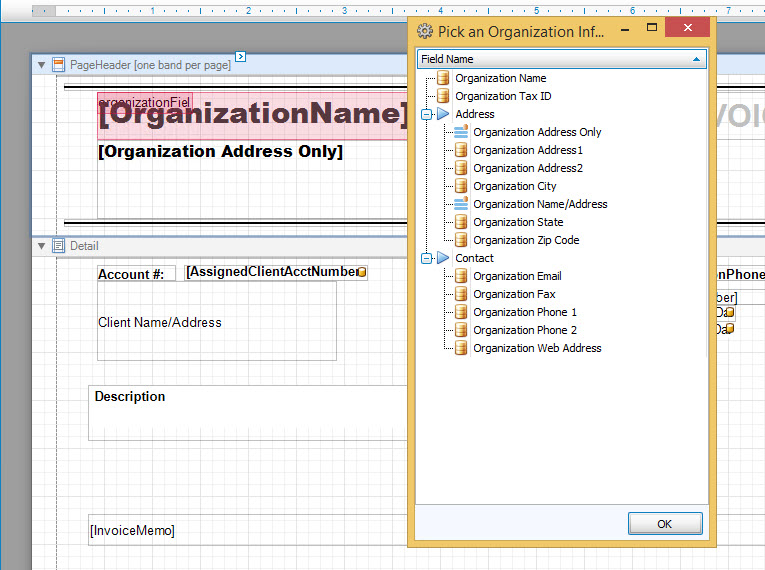
- Once finished, it will ask if you want to name the layout to access it later, and save it.
- In the list of invoices, click to place a
 checkmark in the Print box next to each invoice you wish to print. You can also click the buttons at the bottom of the screen to Select All Invoices, or Unselect All Invoices.
- Type any additional information under Invoice Memo (optional).
- There is another option on the
A/R Invoice and Statements Designer called Edit Detail Grid:

- Selecting this will open up a new window to further allow you to customize the report.
- Here you can use the Appearance/
Fonts tab to choose the background color, the text color, and the size and font style to be used, as well as the
Columns / Fields tab tab to select which fields you want to show.
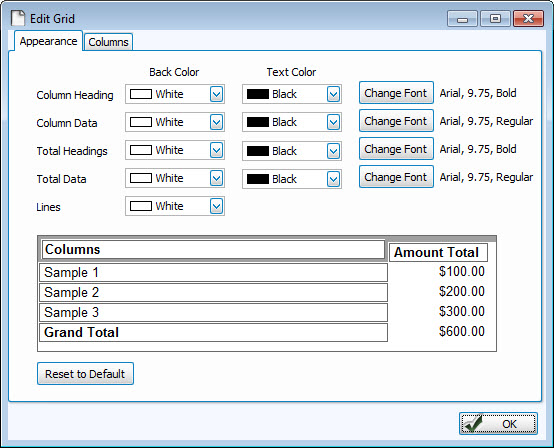
- Once these are all set, click on OK.
- Once you have made all of your selections, click Print to view a Print Preview and then proceed in sending the file to your printer. You can also Export most reports and/or Send via Email as a file to be used outside of Church Windows.
Note:
If you wish the invoices to print the Invoice Date and the Global Memo information, first make sure that the Invoice Layout shows the Invoice Date and Global Memo fields for the selected in the
A/R Invoice and Statements Designer.
Note:
To move objects on the Statement Designer screen very precisely, you can hold down the CTRL key and use the arrow keys on your keyboard to move the object(s) very minutely. You can also hold the SHIFT key along with CTRL and the use arrow keys to either stretch or shrink the size of the object(s).
Note:
When naming a new report layout, keep in mind that you are creating a template which can be used for other reports with different data in the future, therefore names should NOT include specific dates or the search criteria you used to compile the report. Instead, the name should indicate what kind of information will be included in the report.
