Donations Dashboard
Six types of graphs are available to view and/or print a visual comparison of various information about the Pledges and Donations recorded in your database. The available graphs are: Campaign Thermometer, Pledge / Giving Thermometer, Giving Accounts Distribution, Steps Graph, Attendance vs Giving, and Account Weekly Balance
To access the Donations Dashboard screen:
- From The Initial Portal of Church Windows choose Donations
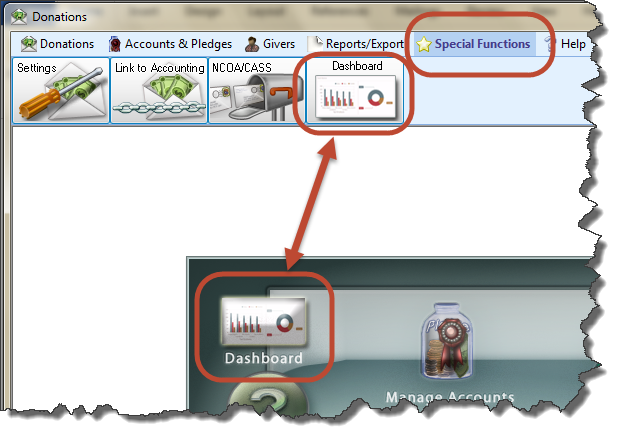
- Then, from the
in the center of the screen, choose Donations Dashboard
- Or, in the Button Bar at the top of the screen choose Special Functions and then click Donations Dashboard:
- The Dashboard will look like this:
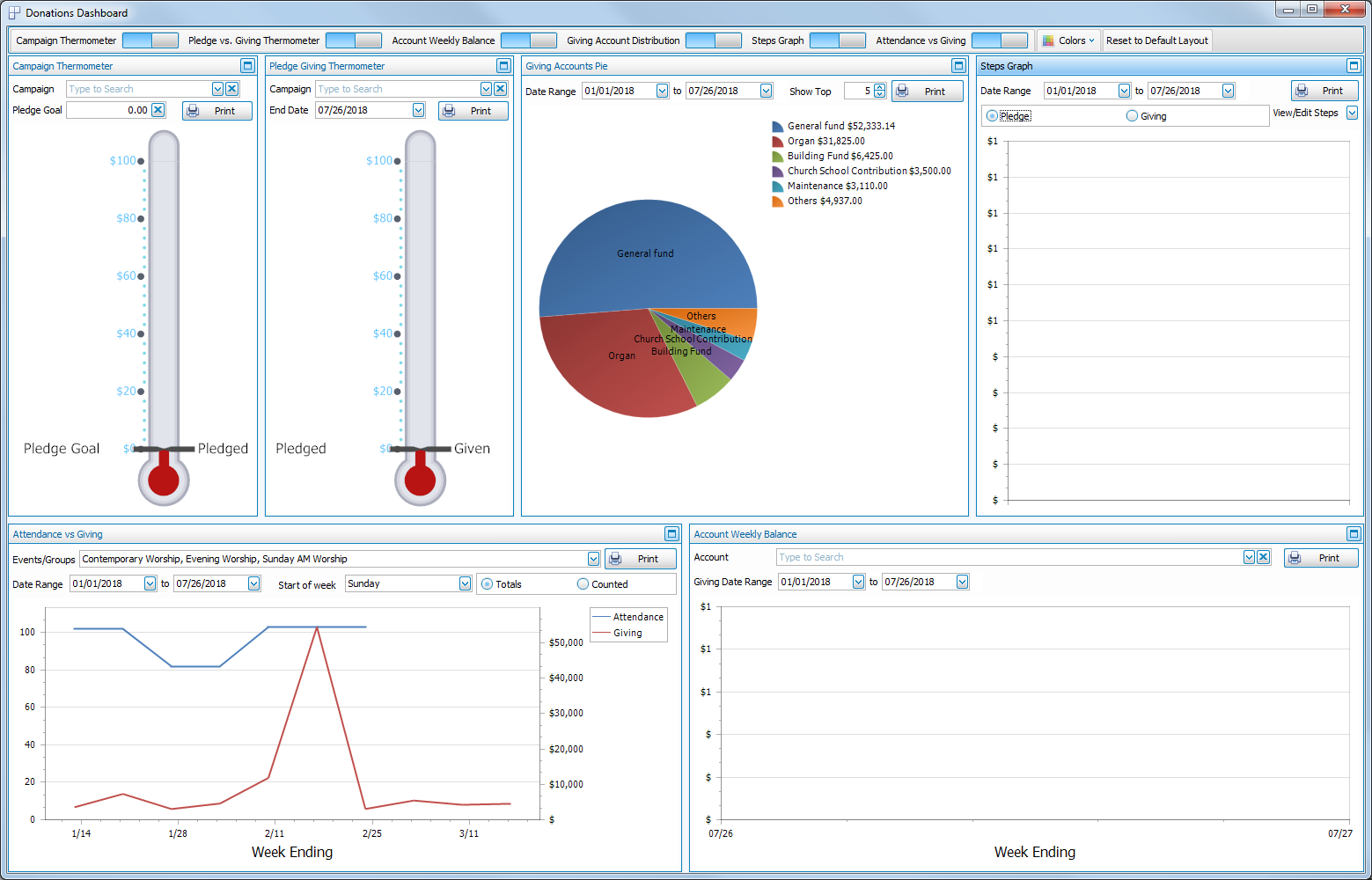
Across the top of the Dashboard window is a toolbar with several buttons:
- On / Off switches for each of the graphs:

If you can't see all of the graph switches, there will be a small down arrow button to the right that you can click to reveal the rest of the switches: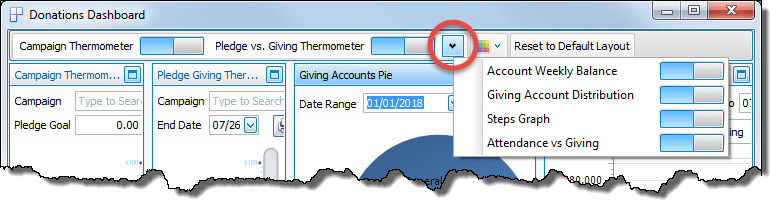
-
 Colors
A dropdown menu to select the color scheme applied to the graphs: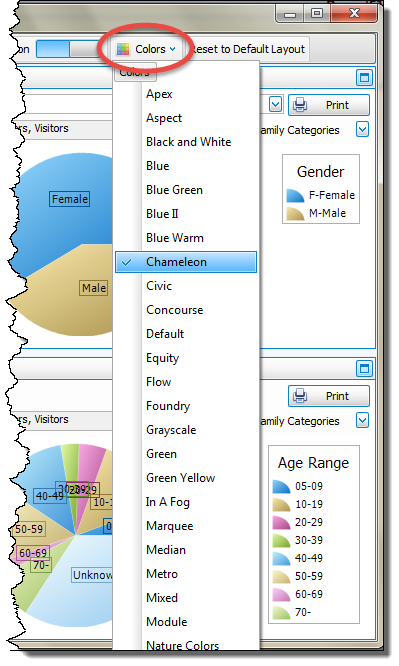
- Reset to Default Layout
Used to return the dashboard to its original setup after making one of the graphs full screen or turning some of the graphs off.

In the top right corner of each graph are two buttons:
-
 Maximize which will make that graph full screen.
 -
 Minimize which will return the graph to its original size alongside the other graphs.
 -
 click Print to view a Print Preview and then proceed in sending the graph to your printer. A window will open allowing you to change the font and the page orientation, if desired: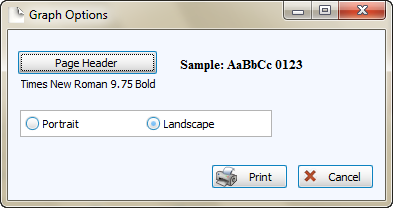
You can also Export graphs and/or Send via Email as a file to be opened outside of Church Windows.
Or
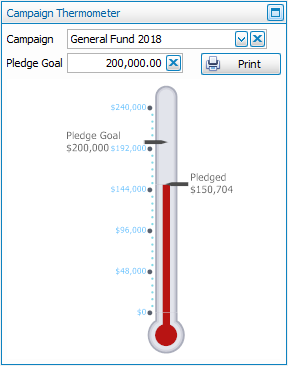
Campaign Thermometer
This graph allows your to choose a Campaign and enter a Goal for how much you hope to raise in Pledges and then compare how close you are to that goal:
Pledge / Giving Thermometer
This graph allows you to compare how much you have received in donations towards you Campaign Pledges:
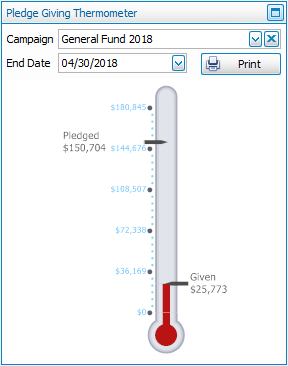
Giving Account Distribution
This pie graph shows the Giving Distribution of how much is donated to every account in the selected date range, or enter a number in the "Show Top" box to view only a certain number of accounts, such as the top 5:
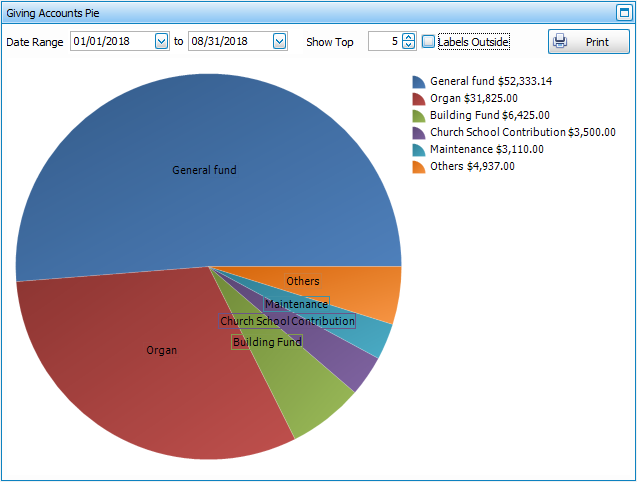
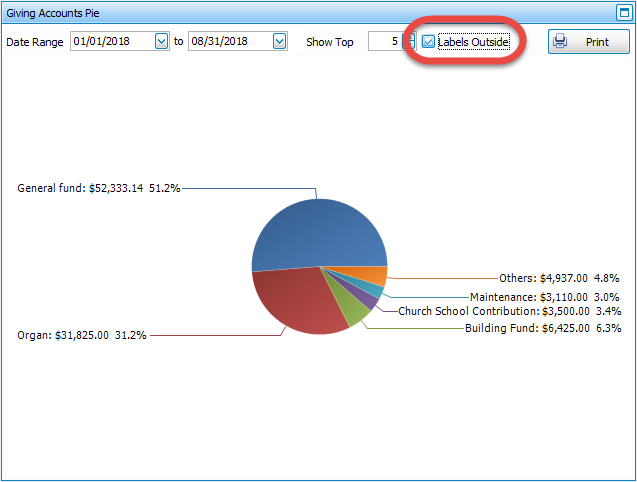
The labels for pie graphs can be displayed either on top of the graph, as pictured above; or displayed outside the graph, as pictured below, by putting a  checkmark in the Labels outside box:
Steps Graph
This graph is essentially a visual version of the Step Report. First, select a date range. Then choose between Pledges or Giving:
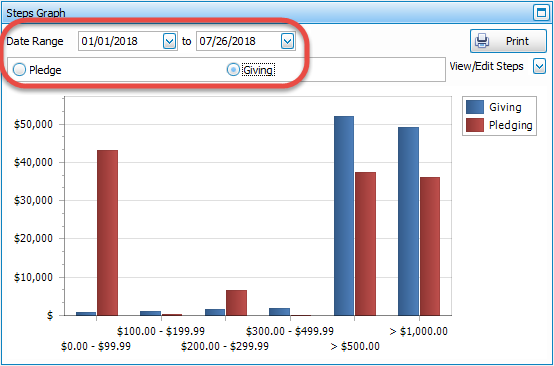
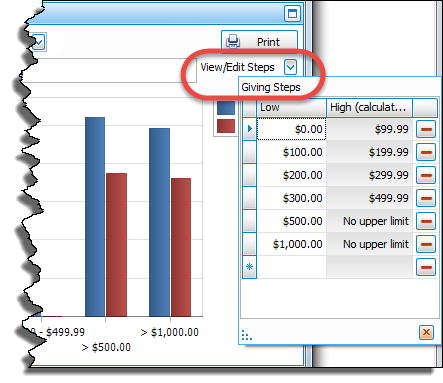
Click to View/Edit Steps if needed:
Attendance vs Giving
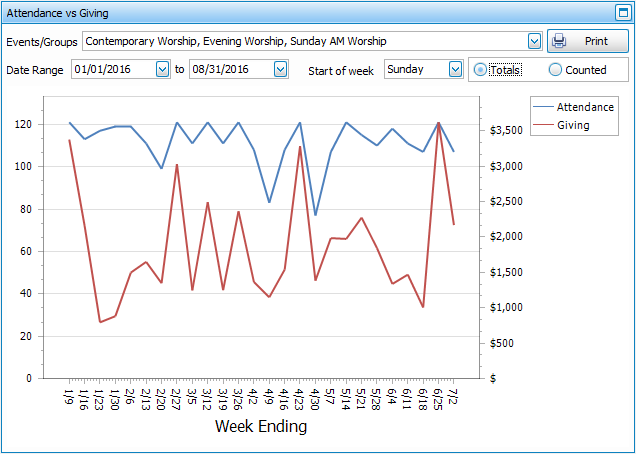
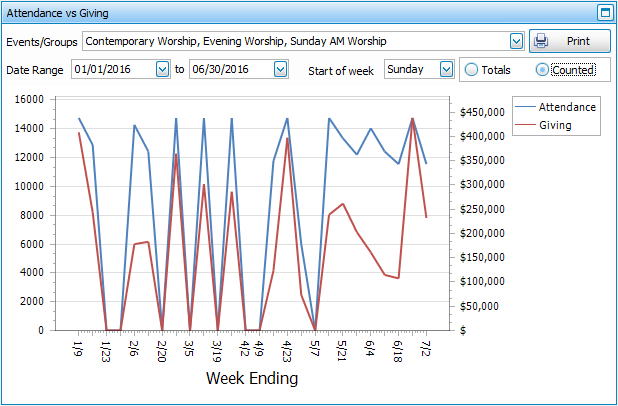
This graph allows you to compare the attendance of your various Events and/or Groups / Classes on a meeting-by-meeting basis, using either the Total number of people checked present or Counted from the number entered into the Persons Present box in Attendance Entry with the total number from Enter Donations each week in your selected date range:
Account Giving
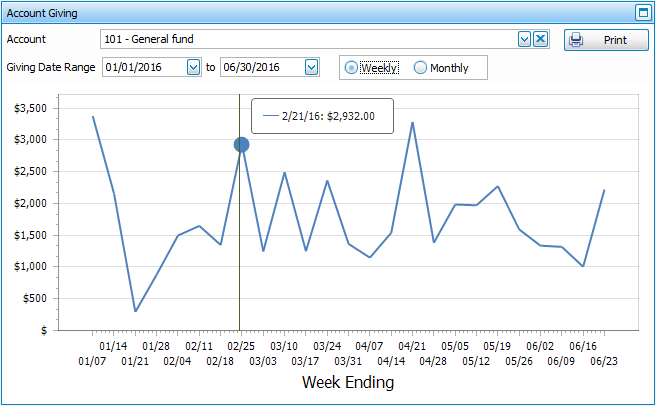
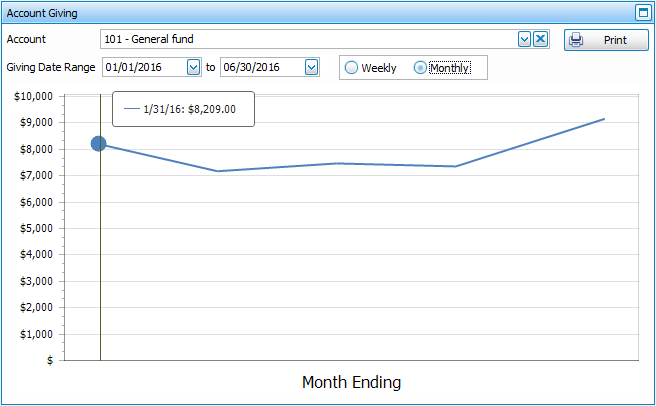
This line graph shows you how much is donated to the selected account on a Weekly basis or a Monthly basis for the selected date range. When you hove over a point on the line graph it will show the exact date and total: