Donation Browser Options
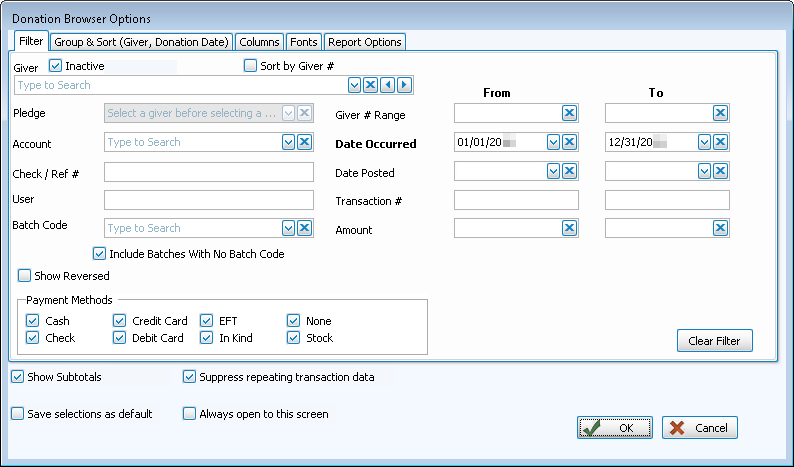
The Donation Browser Options screen is designed to help you find the specific donations that you are looking for in the Browse Donations screen in order to view and/or correct them. You can reach this screen by clicking the Change Dates, Filter & Sort button.
To access the Donation Browser Options screen:
- From The Initial Portal of Church Windows choose Donations then either:
- Click the Browse Donations button in the in the middle of the screen:
- Click the Browse Donations button in the in the middle of the screen:
- Click Donations
in the Button Bar at the top of the screen:
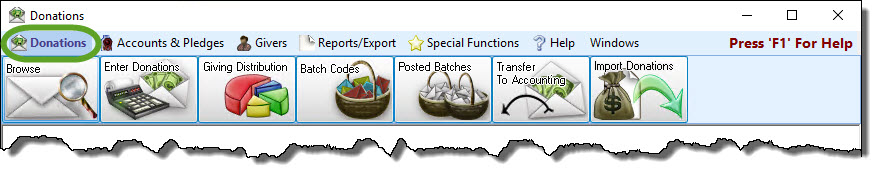
- Then, from the menu options that appear underneath, click
Browse Donations:

- The Browse Donations screen will appear:
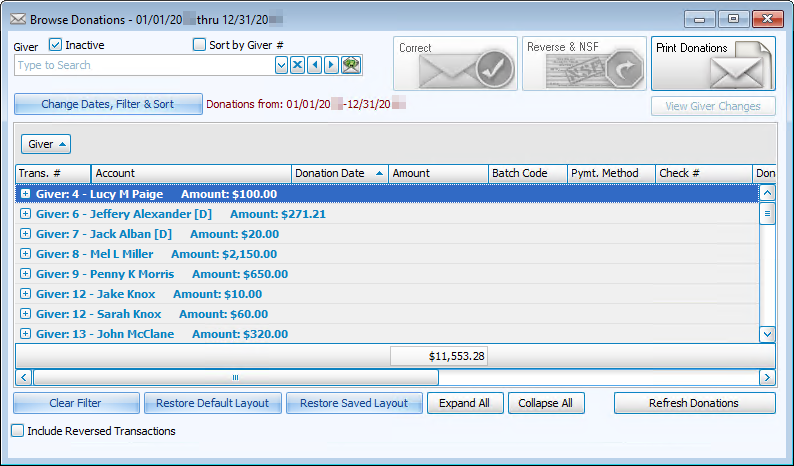
- Click Change Dates, Filter & Sort
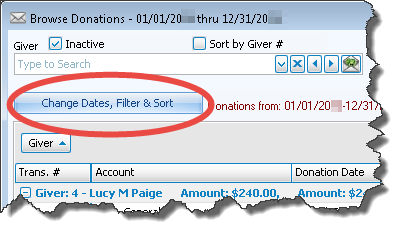
- The Donation Browser Options screen will appear:
OR
When looking for donation(s), enter the information that best describes the donation(s) you seek by entering them in the Filter Tab fields of the Donation Browser Options screen.
If you wish to adjust the way that this list of donations will display, you can click on any of these tabs to apply your adjustments:
Organizes the information into the desired order (and groupings).
Determines the order and the appearance of the columns displayed.
Sets the style and size of the typeface used to display the contents of the report.
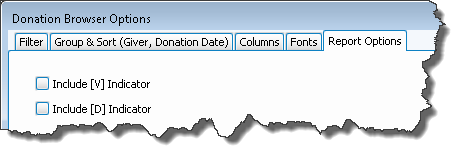
Place a
checkmark to select which, if any, Family Categories indicator(s) you want to include (e.g. V for Visitor, D for Donor, etc.)
The Donation Browser Options also contains check boxes at the bottom of the screen that you can use to make the following adjustments:
Show Transaction Subtotals
If you plan to print donations from the Browse Donations screen, place a
Suppress Repeating Transaction Data
If you plan to print donations from the Browse Donations screen, place a
Save Selections As Default
If you find yourself making a certain set of selections every time and would like to have the Donation Browser Options screen fill in the information for you next time, place a
Always Open to this Screen
Place a
When finished, click the OK button to display the list of donations determined by the information you entered on the Donation Browser Options screen.
If you would like to re-adjust the information that displays on the Browse Donations screen, click the Change Dates, Filter & Sort button again, make your changes, and click OK. The contents on the Browse Donations screen will re-adjust according to the changes you make each time.
