Conflicting Events
The Scheduler Module will warn you if you attempt to schedule an event that conflicts with another event’s Locations, Equipment and/or People. For one or both events, Editing or Deleting an Event will be necessary to resolve the conflict.
You will be asked you if you would like to resolve the conflict or save it anyway. If you choose to save anyway, then both events will show with a colored bar at the top to indicate the type of conflict.
To figure out what each color represents, click Conflict Colors at the top of the Scheduler screen to open a legend showing the colors and what conflict they indicate. If you like, you can change the color assigned to a specific conflict type.
Change the conflict colors
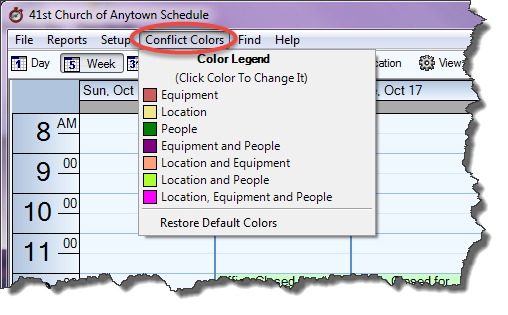
- Click Conflict Colors in the Button Bar at the top of the screen.
- Click in the box of the conflict type you wish you change.
- A color palette
will open:
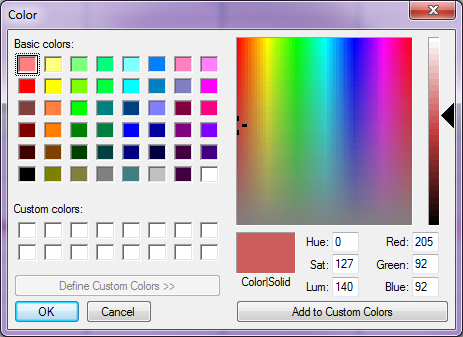
- You can select a Basic Color by clicking in the box or you
can also create a custom color.
- To return to the default colors, click Restore Default Colors at the bottom of the Conflict Colors list.
To print a list of the conflicts for a range of time, click Reports then Conflict Report.
