Set Up Groups and Classes
When you Add Groups / Classes, each one will be entered as a individual item, however you may wish to set them up in a hierarchical structure made up of four component levels. Church Windows defaults to the following structure: Divisions, Departments, and Categories, then Groups / Classes (These fields may also be renamed, see Membership Settings.) Within this structure, you may have as many Divisions as you need. You do not, however, have to have a hierarchical structure to your Groups and Classes.
To access the Set Up Groups and Classes screen:
- From The Initial Portal of Church Windows choose Membership
- Click Groups / Skills in the Button Bar at the top of the screen
- Then click Groups
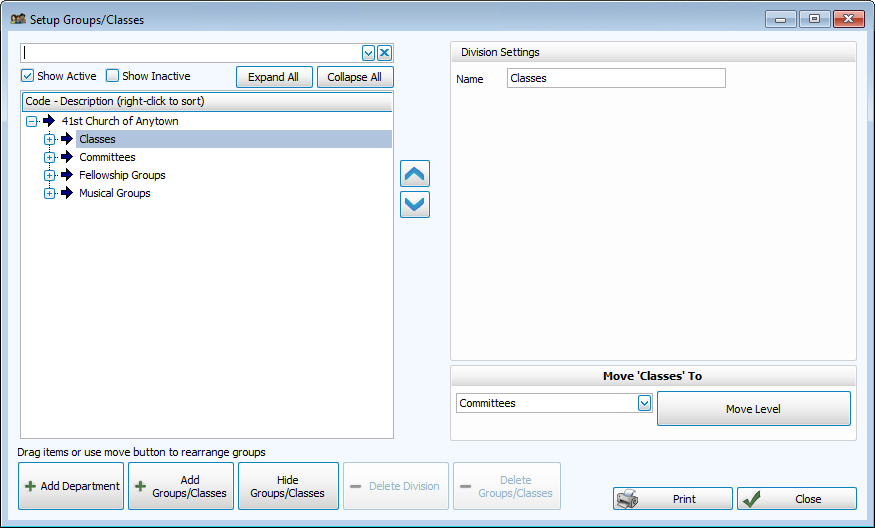
- When you open Setup Groups / Classes for the first time there will be four Divisions listed:
Classes, Committees, Musical Groups, and Fellowship Groups
Divisions, Departments, and Categories
Your Groups and Classes may be set up in a hierarchical structure made up of four component levels:
- Divisions
- Departments
- Categories
- Groups / Classes
You may rename those Divisions to whatever title you want using
Membership Settings for changing these names. You do not have to have a hierarchical structure to your Groups and Classes.
Church Windows defaults to the following structure, you may add as many of each as you need:
- First there is a Division.
- Within that Division, there are Departments.
- Within those Departments, there are Categories.
- Under any of the three levels you have specific Groups and/or Classes.
You do not have to use Departments and Categories. If you like these
Division titles, your Groups / Classes would be listed under their appropriate
Division, for example: Trustees and other committees under Committees, your
Sunday School classes under Classes, and your choirs under Musical Groups.
However, by setting up your Groups and Classes in Divisions, Departments or Categories, you will find it very easy to get reports about certain areas of the Church's activities.
For example, since you have a Division called "Musical Groups", you might set up a "Children" and an "Adult" Department. You need to send a mailing to all adults about singing in the holiday presentation of The Messiah. You would click the Division — Musical Groups, Adult Department and the system would automatically call up all the Groups / Classes in that Division.
Here are two examples of how a
Church might use these components.
Example 1
- Division: Mission
- Department: Mission Projects
- Categories: International, USA, Local
- Groups and Classes:
- International: African Missions, Heifer Project, Crop Walk
- USA: Habitat for Humanity
- Local: Food Pantry
Example 2
- Division: Musical Groups
- Department: Vocal
- Groups / Classes: Junior Choir, Swinging Teens, Adult Choir
- Department: Instrumental
- Groups / Classes: Bell Choir, Wings & Strings Rejoice
In setting up the structure, you do not have to use all components. Example 1 above uses all four components, while Example 2 above uses only three.
It is best if you begin the Groups / Classes component of
Church Windows by designing on paper the Groups and Classes and how they fit into the hierarchical structure. Begin by doing a brainstorm with appropriate
Church personnel and listing on slips of paper all the Groups and Classes your
Church has.
 OPTION 1: hierarchical structure
- Once you have all the Groups and Classes listed on slips of paper, arrange the papers in logical sequences.
- You might place all your Sunday School classes in order by grade level.
- You might list all the musical groups first by vocal groups second by instrumental groups.
- Within those two groupings, you would have elementary choirs or bands, young adults, and adult groups.
- List committees in order considering what reports you will want. Putting the items needed on a report in sequential order makes calling up the reports much easier.
- Once the order is set, tape the items together in sequential order.
- Design the hierarchy for the Groups and Classes. See above for examples of a hierarchical structure. Enter the names of the Divisions, Departments, and Categories for your structure.
- Click Membership, Groups / Skills, Groups. Click Add Groups / Classes and enter in the codes and descriptions for the Groups and Classes.
OPTION 2: no hierarchical structure
- Once you have all the Groups and Classes listed on slips of paper, arrange the papers in logical sequences.
- You might place all your Sunday School classes in order by grade level.
- You might list all the musical groups and committees in alphabetical order.
- Consider what reports you will want; putting the items needed on a report in sequential order makes calling up the report much easier.
- Once the order is set, tape the items together in sequential order.
- Design codes for the Groups and Classes. Codes may be up to 5 digits long, and may be numbers, letters, or a combination of the two. Write the code on the slip of paper with its corresponding Group or Class.
- Begin Add Groups / Classes into Church Windows, using the three Divisions that exist: Classes, Committees, and Musical Groups.
Once you have determined your structure, you can Add Groups / Classes. Then there are two ways to assign people in your database to these Groups and Classes: Managing Group Members using Assign Groups & Skills OR Managing Groups / Classes from Individual Record
