Group / Skill Assignment from the Find Grid
Keep in mind that if you have not included a field from The Individual Record when Using the Find Function, then the Group / Skill Assignment option will not be available to you.
To access the Group / Skill Assignment from the Find Grid screen:
- From The Initial Portal of Church Windows choose Membership
- Open The People File
- Perform a Find to bring your selected people to The Find Grid.
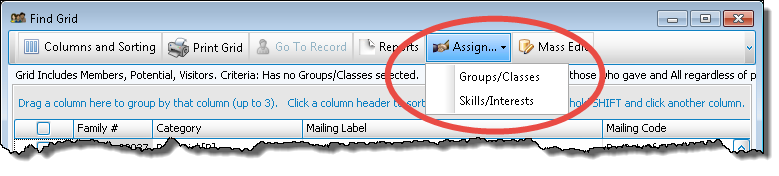
- Then click the Assign
button and choose Groups / Classes or Skills / Interests:
- The Groups / Classes & Skills / Interests
Assignment screen will open to the tab you selected:
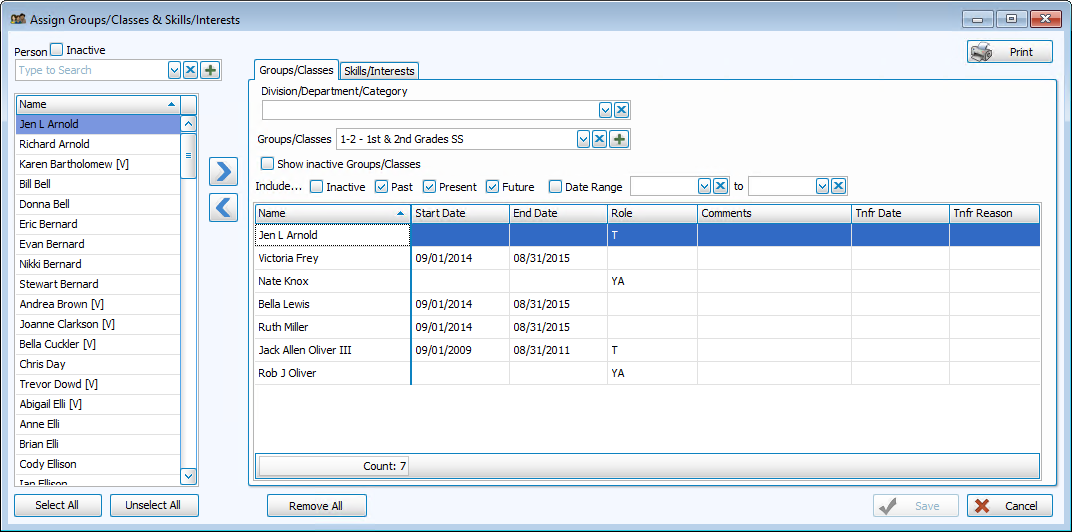
- Once you choose a particular group or skill, then the list of people to choose from will only contain those people who currently appear on The Find Grid.
- If you wish to make this group of people even smaller, you can select specific records on the Grid by placing
 checkmarks in the boxes to the left of the people you want to include. Any records that are selected on the Grid will be
the only people who will appear on the Groups / Classes & Skills / Interests
Assignment screen. If no records are selected with checkmarks, then all records in the Find Grid will appear.
checkmarks in the boxes to the left of the people you want to include. Any records that are selected on the Grid will be
the only people who will appear on the Groups / Classes & Skills / Interests
Assignment screen. If no records are selected with checkmarks, then all records in the Find Grid will appear. - To add a person to this group or skill, either double-click that person's name or click the name to highlight it, and then click the
 right button. That person's name will now appear in the list on the right.
 - To remove a person from the list of group or skill members, click the name in the right column to highlight it, and then click the
 left button.
 - See Managing Group Members using Assign Groups & Skills for further details on using this function.
