Adding, Editing, and Deleting Skills / Interests
In
Church Windows, you can maintain a list of
Skills
to add to your individual records for each person. You can add, edit, and delete existing items from the Skills dialog box.
To access the Adding, Editing, and Deleting Skills / Interests screen:
- From The Initial Portal of Church Windows choose Membership
- Click Groups / Skills in the Button Bar at the top of the screen
- Click Skills
- The Skills dialog box will appear:
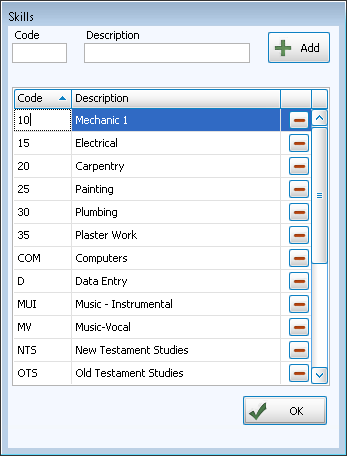
Adding a Skill / Interest
- In the code box, type in the code you would like to assign to your new skill (up to five characters, letters and/or numbers). If a 5-character code is entered, the cursor will automatically move on to the next field.
- Press TAB to advance to the Description box, where you will type in the actual name of the skill.
- Click + Add.
- If you wish to enter more skills and skill codes, continue in the same manner.
- When you have finished adding these codes, click OK .
Note:
The items in any list can be sorted either by the code or the description; the default is code for most fields. When viewing the list of codes and their descriptions,
click on the header of the column by which you would like to sort the list (either the code or description) and a small, upward arrow  will appear. This will automatically order your list by that column in ascending order. However, click once more and you will see that the column has reordered the list in descending order, with the arrow pointing downwards
  .
The items will revert to being sorted by code when you navigate elsewhere in Church Windows.
.
The items will revert to being sorted by code when you navigate elsewhere in Church Windows.
Editing a Skill / Interest
- From the Skills dialogue box (see above), click the skill name or code you would like to edit, and make your changes.
- If you wish to edit more skills or interests, continue in the same manner.
- When you have finished editing, click OK to save your changes
Deleting a Skill / Interest
- From the Skills dialogue box (see above), click the skill name or code you would like to delete.
- Then click the
 Delete button.
 - A confirmation box will appear, asking you if you really would like to delete the skill from the list as well as from all individual records.
- Answer YES to continue or NO to cancel the Delete.
- If you answer Yes, then the skill or skills will be deleted, and the system will give you a message that lists how many individual records each skill was removed from.
- If you say OK to this message, then the skill or skills will be permanently removed.
- If you click Cancel on this message, then the skills will NOT be deleted.
Note:
You may NOT delete skills or interests from the list when you are
Assigning Skills / Interests using the Assign Groups / Skills Screen. If you would like to remove a skill or interest from the list of all skills, then you must do it as described above.
