Edit, Delete, or Copy Attendance
If you would like to edit attendance information after saving it, you will either return to the Attendance Entry screen or go to the Browse Attendance screen by clicking Membership then Attendance.

 Edit Attendance
The Browse Attendance and Attendance Entry screens are always in "edit mode". Your changes will be saved automatically when you move to another record or close the screen.
- Once the Event or Group/Class and the date are selected, then the attendance information that has been previously recorded will appear on the screen.
- From here, you may make any changes you need to make:
- To change anything about a person's attendance, simply click and make your changes.
- You may mark more people as having attended on that date.
- You may uncheck people whom you erroneously marked as present.
- You may edit the amount received and the total number of people who attended.
- You may copy the attendance from that date to another date (see below).
- You may copy the attendance from that Event / class to another Event or
class (see below).
Copy Attendance
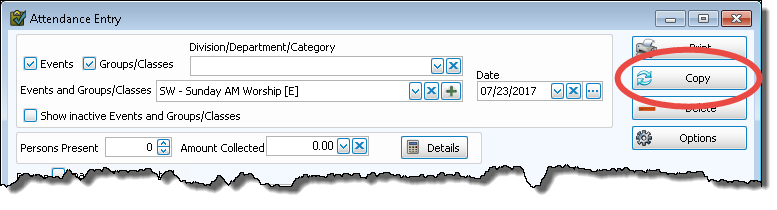
To move or duplicate an Event, class, or date of attendance using the copy function, go to the Attendance Entry screen:
- Select the Event / Group / Class which you want to
copy in the Event / Class box.
- Enter the date you entered that you want to copy over (i.e., the previous date).
- Click the Copy button:
- The Copy Attendance dialog box
will open:
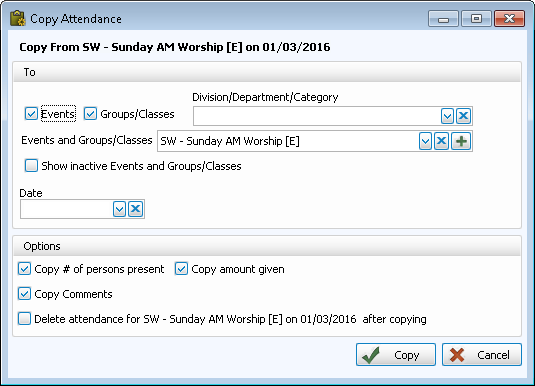
- The Event / Group / Class and the date you entered you are copying the attendance from are listed under the From section.
- In the To section, select the Event / Group / Class that you want to copy the attendance to from the dropdown menu.
- Enter the date you wish to use by either using the dropdown calendar or typing (Use a MMDDYYYY date format WITHOUT slashes.) the desired date.
- There are 4 additional copy Options in the box at the bottom of the screen,
click to put a
 checkmark in the box for the desired selections:
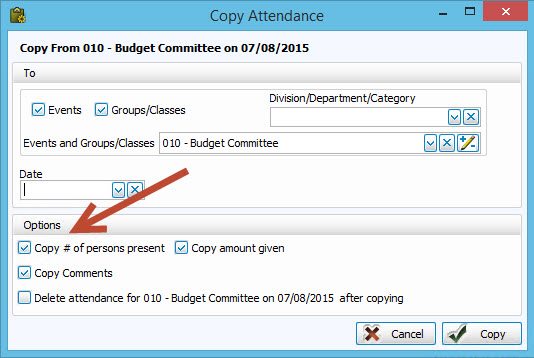
- Copy
# of persons present
If you want all the names copied from the old entry to the new Event / class / date. - Copy amount given
If you want the amount of money given at that Event copied from the old Event / class / date to the new selection. - Copy comments
If you want the comments entered from the old Event / class / date copied to the new selection. - Delete attendance
for "xxx (title of Event)" from "xxx (date of Event originally
entered) after copying?
If you want to delete the old attendance entry.
- Copy
# of persons present
- Click Copy at the bottom to complete the copying of the attendance from one date to another; or click Cancel to cancel the copying of attendance.
- If attendance for that Event / class / date already exists for
the date specified, a message will notify you of that and will ask if
you wish to overwrite it.
- Click Yes to overwrite the attendance on that date; or click NO to cancel the copy process.
- If you need to add someone's name to the list of attendees someone who was not in attendance the week you copied, see Step 4 — Step 4 - Mark individual people present.
- If you need to modify the
present list for new date:
- Check Present for those who were not there on the previous date/event but are here this date/event.
- Uncheck Present for those who were present on the previous date/event but are not here this date/event.
- Click Copy to save the attendance on the new date.
Delete Attendance
- Select the Event / class and the date for which you wish to delete the attendance.
- The attendance information for that date will appear.
- You should also select a person, if needed.
- Right-click the Present title and left-click Uncheck All.
- Click Delete in the upper right.
Add Attendance
To add an attendance Event for the selected person in Browse Attendance:
- Select the desired person in the person field, then click the Add Attendance
button on the right.
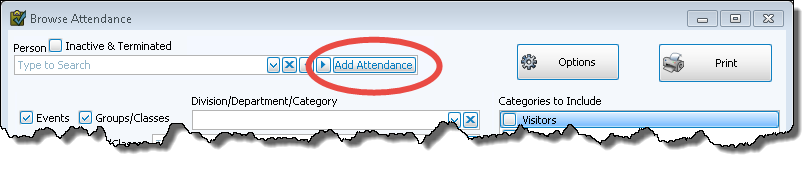
- The Add Attendance screen will appear:
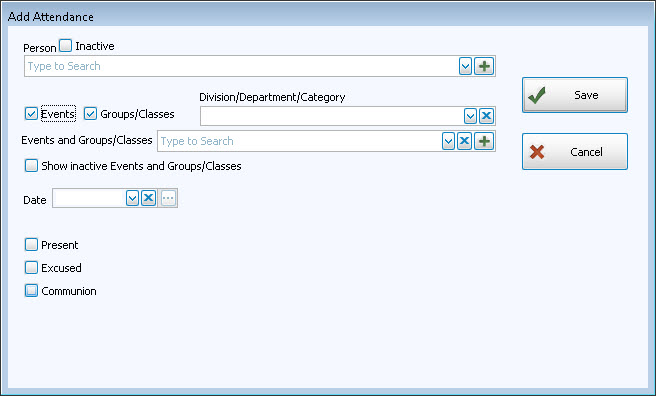
- In the Events
or Group / Class field, click the
 dropdown button to see a list of
all Events and classes, or just start typing the code or description.
dropdown button to see a list of
all Events and classes, or just start typing the code or description. - Select an Event or class by clicking on it.
- Down below, enter the date of this attendance Event.
- If this person took Communion at this Event, then click the Communion box to mark it with a checkmark. If not, then leave the box blank.
- Click Save to save this new attendance entry.
- Click Close
to return to Browse Attendance.
This new Event will appear in that person's grid.
Print Attendance
A Print button appears at the
top of the Browse Attendance and Attendance Entry screens. When you click this button, the information
that currently shows on the screen will be compiled
into a report on thePrint Preview
screen. To change what appears on the report, simply change what appears
on the Attendance Entry or Browse Attendance screen using Change Dates, Columns & Sort.
Cancel
The Cancel button is designed to undo any changes you may have made to a person's record. If you have added or deleted any attendance Events, then decided that you don't want to save those changes and would like to return the record to how it appeared the last time you opened it, then click Cancel.
Note, however, that for Cancel to work correctly, you may not change the Event in the All Events / Classes box. When you change the Event in this box, then Church Windows saves any changes you have previously made.
