Add a New Person from outside of the People File
Throughout the various modules of Church Windows, when you are using certain functions that involve people, if you encounter a person that is not showing
in the list but should be, you may add them to The People File without even leaving the screen that you are on.
Examples of these functions include: Attendance Entry, Add a Visit, Enter Donations, etc.
To add a new person
- Click the
 Add button at the end of the Person line.
 - This will open the Add Individual window:
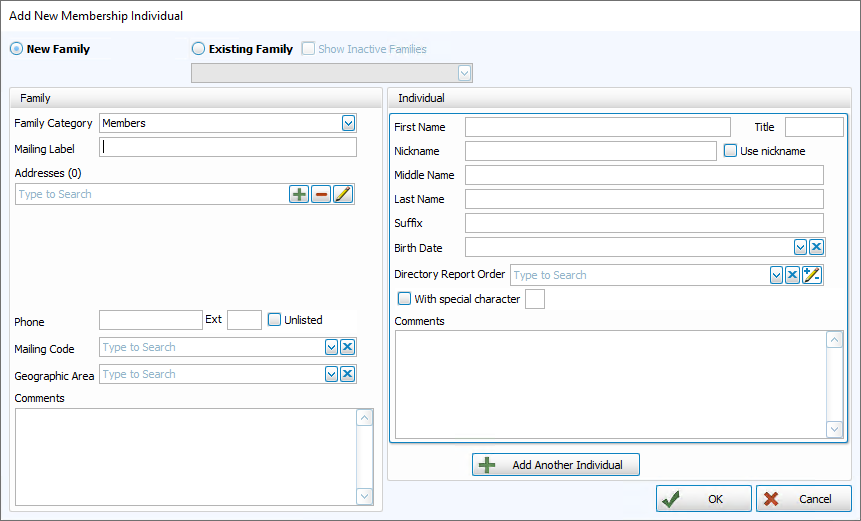
- If this person is NOT a member of any other family already in
The People File:
- Click the New family
 radio button to select it.
 - Select one of the Family Categories into which you want to enter the new person.
- You may then type the family information into the left side of the screen.
- Click the New family
- If the person IS a member of a family already in
The People File:
- Click in the Existing family radio button to select it.
- A list of all of the households in the database will appear in the
 dropdown.
 - Scroll through the list to find the appropriate family.
- Click the family name once to select it, and that family's information will appear in the Family information section of the screen (you may edit this information if needed) on the left.
- Click in the Existing family
- Enter the new member's information to the Individual information section of the screen on the right.
- Click OK to save the record to The People File or click Cancel to discard this record.
OR
- Either choice will return you to the previous screen.
