Add, Edit, or Delete Events
Before you can begin entering attendance information, you must first
enter Event names into Church Windows. If you entered any groups into
Groups / Classes, then these entries will be available to record attendance,
(Sunday School, for example), but you also must enter Events like Sunday worship into the Events
list. The major difference between "Events" vs. "Classes", is that while everyone in your
database is available to attend Events and Groups / Classes,
while certain people are specifically enrolled in Groups / Classes.
To access the Add, Edit, or Delete Events screen:
- From The Initial Portal of Church Windows choose Membership
- Then either:
- Click Attendance Entry in the
- Click Attendance in the Button Bar at the top of the screen
- And click Attendance Entry
OR
- From The Initial Portal of Church Windows choose Membership
- Click Attendance in the Button Bar at the top of the screen
- In the Events and Groups / Classes field, click on the
 add button to the right: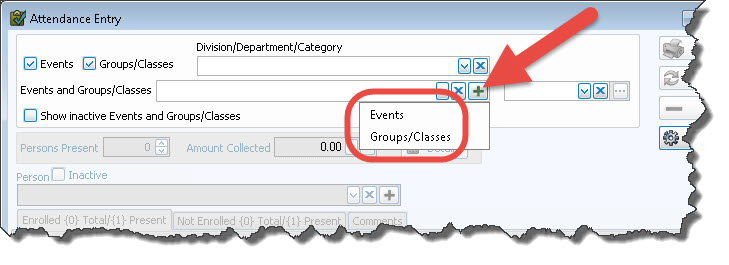
- You will get an option to select either Events or Groups / Classes.
- Select Events. This will open the Attendance Event window:
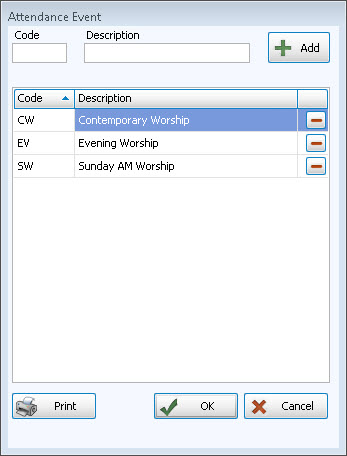
- In the Code box, enter a code — letter, numbers, or a combination of the two — for this attendance Event.
- Tab to the Description box; enter the name of this Event.
- Click Add to save this attendance Event.
- Continue entering more Events, or click Close to close this dialog box, then on Close again on the Attendance Events dialog box to return to the Attendance Entry screen.
- Click Print to get a list of your events, view a Print Preview, and then proceed in sending the file to your printer.
For example, you could enter SW9 for the code and "Sunday worship 9AM" as the description for your Sunday worship at 9:00.
Note:
The items in any list can be sorted either by the code or the description; the default is code for most fields. When viewing the list of codes and their descriptions,
click on the header of the column by which you would like to sort the list (either the code or description) and a small, upward arrow  will appear. This will automatically order your list by that column in ascending order. However, click once more and you will see that the column has reordered the list in descending order, with the arrow pointing downwards
  .
The items will revert to being sorted by code when you navigate elsewhere in Church Windows.
.
The items will revert to being sorted by code when you navigate elsewhere in Church Windows.
Edit an Event code or description:
- Click the desired item and click in either the code or description boxes to directly edit the item.
- The edit is automatically saved and will affect prior entries to show the new edited information.
Delete an Event
- Simply click the
 Delete button at the end of the line.
Note:
If you have taken any attendance for that existing code and description, you will lose all the attendance for that code in history.
