Membership Dashboard
Four types of graphs are available to view and/or print a visual comparison of various information about thePeople in your database. You can compare attendance information, certain Individual Record Fields by Family Categories and by age. The four graphs are: Attendance Graph, List Item Distribution, List Item by Age Range, and Age Range Distribution
To access the Membership Dashboard screen:
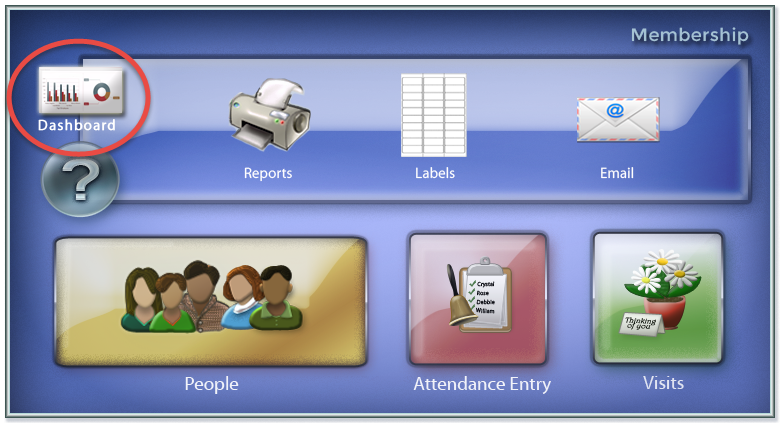
- From The Initial Portal of Church Windows choose Membership
- Then, from the
in the center of the screen, choose Membership Dashboard:
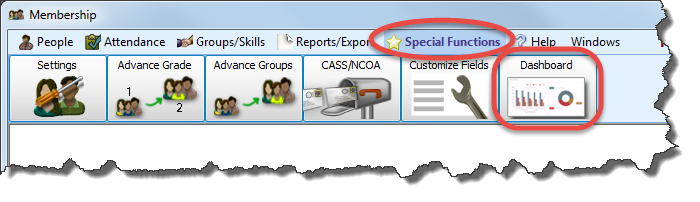
- Or, in the Button Bar at the top of the screen choose Special Functions and then click Membership Dashboard:
- If this is the first time opening the Dashboard, it will look like this:
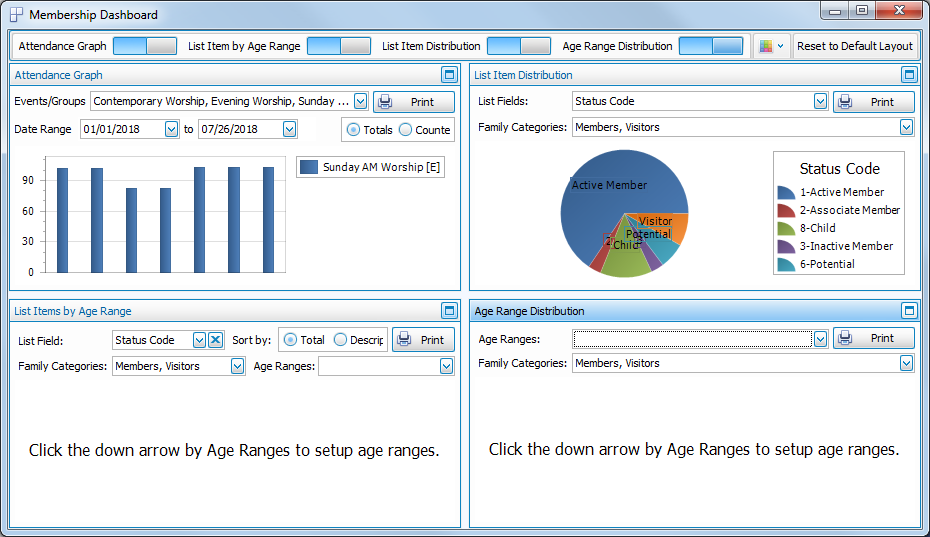
Across the top of the Dashboard window is a toolbar with several buttons:
- On / Off switches for each of the graphs:

If you can't see all of the graph switches, there will be a small down arrow button to the right that you can click to reveal the rest of the switches: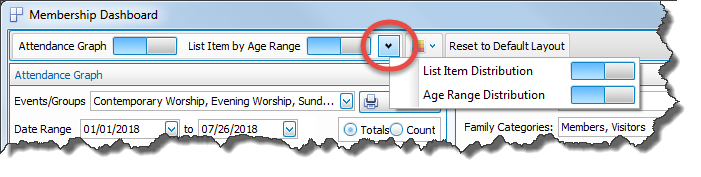
-
 Colors
A dropdown menu to select the color scheme applied to the graphs: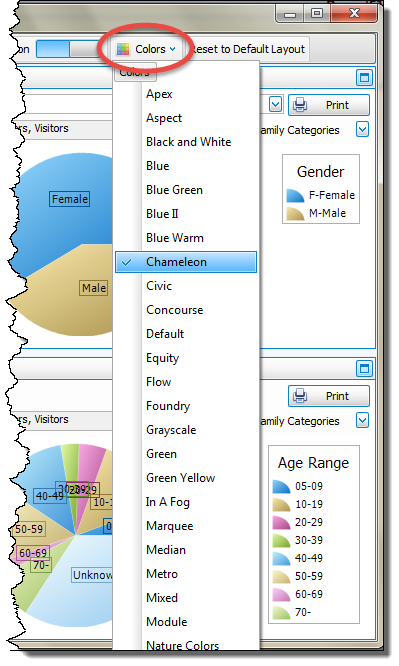
- Reset to Default Layout
Used to return the dashboard to its original setup after making one of the graphs full screen or turning some of the graphs off.

In the top right corner of each graph are two buttons:
-
 Maximize which will make that graph full screen.
 -
 Minimize which will return the graph to its original size alongside the other graphs.
 -
 click Print to view a Print Preview and then proceed in sending the graph to your printer. A window will open allowing you to change the font and the page orientation, if desired: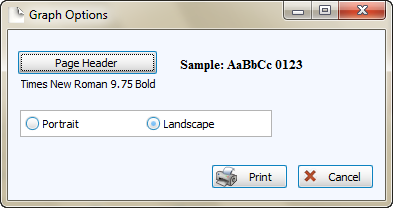
You can also Export graphs and/or Send via Email as a file to be opened outside of Church Windows.
Or
Attendance Graph
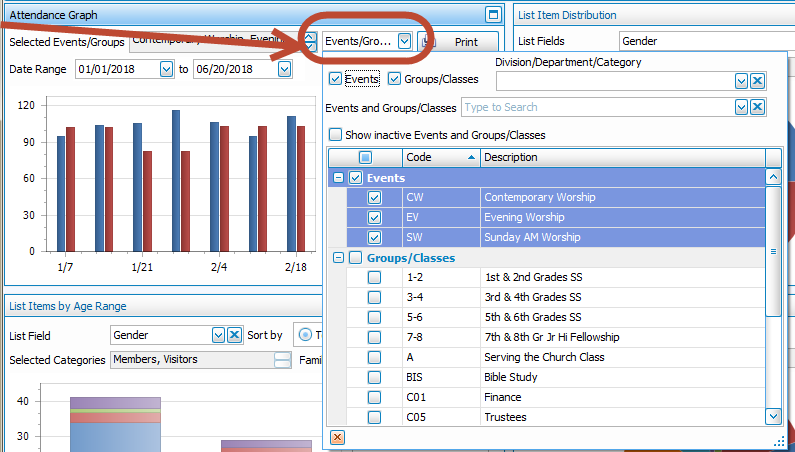
This graph allows you to compare the attendance of your various Events and/or Groups / Classes on a meeting-by-meeting basis, using either the Total number of people checked present or Counted from the number entered into the Persons Present box in Attendance Entry:
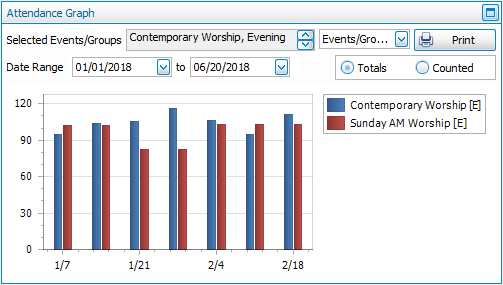
- Select your desired Events and/or Groups / Classes:
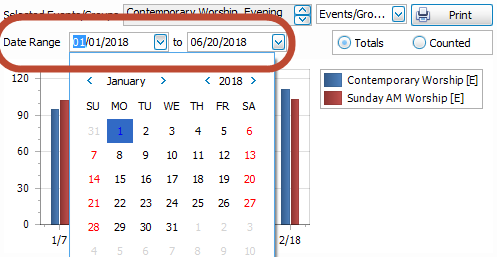
- Enter a date range:
- Choose either:
- Totals (number from Step 4 - Mark individual people present)
- Counted (number from Step 2 - Enter the total number of people who attended)
or
List Item Distribution
This pie graph will show you how many people in your database are assigned each List code in one of the Individual Record Fields. You can choose to view these for some or all of your Family Categories. For example, Status Code:
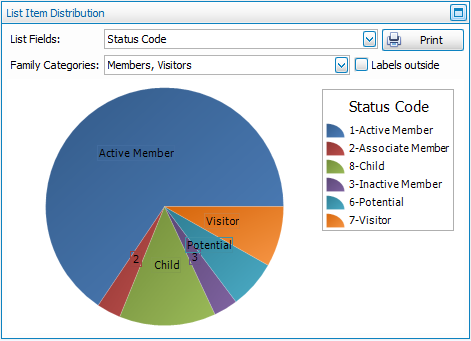
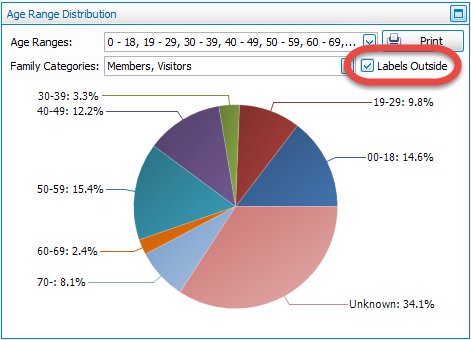
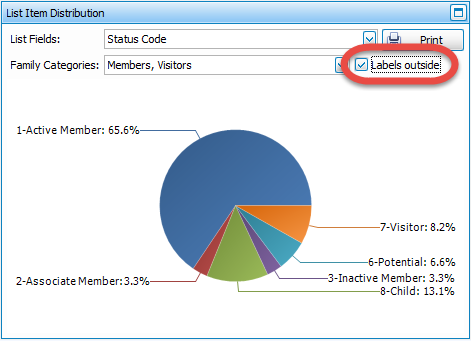
The labels for pie graphs can be displayed either on top of the graph, as pictured above; or displayed outside the graph, as pictured below, by putting a  checkmark in the Labels outside box:
Age Range Graphs
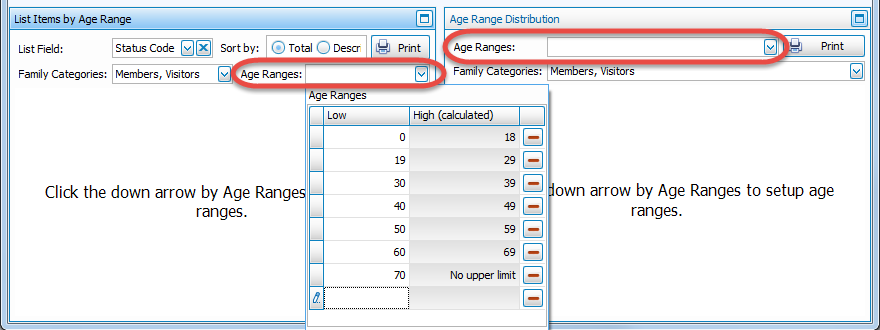
Both of the bottom two graphs require you to enter your desired age ranges before they will display anything. You type the low age for each grouping, hit Enter on your keyboard twice, and then the computer inputs the high age. In the example below, you would type 0, 19, 30, 40, 50, 60, 70 and it should look like this:
List Items by Age Range
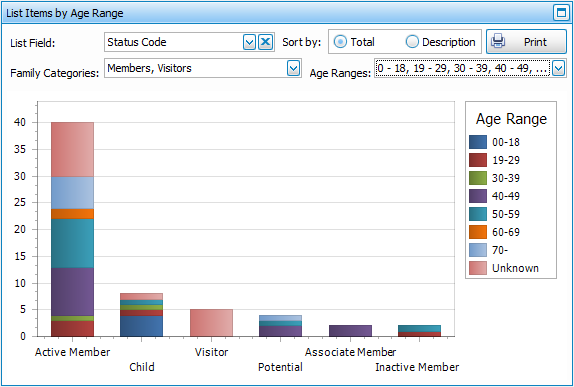
This bar graph will show you how many people in your database are assigned each List code in the Individual Record Fields by the age groups you enter. You can choose to view these for some or all of your Family Categories. For example, Status Code:
Age Range Distribution
This pie graph shows the distribution of the age ranges that you enter for everyone in The People File. You can choose to view some or all of your Family Categories in this graph:
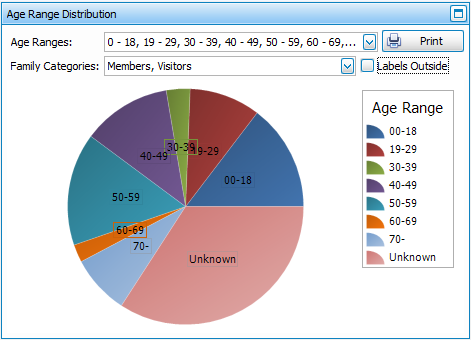
The labels for pie graphs can be displayed either on top of the graph, as pictured above; or displayed outside the graph, as pictured below, by putting a