Making a Backup
Church Windows includes a backup program that will back up your Church Windowsdata files for you. This program compresses files for storage
in another location such as flash drives or cloud drives. Even if you have a different backup program that you use regularly,
you need to back up Church Windows using our built in backup program. Any backup program is not effective if it
is not used properly.
Important!
- Take the most current backup OFF SITE! A backup will do you no good sitting in the drive of a computer that has been stolen or destroyed.
- If in the event you are Restoring a Backup to your computer, keep in mind that it will delete the current data and replace it with the data as it existed at that exact point when the backup was made. Any changes made to the data after that backup was made will be lost.
To use the internal backup procedure:
- From The Initial Portal of Church Windows choose Administration
- Choose Backup
- The Backup screen will appear:
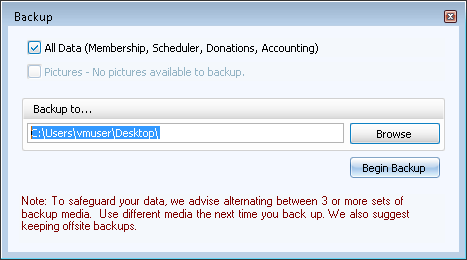
- Choose either:
- All Data (Membership, Scheduler, Donations, Accounting) to backup all of the Modules
or - Pictures to only backup your Membership photos (which are not included in the All Data backup). If you have pictures in you Membership records, be sure to select both. If you do not have pictures uploaded, this option will not be available as in the image above.
- All Data (Membership, Scheduler, Donations, Accounting) to backup all of the Modules
- Depending on your selection, the compressed backup file will be named:
- CWDataBackup MM-DD-YYYY HH.MM.SS AM.zip (the date and precise time of the backup) if you selected to back up All Data
- Or CWDataPicBackup MM-DD-YYYY HH.MM.SS AM.zip
if you selected Pictures
- Backup To...
- Select the location where you will be using to store your backed up information, such as a USB flash drive or a networked drive.
- The system defaults to the drive most recently used to create a backup.
- To change this backup destination, click the Browse button and select the drive or directory you’d like to back up your data to.
- Each backup file is given a unique name with the time and date stamp included in the name. This changes each time a backup is made. You may want to periodically open the location the backup files are stored and delete the older backups (referring to the time/date stamp in the name) to free up space.
- To create the backup, click Begin Backup. The program will compress your Church Windows data and store it onto the selected drive.
- After the backup has completed, make sure you keep track of where you have saved the data.
