Auto Assign Numbers
Auto Assign allows you to assign numbers in mass. User filters to organize givers and reassign numbers on a specified start date. You can also use the Auto Assign function to end all numbers.
Access Auto Assign Numbers
To access from the Button Bar, go to Givers > Auto Assign #

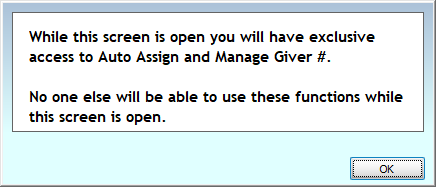
When you open Auto Assign, you'll receive a notification that other computers on your network will not be able to access giver number functions while the Auto Assign screen is open.
Preparation
We recommend that you Backup Data before using the Auto Assign function. This tool makes many changes at once and can not be reversed once you Save and Close. If you have saved the changes, the only way to return to the previous assignments would be to Restore Data which will return your database exactly as it was when the backup was taken.
-
Review the information on Giver Numbers in order to determine what kind of numbering system you're using or would like to implement.
-
Having a list of givers who will be ending numbers and a list of givers who will be getting numbers for the first time is helpful.
-
You may also want to consider linking any couples or families that give together first.
-
In Manage Numbers, you might want to check to see if there are future assignments or inactive givers with numbers that could cause conflicts. If desired, you can end any numbers that need it so you can quickly filter givers with an end date at the end of the year out in the Auto Assign process.
Filter and Select Givers
-
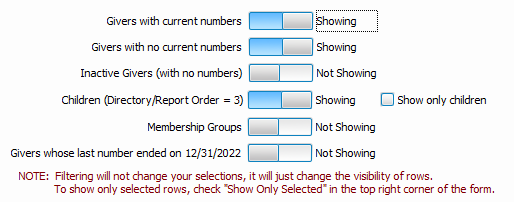
All records (Membership, Donations, and Inactive) and Membership Groups can be assigned a giver number. This filter, located in the upper left drop down, allows you to choose who will be included in the grid on the bottom half of the screen for selection. You will still be able to individually add givers that have been filtered out, if needed.
-
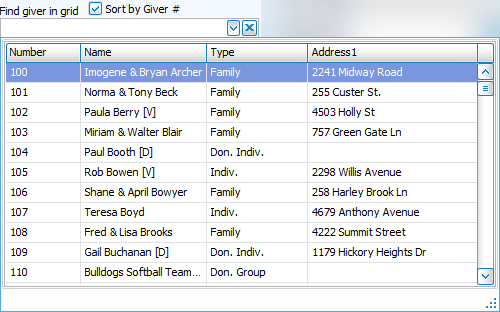
Below the filter, is the Giver dropdown, where you can search for people individually. Clicking the Sort by Giver # box will order the records in the dropdown by number, otherwise, they will be sorted alphabetically. Everyone will show up in this drop down, regardless of the filters you have selected.
-
Add names from the drop down by searching or scrolling and it will appear selected in the grid below.

-
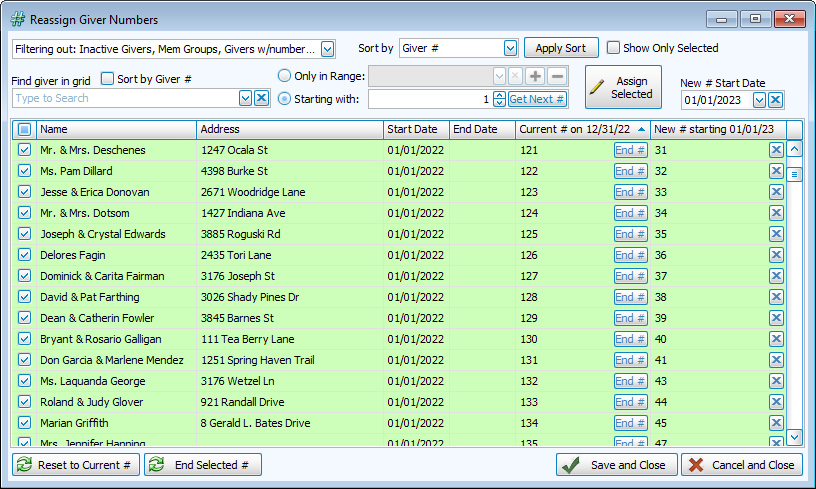
To choose people who will be auto assigned numbers, check the box next to their name and the row will turn green. Check all or uncheck all by clicking the box in the column headings row above the selection boxes.
-
To end a number, you can click
 and enter the date that number should stop. You can also end all or multiple numbers by selecting people and clicking
  to give all selected an end date of 12/31.
Ending a number takes effect immediately. If you end a number by mistake, you can edit or remove the end date in Manage Numbers.

-
Sort the grid below either Alphabetically or by Current Giver #. To display only the Givers checked to get an Auto Assigned number, check the Show Only Selected box.
Giver Number Ranges

Giver number ranges provide a way of describing groups of giver numbers. These can be used as criteria for reports and number assignment.
-
Click
 to add a new range.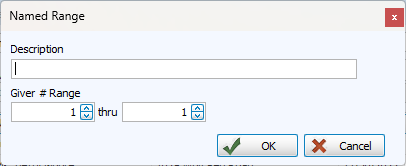
-
Click
 to delete a range.

-
If you are not using ranges, you can select the first number start the auto numbering sequence here. Click
 to see the Next highest # or the First available #.
Assign Selected
-
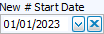
First, check the New # Start Date. The default is the first of next year, but you can make the start date any day.
-
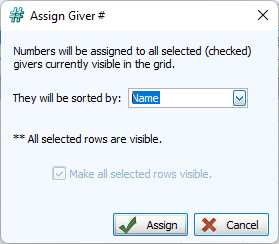
Auto Assign can either sort givers by their Current Giver # or Alphabetically. If you have rows that were selected, but are currently hidden, click Make all selected rows visible to include them in auto assignment.
-
When you're ready, click Assign.
Review New Numbers
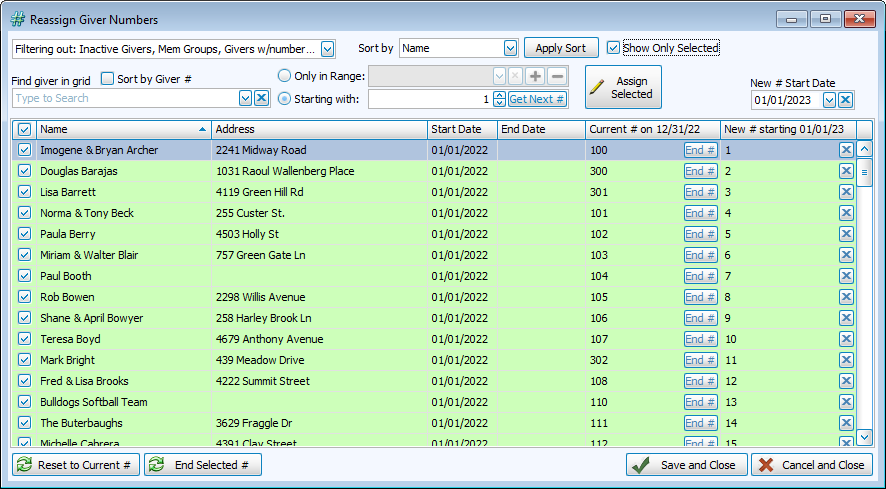
Newly assigned numbers appear in the column on the right. These can still be changed manually, deleted by clicking the X, or an assignment can be run again if the results aren't quite what you were looking for. If the New # column has a red background, that means that it encountered a conflict for that number, typically due to that number being taken in that date range by another given that was not included in the Auto Assign group.
If you click  any tentative assignments will not be saved. If you are happy with the selections and number assignments, click
  .
.