Manage Numbers
Giver Numbers are optional numbers assigned to a giver or giving unit. These numbers can be used to speed up data entry, in place of names in reporting, or in unison with envelope numbers. From the Manage Numbers screen, you can:
-
Assign new numbers individually.
-
Edit or remove numbers.
-
Link people who Give with Family.
-
Shortcut to List Giver Numbers.
Access Manage Numbers
To access from the Button Bar, go to Givers > Manage #s

Browse Numbers

-
Sort and group by columns in the grid.
-
Edit Start Date or End Date by clicking in the cell and making changes.
-
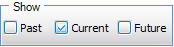
Include Past, Current or Future number assignments in the Show section.
Assign a Giver Number
-
In the Giver drop down, scroll to or search for the person you want to assign a number to.
-
Click Add New.
-
Enter the number and Start Date.
-
Click OK.
If the number you attempt to assign is already taken, you'll get a notification noting the conflict.
Edit or Remove a Giver Number
-
In the Giver drop down, scroll to or search for the person you need to edit. You can also locate them by name or number in the grid.
-
To maintain their dates and history with the previously assigned number, enter an End Date.
Givers can only have one number assigned at a time, therefore End Dates for a previous number cannot have the same Start Date as a new number.
To erase their history with that number, click the minus button at the end of the row.
-
If needed, follow instructions to Assign a Giver Number to assign them a replacement number.
Link People Who Give Together
-
Search or select for the first person in the giving unit.
-
Check the Gives with Family box.
If this person already has a number assigned to them, it will become the family number.
-
Search or select the next person in the giving unit.
Note: In order to have linked giving, all participants much be in within the same Family People Records in Membership.
-
Check the Gives with Family box for the second person. Repeat this process for any other family members to be included in the giving unit.
People linked through Gives with Family will all share the same Giver Number and the Giver Number column in Manage Givers will be shaded to indicate that individual gives with a family.