Browse Donations
The Browse screen in Donations provides a look up of every donation and reversal posted in the system.
Common uses of the Browse screen include:
-
Using the Donations Browser Options screen to view donations that meet certain criteria
-
Correct a Donation or Reverse a Donation
-
Search for Donation or Line Item comments
Access Browse Donations
To access from the Button Bar, go to Donations > Browse Donations.

To access from the Home Screen, go to the Quick Access Button.

Navigate the Browse Screen
Find Donations with the Change Year, Filter & Sort button to filter with Donation Browser Options. Selecting an individual donation will illuminate the button options to Correct or Reverse. Show reversed transactions by checking the Include Reversed Transactions box in the lower left.
Click on a column heading to sort by the field, click again to reverse the sort. Drag columns to the area above the headings to group by those fields.
Sorting by Multiple Columns
Click any column to change the sort order. Now hold the SHIFT key and click another column. The sort order of the transactions list is now determined by two columns, first by the first column you clicked, and second, by the second column you clicked. You can hold the SHIFT key and click a third column, to then sort the list of transactions by a third column. Click any of the already selected columns once again to change the direction of the sort.
Grouping by Multiple Columns
Drag the desired column to the bar above the column headers, as indicated on the screen. The first column you drag will then put the transactions in collapsed groups, according to that column name. Click the plus button to expand the group and reveal the donations.
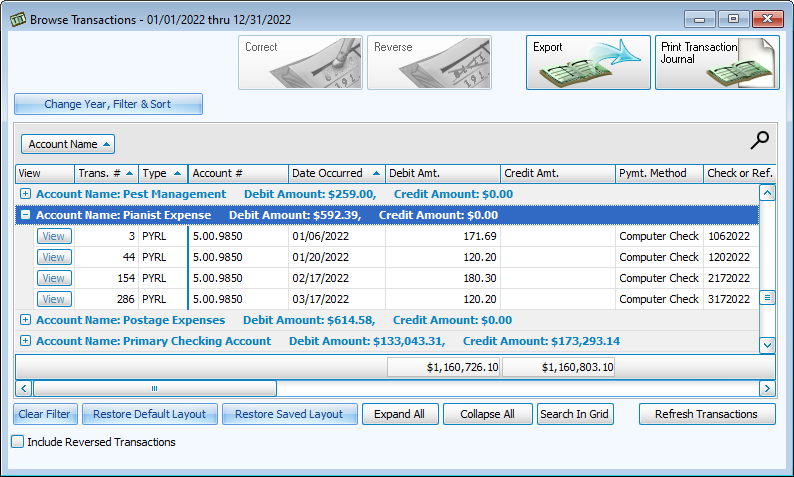
Once the transactions are revealed, you can reveal other groups, or collapse a group by clicking the plus/minus button. To group together by additional columns, drag up to three columns into the hierarchy. After you have dragged the columns to the bar, click any desired column header to sort by that column.