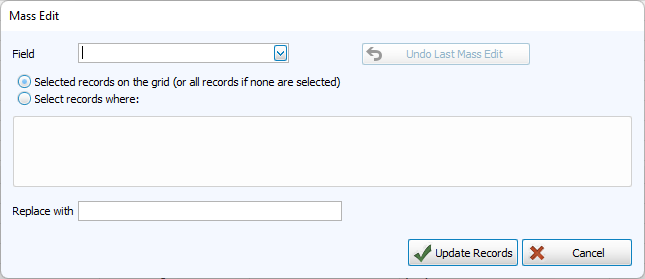
Mass Edit
The Mass Edit functions allows you to make sweeping changes to multiple records with a single procedure.
Common uses of Mass Edit include;
-
Updating a field based on certain criteria
-
Changing phone number area codes
-
Combining several data entry designations into a single designation
Access Mass Edit
To access from the Button Bar, go to People > Find > Mass Edit


The Mass Edit function is powerful and can make a lot of changes. In order to be able to undo these changes without having to Restore Data and potentially losing wanted updates, go to Membership Settings and enable the option to Undo Mass Edit.
Using Mass Edit
This function essentially works by identifying records, either by a code or selecting them manually, and then applying a particular code or entry to a field.
In order to work with a field, it must be included in the Grid. You can choose fields with the Column Selector in the Find Grid. For clarity, the following instructions use example scenarios for clarity, but the same steps can be adjusted for the fields you're focused on.
Mass Edit to Change a Field
In this scenario, the church has decided to create a field designating if someone has turned in a form confirming or updating their contact information. This field could be used in database clean up efforts or to ensure information is current before the publication of a directory. At this point in this project, a new field for Directory Form has been created in Customize Fields
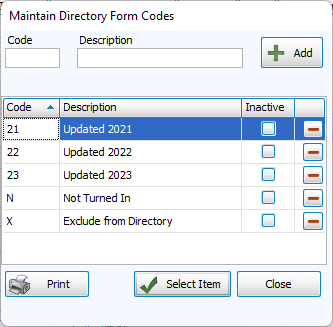
This first mass edit is going to change all records to Not Yet Turned In.
-
Open the Find Grid by going to People > Find Grid.
-
In Step 1 - Select Who, click
 without entering criteria to pull every record that has not been marked Inactive.
 -
Click
 and add the Directory Form field to the Grid.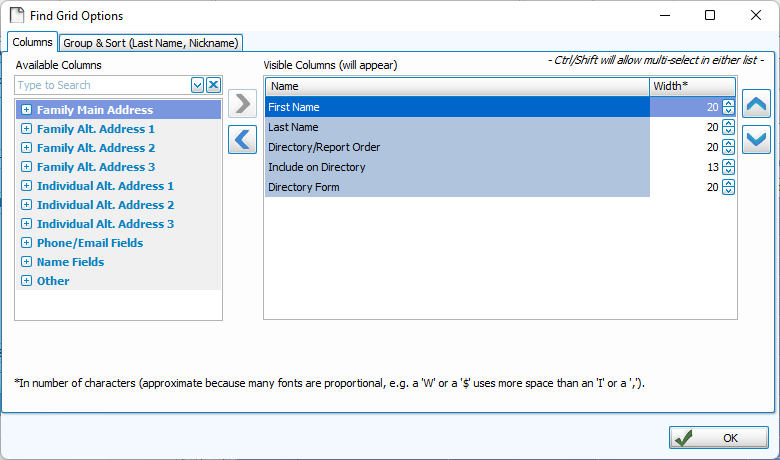
-
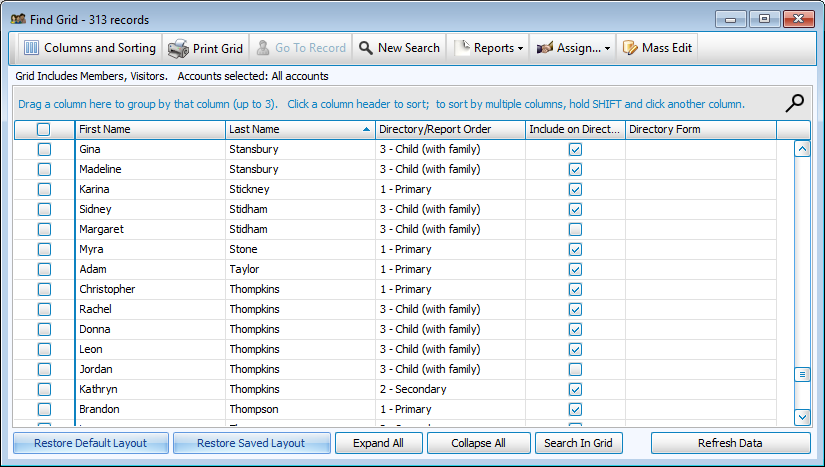
Click
.
-
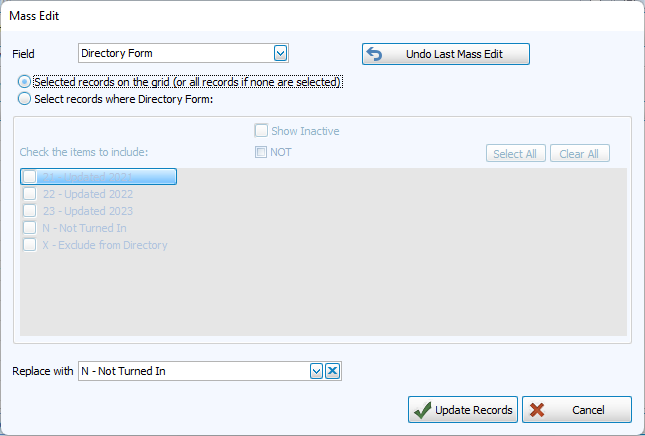
Choose Directory Form in the Field dropdown and leave Selected Records/All Records selected.
-
In the Replace With dropdown, choose Not Yet Turned In and click
 .
.
-
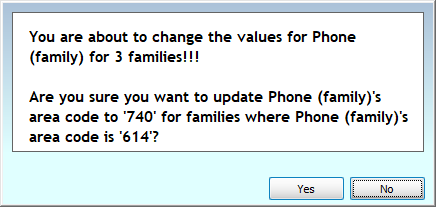
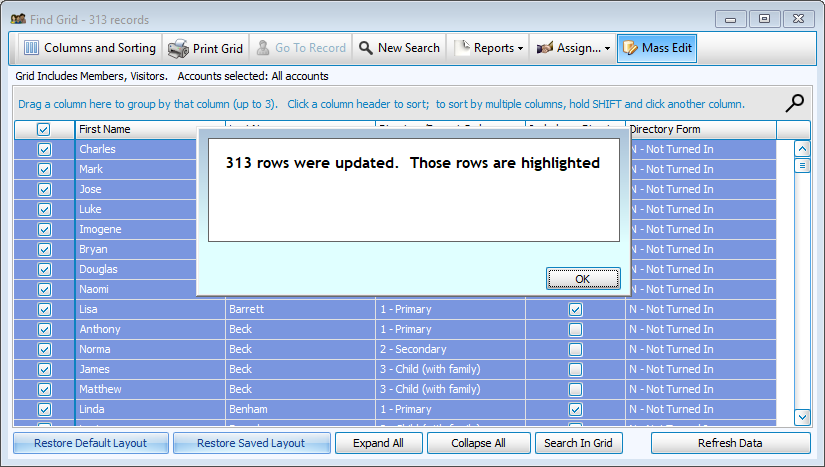
Confirm the change.
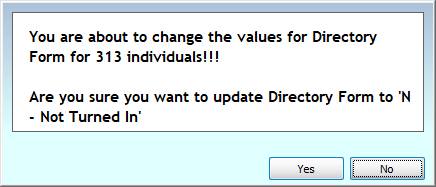
-
Review your change.
Mass Edit to Consolidate Codes
In this next example, a church would like to combine the codes "Intermittent" and "Occasional" under their status code field. These two codes designate essentially the same thing - someone who is active but does not attend regularly, and combining these two status codes will make reports and obtaining counts easier. This church has decided to get rid of the "Intermittent" code entirely.
-
Open the Find Grid by going to People > Find Grid.
-
In Step 1 - Select Who, click
without entering criteria to pull every record that has not been marked Inactive. -
Click
and add the Status Code field to the Grid, or click  .
. -
Click
. -
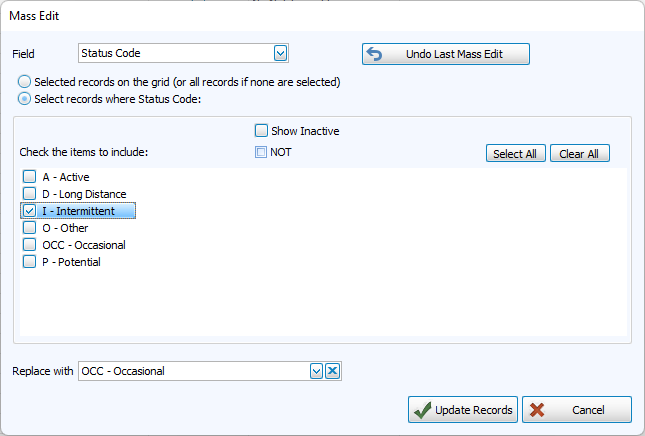
Choose Status Code in the Field dropdown and mark the option for Select records where Status Code:
-
Check the option for Intermittent
-
In the Replace With dropdown, choose Occasional and click
.
-
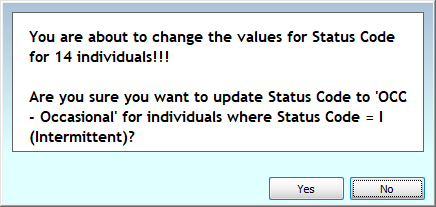
Confirm the change.
-
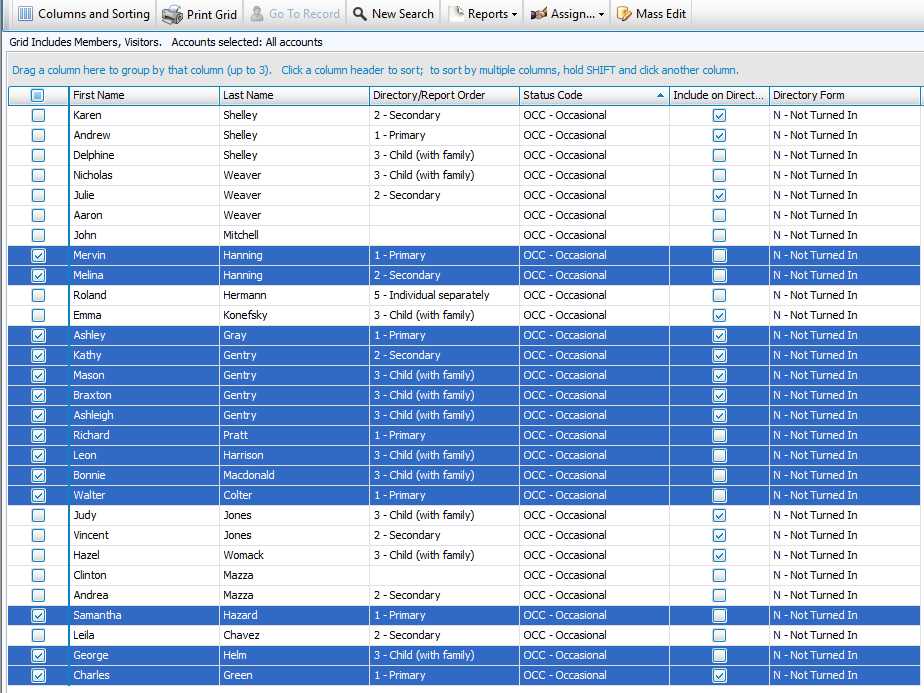
Review your change.
Mass Edit to Edit Area Codes
-
Open the Find Grid by going to People > Find Grid.
-
In Step 1 - Select Who, click
without entering criteria to pull every record that has not been marked Inactive. -
Click
and add the Phone Number field to the Grid, or click . -
Click
. -
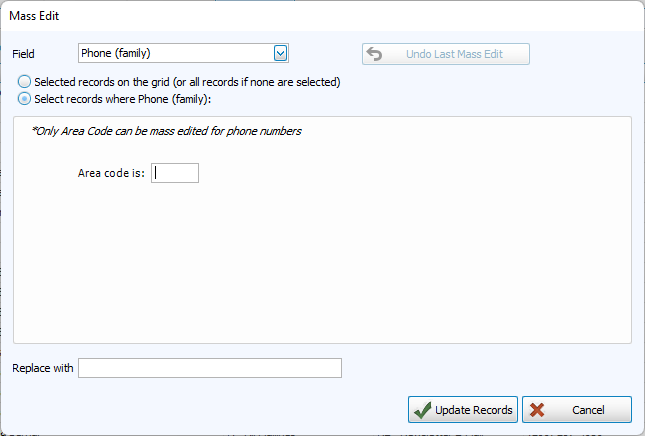
Choose Phone Number in the Field dropdown and mark the option for Select records where Phone:
-
Enter the new area code in the Replace with field. Click
. -
Confirm the change.