Manage People
The information about your congregation's contact information, membership status, history, family members and other important data is all housed in Records under People. Records consist of many fields organized within tabs. Family Records contain information about every household member, each with their own individual records. Design your records for efficient data entry, and to prioritize the information that is important to your church.
To navigate to People records from the Button Bar, go to People > People.

To navigate to People records from the Home Screen, go to the Quick Access Button.
Create a Family Record
Every person in Church Windows is contained within a family record - Families can consist of a single person or many. This record contains information about the primary address and phone number for the household, as well as the field for mailing labels.
-
Open Peoplefrom the Button Bar
 or Quick Access .
 -
Click
 .
. -
Choose a Family Category, then click OK.
-
Enter a Mailing Label.
-
Optional: Enter the primary family address and phone number. You may also want to complete Family Info fields. Read more about Family Record Tabs to find out how best to use these fields
Create an Individual Record
Everyone has their own Individual Record containing information that pertains specifically to them. See Individual Record Tabs and Default Fields to find out more about Individual data.
-
Open the Family Record this Individual belongs to.
-
Click
 .
. -
Enter the Individual's First name and Last if different from family name. Preferred names will be favored when a Nickname and the Use Nickname check box are filled in.
-
Choose a Directory/Report Order for this person.
1 - Primary
Every household requires one Primary. This should be the main contact person or person in the family with the most contact information. The primary will be listed first in a directory.
2 - Secondary
The Secondary is generally the spouse or partner of the primary. They will be listed second in the directory.
3 - Child with Family
The Child with Family designation will list children along with their parents in the directory; first name when they share a family name or full name if their last name is different from the primary's last name.
4 - Secondary/Primary Separately
Secondary/Primary Separately is a code most often used for couples with different last names. This allows the household to be listed under both the primary and the secondary's last name in the directory.
5 - Individual Separately
Individual Separately indicates someone who is a part of the family household, but with their own listing in the directory. This might be used for adult relatives or roommates.
-
Click
 .
.
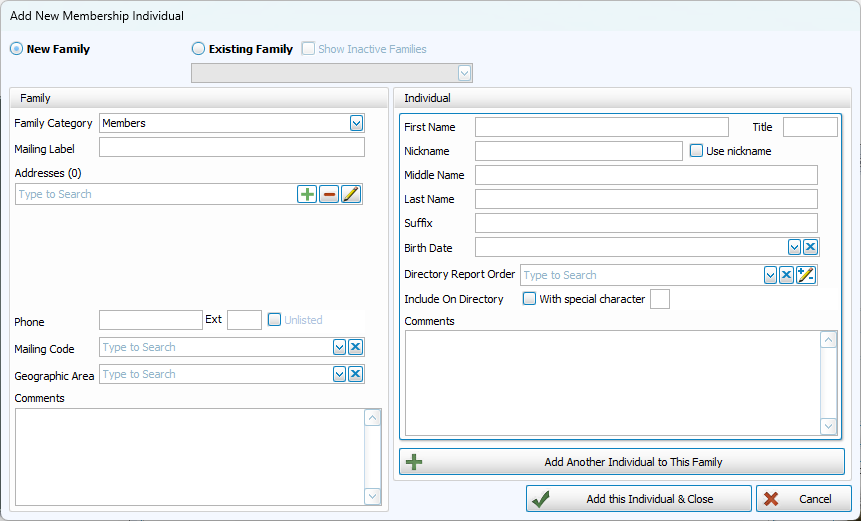
Add an Individual from Another Screen
-
Click
. -
Select Existing Family if the individual is a member of a household that already has a family record.
Select New Family if the individual needs a new family record and individual record for a new household.
-
Enter the Individual's name. When a Nickname and the Use Nickname check box are filled in, this will be used as their Preferred Name.
-
Choose a Directory/Report Order for this person.
1 - Primary
Every household requires one Primary. This should be the main contact person or person in the family with the most contact information. The primary will be listed first in a directory.
2 - Secondary
The Secondary is generally the spouse or partner of the primary. They will be listed second in the directory.
3 - Child with Family
The Child with Family designation will list children along with their parents in the directory; first name when they share a family name or full name if their last name is different from the primary's last name.
4 - Secondary/Primary Separately
Secondary/Primary Separately is a code most often used for couples with different last names. This allows the household to be listed under both the primary and the secondary's last name in the directory.
5 - Individual Separately
Individual Separately indicates someone who is a part of the family household, but with their own listing in the directory. This might be used for adult relatives or roommates.
-
Click ok.
Delete Records
There may be times where a record is no longer needed. This may be because this person did not interact or their information has been duplicated on another record. Deletions are most appropriate when there is no substantial information to save. If a person has Giving or Attendance history, their record cannot be erased. This feature protects your audit trail from informational gaps. In these cases, you should instead Archive the record, rather than delete it.
-
Navigate to the record you'd like to delete
-
Click
 to erase an entire family.
 -
Click
 to erase an individual record, but leave other household members and family record.
 -
Confirm the deletion.
Make Records Inactive
Records can be hidden and excluded by default with the Inactive check box. This action maintains the entered data, but categorizes the record(s) as Inactive. Inactive names typically appear in red. These need to be purposefully included to appear on labels or reports.
-
Navigate to the record you'd like to archive.
-
Find the Inactive field in the Individual record.

-
Check the box.
-
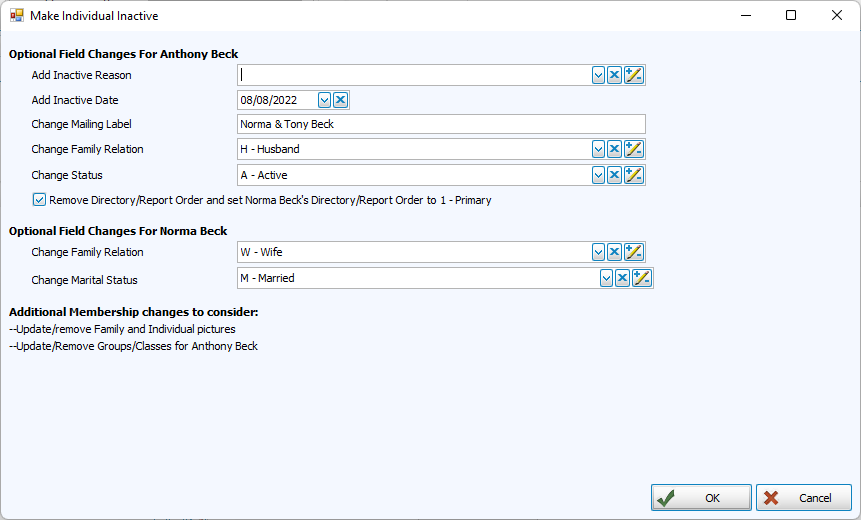
Review Make Individual Inactive edits. This dialog window helps navigate other fields that may be affected. For example, if a member passes away, you'll want to update the mailing label, directory/report orders, and other fields.
-
Optional: Select a reason code and enter the date they became Inactive.
Reactivate Records
-
Make sure that Show Inactive is checked. Navigate to the record you'd like to reactivate.
-
Find the Inactive field in the Individual record.
-
Uncheck the Inactive box.