Send Email
After you've set up your Email accounts and connected them to Church Windows, you're ready to create mailing lists, send reports, and send emails out of Church Windows. Common uses of Email functions include:
-
Sending a periodic newsletter to a list of email subscribers
-
Emailing donors donation statements
-
Attaching reports and sending those listed in a specific committee
Access Email
To access from the Membership Button Bar, go to Reports/Exports > Send Email

To access from the Donations Button Bar, go to Reports/Exports > Send Email

Send Email
-
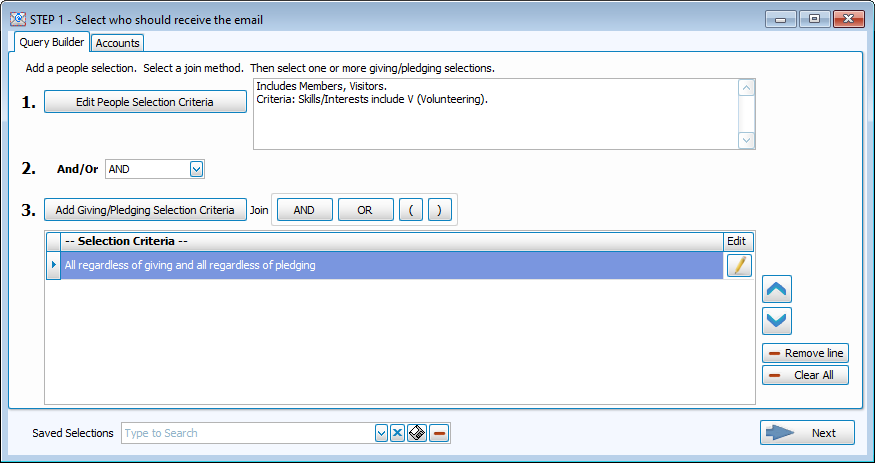
The Step 1 - Select Who window will look familiar if you've used Reports or Find in Membership. Use this window to choose email recipients.
-
Choose the email account you're sending from in the Email Settings dropdown. To add a new account, see the Email for new account setup.

-
In the Custom Email Message dropdown, select a past message or compose a new one by clicking
 .
. Create or Edit Email Message
-
Open an existing message to edit with the
 or create a new one with .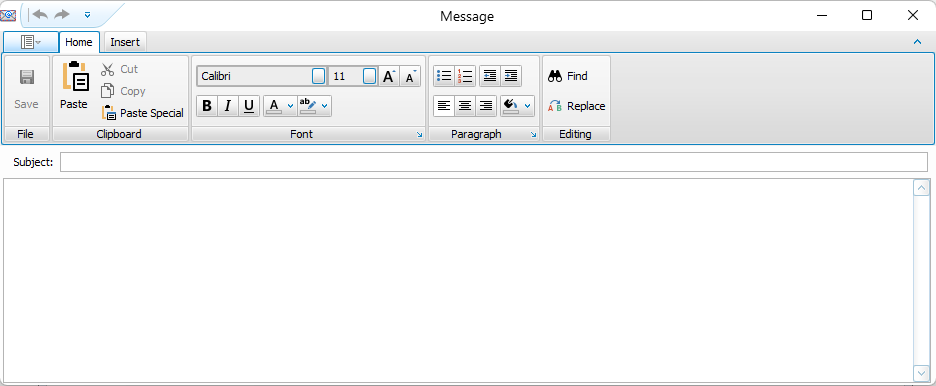
-
Enter a subject line and the body of the message. You can add a saved signature or include one in the body of the message.
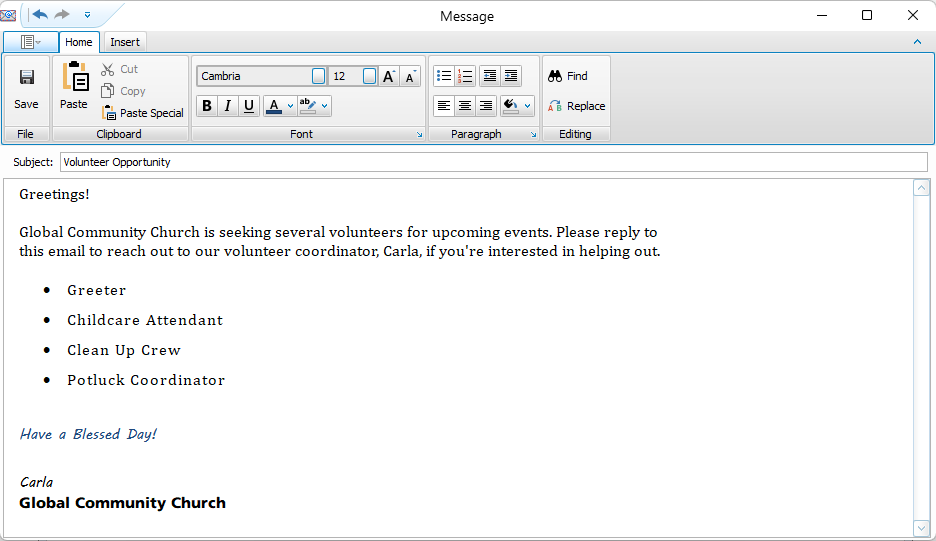
-
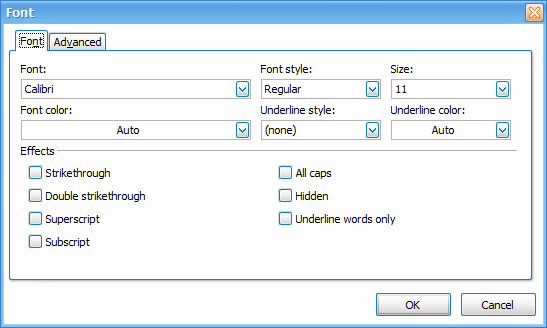
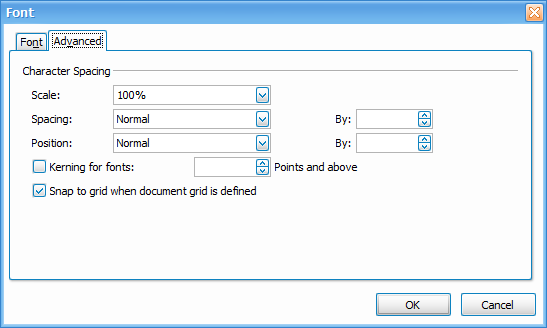
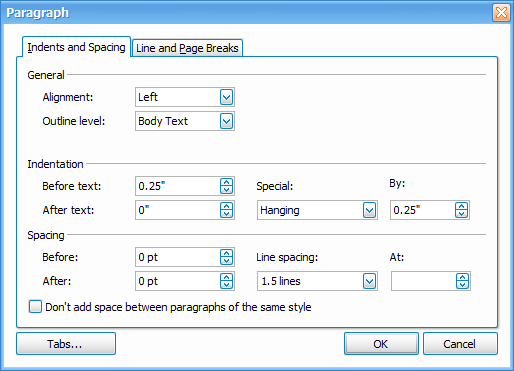
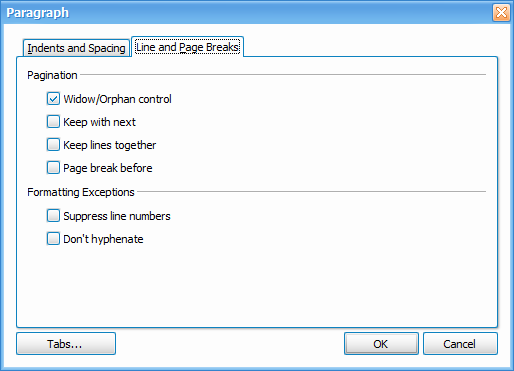
Format your message. Basic text settings are located on the Home ribbon. Click
 in the lower-right to open all settings.
-
Font Settings
-
Paragraph Settings
-
-
Add attachments or images. Click on the Insert tab.

-
-
In the Custom Email Signature line, you have the option to create and save email signatures. Select one from the dropdown or include one in the body of the email.

-
Click
 .
.
Review Sent Email
-
To view a log of sent emails, click
 .
. -
To view previously sent emails, log in to your email from a web browser and go to your Sent folder.