Church Windows allows you to connect your email account in order to send emails and documents to members in your database. You can also generate mailing lists based on things like group assignment, giving or membership criteria.
Access Email
To access from the Membership Button Bar, go to Reports/Exports > Send Email

To access from the Donations Button Bar, go to Reports/Exports > Send Email

To access from the Step 2 - Statement Layout window, go to Reports/Exports > Donation Statements > Email Tab
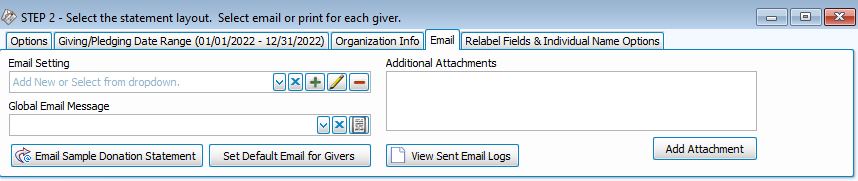
Email Setup
-
To use the email function, you will need to connect your email account. Email service providers can differ from one another, but the essential information is basically the same. You will need your log in information for your email account.
-
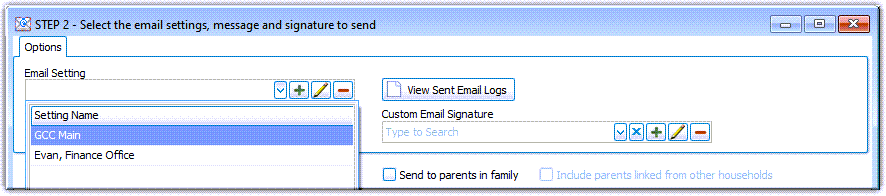
Multiple email accounts can be set up within Church Windows. This allows users to send emails from their individual work email account or the larger organization email account. Each of these accounts will be listed in the Email Setting drop down list.
Add an Email Account
-
Click the
 button for Email Setting.
 -
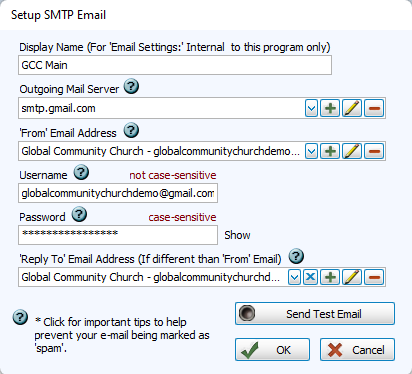
Enter the Display Name. This is what the account will be listed as in the Email Setting drop down.
-
Click
to add a new Outgoing Mail Server.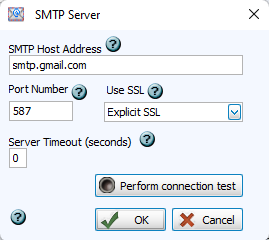
You must perform a successful connection test to save these settings.
Outgoing Mail Server settings can be shared by multiple email addresses so these settings only need to be added once per email service provider. You can find these for your email by doing a web search for "Your Email Provider" and "SMTP settings." The top results tend to be the most reliable and accurate.
SMTP Host Address
SMTP stands for Simple Mail Transfer Protocol. This address is set by the mail application and is used to receive and pass along communications.
Examples: smtp.gmail.com, smtp.mail.yahoo.com, smtp.mail.me.com
Port Number
The port number is a part of the address that designate how individual computers connect to each other. The most common port is 587 for email submission.
Examples: 25, 587, 465, 2525
Use SSL
SSL stands for Secure Sockets Layer and protects your information while being transferred across the internet. Explicit SSL is recommend if offered by your email host.
Examples: Implicit SSL, Explicit SSL, No SSL, Basic No SSL
Server Timeout
This setting typically remains at 0, but may be increased if you run into issues with sending large batches of emails. This adds a hold time to avoid hitting a limitation set by your provide on the number of emails you can send in a given time frame.
-
Select From Email Address.
This is the email account from which emails will be sent. Click
to add a new one;  to edit;
  to delete.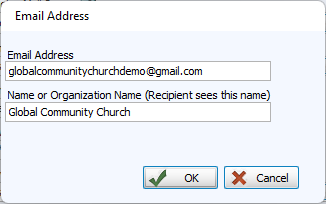
-
Enter Email Credentials, Username and Password.
Your email service provider may require an App Password to integrate with programs like Church Windows. In this case, you'll generate a special password in your email security settings and enter that here.
-
Optional: Set a Reply To Email.
When a recipient clicks the reply button in their email, this is the email the reply will be sent to. The sender will still show as the From Email address.
-
Send a Test Email. Before a test is sent the button appears like this
 .
.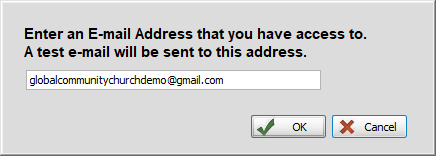
To save the new email confirmation, you'll need to successfully send a test email. Enter the test recipient and click
 .
.A successful send will produce this message. Check the associated email account to confirm.
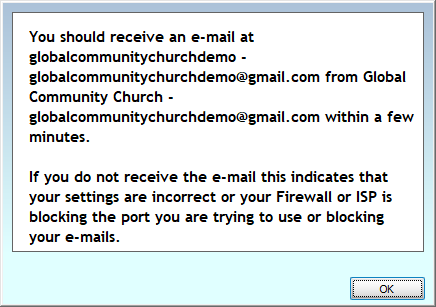
-
Click
to save your Email Settings. The Send Test Email button will appear in green once the settings have passed.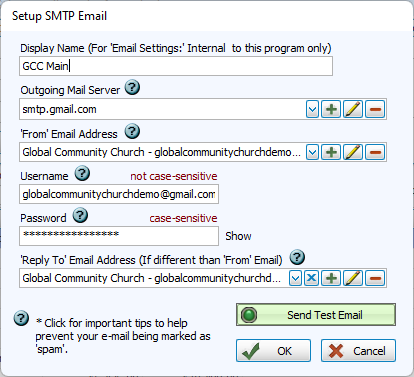
Edit an Email Account
-
Select the email setting to edit from the drop down and click
. -
Make changes to the needed areas. You will need to perform a connection test if you change Outgoing Mail Server settings and all changes are confirmed by sending a test email.
Delete an Email Account
-
Select the email setting to edit from the drop down and click
.This will permanently erase the email settings.