Gmail Integration
Church Windows has updated email integration to utilize Gmail's OAuth 2.0 authentication, enhancing security in alignment with Google's latest requirements. This update replaces previous SMTP configuration methods for Gmail accounts.
Adding Gmail as Your Email Service Provider
-
Navigate to Email Settings
-
Select Email Provider
-
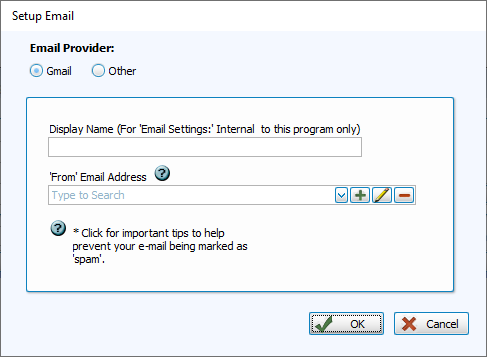
When prompted to choose an Email Service provider, choose Gmail.
-
-
Enter Display Name and Email Address:
-
Display Name: This is the name that will appear in the "From" field when recipients receive your emails.
-
Email Address: Enter your Gmail address
-
Authenticating with Google
After entering your Gmail information, you'll set up authentication to give Church Windows permissions to route emails through your Gmail account. This should be a one-time process, unless there are significant changes to your Gmail account.
-
Sign in to Google
-
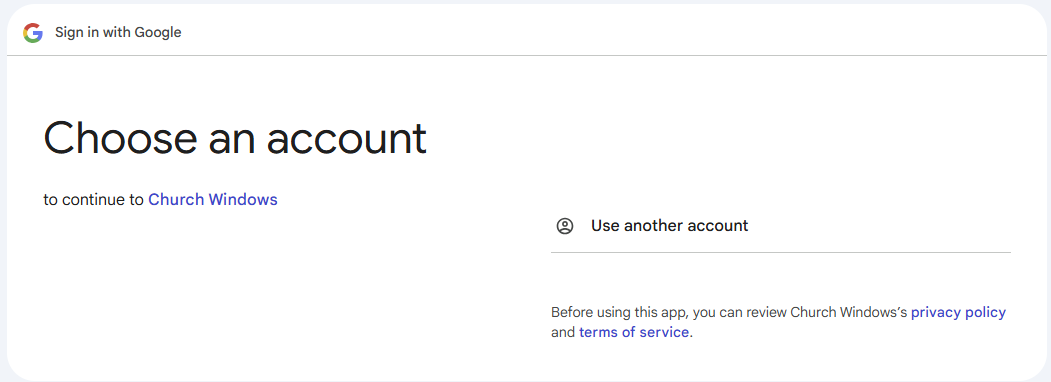
Sign In to Google: A Google sign-in window will appear where you'll log into your Gmail account
-
-
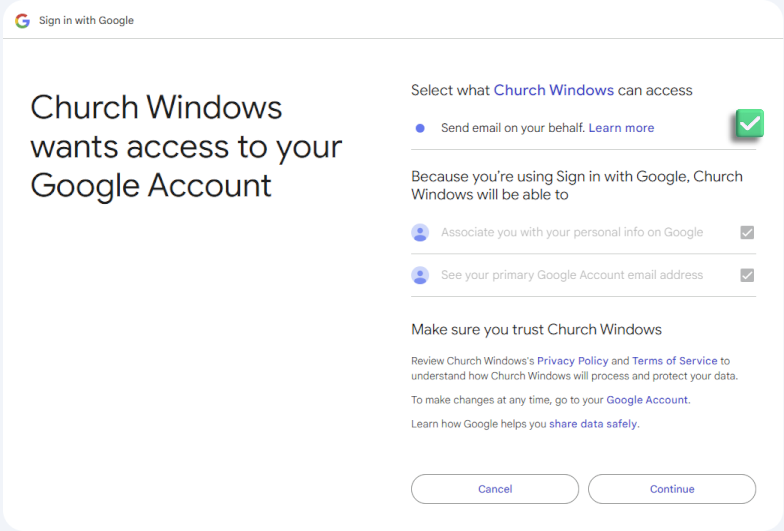
Grant Permissions
Check the box that will allow Church Windows to send email on your behalf.
-
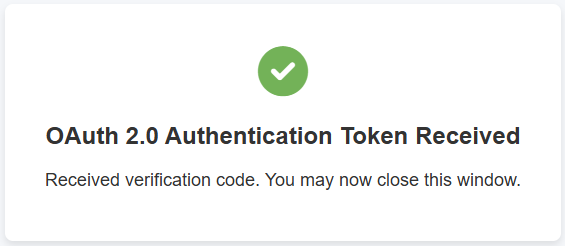
Upon successful authentication, you'll see the following message that confirms you've completed Gmail authentication and can now send emails using your Gmail account.