Tax Forms Printing
The following information applies to the preprinted tax forms, which can be used by the payroll program for forms W-2, W-3, 1096 and 1099.
We recommend printing your reports on plain paper to determine the correct alignment before inserting the forms. If you are using preprinted forms, select No, print government copy, Standard IRS Format (No Lines). Click Next and click on the Print button. Place the plain paper copies of the forms over your actual forms to see if the information is printing within the correct boxes. If the information does not line up correctly, you may need to adjust settings with the Page Setup feature on the print preview screen. On the Page Setup screen, click on the vertical or horizontal offset box and enter the amount of spacing to be changed. This measurement can be different for every printer. All numbers are assumed to be positive unless indicated with a negative sign (-) preceding the number.
W-2 Printing
W-2s may be run at any time during the year or after the year end procedure is completed and payroll run for the next year, as long as you have installed the next year's version of the program which has the correct forms. You may print W-2s for all or any combination of employees. When you click on Reports --> Tax Reports --> W-2 Forms, the Wizard will come up to start you off:

Select the employee(s) you wish to print or view and click Next.
|
|
|
|
If you select File Copy, it will print out the W-2's at 2 per page (if not, you might need to change settings) solely for informative reasons. These are NOT submittable to the IRS. In fact, most Churches don't print from here very often and simply use it as a mid-year check to make sure things are showing where they should be.
If you select Government, the other options will light up to the right so you can further select the format you would like to print:
Standard IRS format with no lines – forms purchased from your office supply store or Dynamic Systems that have 2 W-2s per page. This will print the information in the correct boxes when you load the pre-printed forms.
4-up - This will print one employee per page with 4 employer copies. This is built to fit 4 per page for easy distribution, even for informative purposes.
|
|

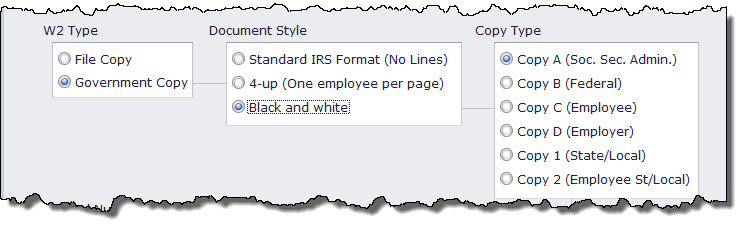
Black and White –
print format generated is compliant with the requirements in IRS Publication 1141 if you print to a laser printer. (If you use an ink jet printer print the forms, then use a copier to duplicate copy A. The copier produced forms meet the requirements for submission to Social Security Administration.) The notice to the employee that is normally found on the back of preprinted forms is printed on the bottom of the employee copy.
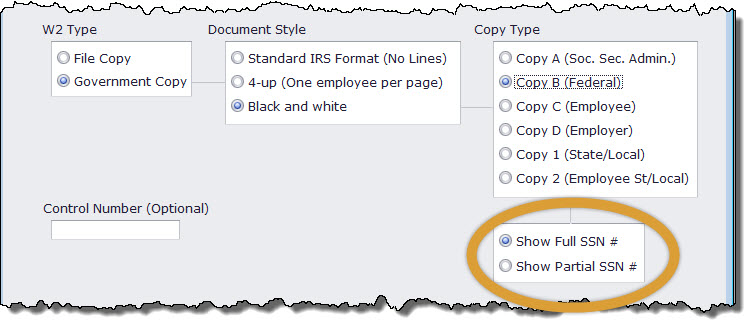
Print Copy A to file with Social Security Administration for all employees, then return to this screen and print Copy 1 for all employees as many times as necessary for filing with governmental agencies. Continue to return to this screen and through the selections until you have all forms needed to distribute to employees and for your files.
Social Security Number Options:
There is also an option to Hide all Social Security numbers except the last four digits for all copies except copy A. The entire number needs to show on copy A since that is the one submitted to the Social Security Administration. The other copies will give you the option:
W-2 Boxes 10, 12, and 14
When you set up your allowances and deductions, you specified if an amount will print in one of these boxes on the W-2.
C – Taxable cost of group-term life insurance over $50,000
E – Elective deferrals under a section 403(b) salary reduction agreement
P – Excludable moving expense reimbursements paid directly to employee
If the Church funds a retirement plan to employees that is not reported in Box 12 then Box 13 on the W-2s needs to be checked. See Data Setup, Employee File, Federal tab.
See the “W2 W3 Instructions” PDF file included under Tax Publications on the Payroll CD for more information on these boxes.
W-3 Printing
Printing the W-3 also provides the options of government or informative copy. If you print the government copy you will also need to choose between the preprinted (standard format) or Black and White. Click on Reports --> Tax Forms --> W-3 Form to bring op the W-3 Wizard to get 3 options:

As in other reports, this page lets you select the format. You can print a simple informative copy, a government copy in black & white that writes with all lines and info, or a copy with all the information where it should be on the page but without the lines. After you make your selection, the next screen will ask for some information:
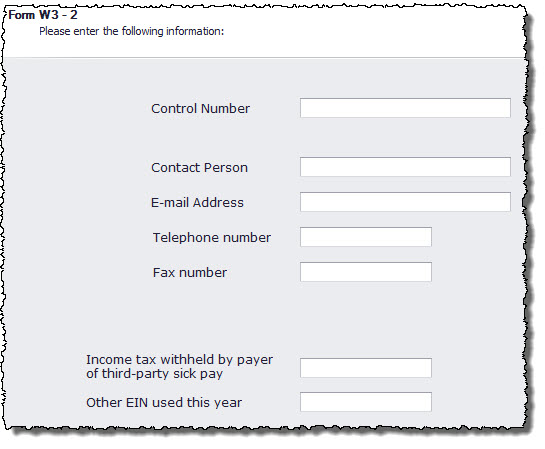
All of these fields are optional, none are absolutely required to continue to the last page:
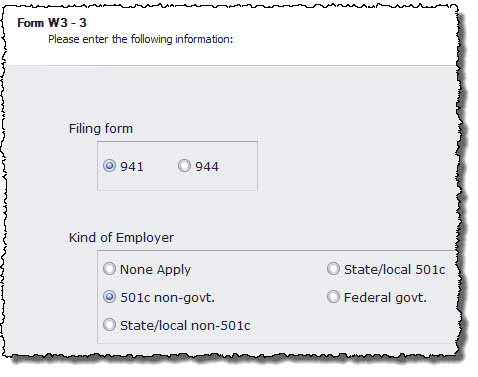
These options should be self explanatory.
Form W-4
When an employee is hired or changes federal withholding exemptions a W-4 should be completed. Click on Reports --> Tax Reports --> W-4 Form to bring up a blank W-4. The W-4 will be updated every year when it becomes available from our supplier.
Form 1099
The steps are the same as when printing W-2s. The IRS requires that 1099s be prepared on preprinted forms, so these need to be purchased from Dynamic Systems or your regular forms supplier.
Form 1096 Printing
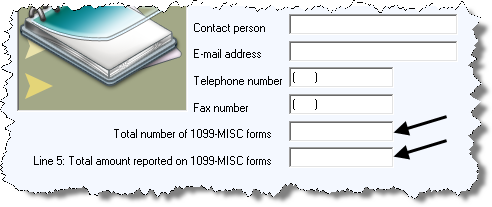
After completion of 1099-MISC printing, count the number of printed 1099-MISCs and calculate the total dollars reported. Church Windows Payroll does not calculate this automatically because a 1099 may not be generated for each independent contractor in the file.
Tax Forms to Submit Corrections - 941X, W-2C, W-3C
If a tax form was filed that contained errors, a corrected tax form needs to be submitted. These forms can be printed with the heading information. All corrected figures need to be entered on the corrected forms. Additional information and instructions for filing corrected forms can be found in the Tax Publications folder on the Payroll CD or at the Internal Revenue Service website www.irs.gov.
