Local Taxes Files
Any local or school district taxes need to be set up with the Local Tax Wizard.
The local tax record must exist in the system before you can attach them to employees’ records.
The Local Tax Wizard has been designed to accommodate a wide variety of taxation methods. Most customers that are in an area that imposes a local tax will only need the screens for Local Flat Rate Tax and/or a Local School District Tax. There are more advanced features for setup if required for your local tax structure.
Add a New Local Tax
Local Tax Name, ID, Year, and School District Tax or Not
- The system defaults to the next available Local Tax ID.
- In the Local Tax Description field, type the name of this local tax.
Note:
Some school districts prefer the district number as the identifying name. - "Is this a school district tax?" - select Yes or No.
- Click Next.
Local Tax - Flat Rate
- If you answered No, and the local tax is the same rate on all local wages, then select Yes.
- Click Next.
- Enter the tax rate. (For example, if the tax rate is 1½ %, then type 1.5 into the Rate field.)
- Click Finish to save this new local tax.
School District Tax
- If you answered Yes to the school district tax question, then type the tax percentage into the Rate field.
- "Is the tax based on local or state taxable income?" - select Local or State. If the tax is based on state taxable income, state exemptions claimed will be used in the computation.
- Click Finish.
Local Tax - Graduated Rate (With or Without Exemptions and Standard Deductions)
- When you answer No to the question about school district tax, and No to the question about whether this is a flat rate tax, then when you click Next there are other selections to make.
- If this local tax allows a Standard Deduction, then click on the Standard Deduction box.
- If this local tax allows Personal Exemptions, then click on the Personal Exemptions box.
- If you checked the Personal Exemptions box, then answer the question "Are personal exemptions the same amount for each dependent?" - select Yes or No.
- Click Next. Your choices on the next screen will depend on the selections you made about standard deduction and personal exemptions:
No Standard Deduction and No Personal Exemptions:
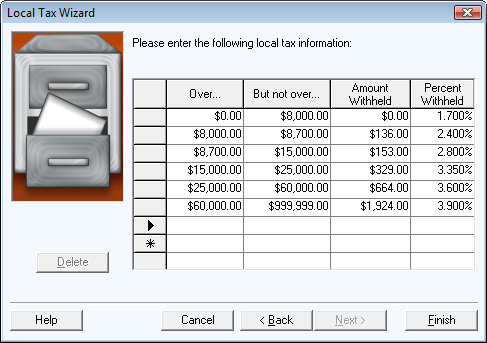
- The screen will contain a grid in which to enter your tax tables. Use the right arrow key to move through the fields on this grid. Once you have entered the tax table click Finish.
With a Standard Deduction and/or Personal Exemptions:
- If you checked the box for Standard Deduction enter the amount of the Standard Deduction into the appropriate field.
- If you checked the box for personal exemptions enter the amount of the exemption into the appropriate field.
- If the exemption amount differs according to the number of dependents, fill in the required fields for the exemption numbers and the associated amounts.
- Click Next to continue.
- Follow the previous instructions for Flat Rate OR completing the grid explained above.
- Click Finish.
Editing Existing Local Taxes
- To edit information click Data Setup and select Local Tax Wizard.
- Select Edit an existing local tax file. When you make this selection, a list appears toward the bottom of the screen that shows all local taxes in the system.
- Click on the tax to edit and click Next.
- From that point on, you have the same choices as when you add a new local tax.
Deleting a Local Tax
You may not delete a local tax from the Local Tax File if there have been pays calculated for employees that include withholdings for this tax.
- Click Data Setup and select Local Tax Wizard.
- Select Delete an existing local tax file. A list appears that shows all local taxes in the system.
- Click on the tax and click Delete.
