Calculate Bonus Payment
Two methods are described for issuing bonus payments. Use the first method when you want the bonus check to be issued separately and the second method to include a bonus with the regular check.
The Calculate Bonus Payment allows easy input of recording bonus payments made after a check has already been issued or creating a check for a bonus payment. This method does not follow IRS rules for deducting a flat percentage for federal withholding or for special rates of state withholding. These rules were designed for large or frequent bonus payments and generally are not applicable to situations our customers have described.
- Click Payroll, choose Calculate Bonus Payment.
- Select the date the checks are to be issued. Click Next.
- Select the employee(s) for processing. Click Next.
- Select either Gross-up income (Default) or Standard Withholding:
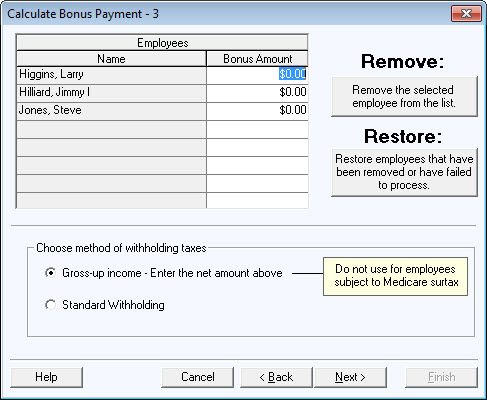
Gross-up income - wages are increased for the employee share of Social Security and Medicare. The net amount of the check will be equal to the amount entered above for the bonus, but the expense to the Church will be more to cover the withholding.
Standard Withholding - taxes are calculated and withheld based on the frequency and tax allowances checked in the employee file, and the net check will be the bonus less the taxes withheld.
The rest of the procedure for processing a bonus is the same as it is for calculating a payroll, except there is no option for direct deposit. If checks have been manually written, assign the check numbers on the Print Checks screen.
Include the bonus in the employee's regular pay check. On Calculate Payroll Step 3, use the pay field called Additional. Under additional hours worked put a 1 and under rate enter the amount of the bonus. The Additional fields always compute on hours times rate, even if the individual is marked as salaried.
