Multiple Reports
In Church WindowsAccounting, you have the option to either run each report individually or to run multiple Reports at one time. Running an individual report involves going to each specific report option to run the report. Running multiple reports involves choosing the desired report names from a list and pressing the → Next button, which subsequently opens the Report Options screen for each selected report name.
To run Multiple Reports:
- Click the Multiple button found under the Reports/Export menu of the Button Bar:
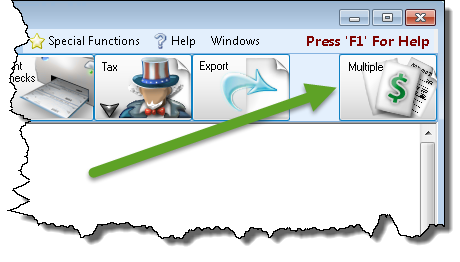
- To begin, you can click to select the desired reports from the Available Reports list on the left, then click the
 right button to add them to the Selected Reports list on the right: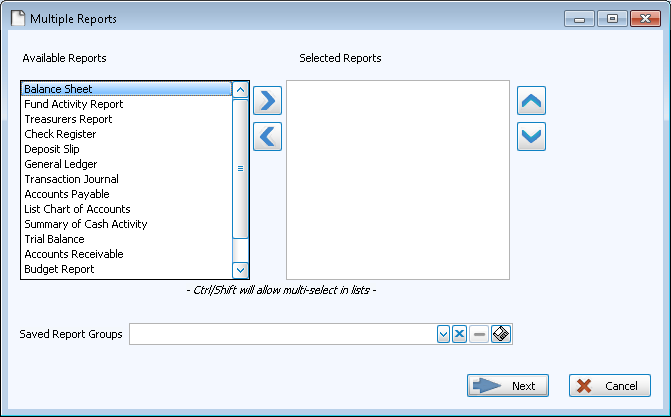
- To remove any of the already Selected Reports, click it once to select it. Then click the
 left button.
 - You can also use the Saved Report Group dropdown list if you have already saved groups of reports (see below).
- Click → Next to start running each of the Reports you have selected one by one, following the individual instructions for each respective report.
If you wish to save the selected reports in a Saved Report Group to run the same set of reports again in the future, click the  save button at the bottom of the screen to do so:
- Give the group a name and click OK.
- The next time you enter the Multiple Reports screen, you will be able to select the group name from the dropdown and the reports will automatically be selected for you.
- You can always remove any unwanted reports from the group.
- When you click → Next, choose whether or not to save the changes you made to the Saved Report Group.
- You can get rid of a Saved Report Group you no longer need by selecting it from the dropdown list and clicking the
 Delete button.
