Enter Spoiled Check Numbers (Voided Checks)
Whether your Church is using Church Windows Accounting to Print Checks, or even writing the payable information on a check by hand, the check number on the physical check does not change. If you have determined that a check is unusable or voided, you can use the Enter Spoiled Check Numbers (Voided Checks) screen to post a transaction that represents the circumstance. Doing so would account for the check number that you would have otherwise used to administer to a Vendor / Payee.
To access the Enter Spoiled Check Numbers (Voided Checks) screen:
- From The Initial Portal of Church Windows choose Accounting
- Click the Transactions menu in the Button Bar at the top of the screen
- Click the option for Other
- Choose "Enter Spoiled Check Numbers (Voided Checks)" and the window will open:
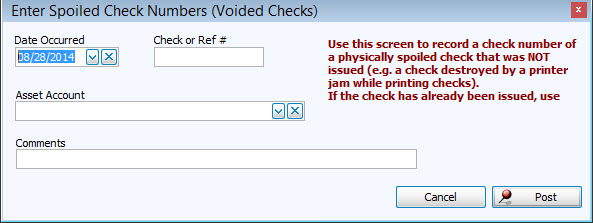
- Enter the Date Occurred to represent the day you declared the check as spoiled.
- Type the Check or Ref # printed on the check.
- Select the Asset Account applicable to the check.
- Enter any additional Comments in the box.
- Verify the information is correct and click the Post button.
A message will display the transaction number(s) created by the successful posting of the voided check. Use the transaction number(s) in the message to locate the transaction(s) in the Browse Transactions screen of the Accounting Module, where the voided check you posted will appear as a PYMT transaction with "Voided Checks" showing as the Vendor / Payee and Account Name.
