Copy a Campaign
Sometimes when someone wants to Add a New Campaign, they want to use the same characteristics of a campaign that already exists. If this is the case, use the Copy Campaign button on the Campaign Pledges tab of the View and Enter Pledges screen (click on Accounts and Pledges, then click on Pledges) to duplicate that information, and from there, you can change the information as you would like the new campaign to show it.
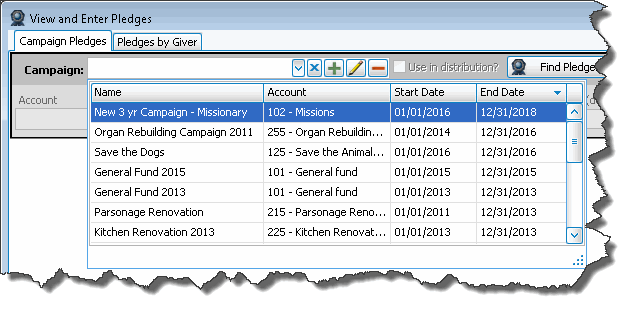
- Select the campaign name from the Campaign dropdown box.
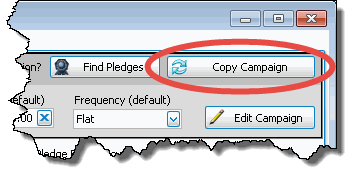
- Click the Copy Campaign button at the far right.
- Type the name of the new campaign, and set the dates when it is to begin and end.
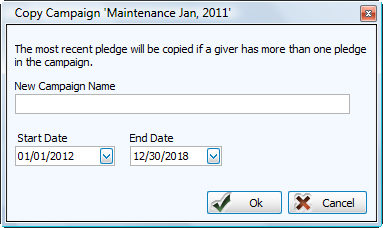
- Click OK to save or Cancel to discard the copied campaign.
Note:
If a Giver has more than one pledge on the campaign of which you chose to make a duplicate, the new campaign will contain only the most recent of the Giver’s multiple pledges. Additionally, if a Giver already has a pledge during the campaign, a message will popup warning that the conflicting pledges will not be copied.
