Add Givers to a Campaign
Once you Add a New Campaign, you can begin to add individuals and/or groups who plan to donate money for the campaign following the instructions below:
- Click Accounts & Pledges in the Button Bar at the top of the screen
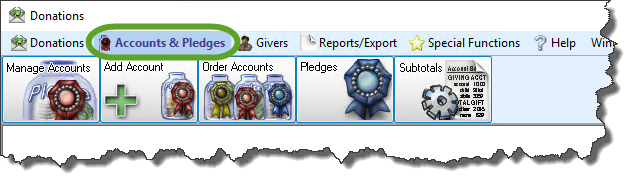
- From the menu options that appear underneath, click Pledges to enter the screen.

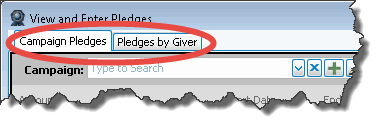
- Click the Campaign Pledges tab.
- Campaign
Click the dropdown button and select the desired campaign: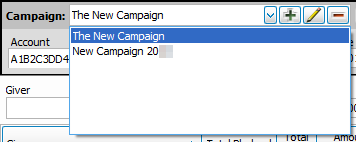
The larger portion of the screen will show you the completed Pledge Information Fields of the individuals and groups already participating in the pledge campaign (new campaigns will be blank until you add Givers):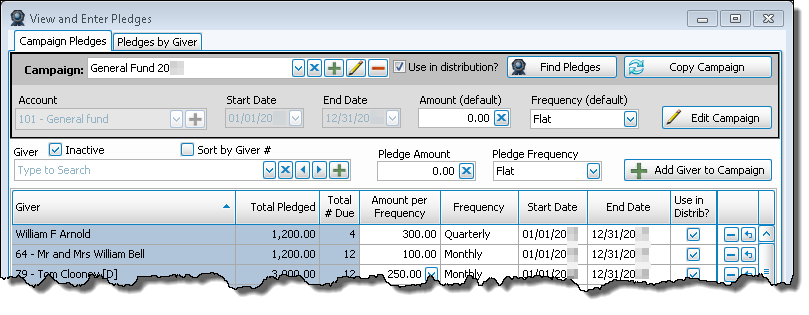
- Giver
Select the name of the Giver by either typing the name in the box, or using the dropdown button to find the name.
Note:
If the desired Giver name does not appear in the dropdown box and you have determined that you must Add Givers, click the button to do so.
 - Total Pledged, Total # Due, and Total Given
These fields have a blue background because they are automatically calculated for you by Church Windows, you can only typw in the boxes with a white background. - Amount per Frequency
Enter the dollar amount that the Giver has pledged to give towards this campaign based on the number of times they are going to give (the Frequency, selected next). - Pledge Frequency
How often the individual or group foresees giving the Church money. This selection determines the "Due-by Date" of each pledge. The choices are:
- Flat — due once on the first day of the campaign, use for one year pledges
- Annual — due once on the last day of each year of the campaign, use for multi-year pledges
Note:
Annual pledges will only show up on Donation Statements for the entire year, but not on partial year statements; try using Flat instead for a single year campaign. - Semi-Annual — due once every 6 months
- Quarterly — due at the end of each quarter
- Monthly — due once each month
- Semi-Monthly — due twice per month
- Bi-Weekly — due every other week
- Weekly — due each week
Note:
Check the "Week day for weekly pledges" in Donations Settings if you are seeing 53 weeks instead of 52 which happens during or after a leap year.
- Click the Add Giver to Campaign button:

- The larger portion of the screen will fill with information that you have selected, along with calculations that involve the pledge campaign:

The Amount per Frequency, Frequency, Start Date, End Date, and Use in Distrib? Pledge Information Fields can be changed. Changing them will then recalculate the Total Pledged and Total # Due.
Note:
If a Giver already has a pledge during the campaign, a message will popup warning that there are conflicting pledges and asking how you wish to proceed: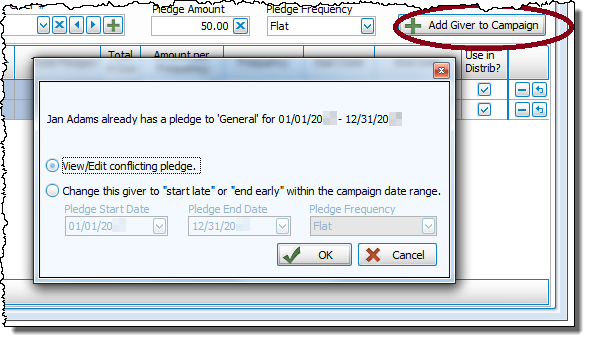
Repeat Steps 5-8 to add each individual or group making a pledge to the campaign.
The screen will automatically save each change as you go. And when you are finished, just close the View and Enter Pledges screen.
If you would like to remove any lines, press the  Delete button. Also, if you make a change on the line and want to reverse that change, click the
  Undo button.
