Subtotals
By setting Subtotals, you can organize accounts so that they are grouped together to add up to a total specific to the grouped accounts. These Subtotals and the accounts that add up to the subtotal dollar amounts appear on the List Account Balances report.
While the List Account Balances report shows the subtotals, the Subtotals screen provides you with a panel of settings to format how the report is going to print its subtotals.
To access the Subtotals screen:
- From The Initial Portal of Church Windows choose Donations
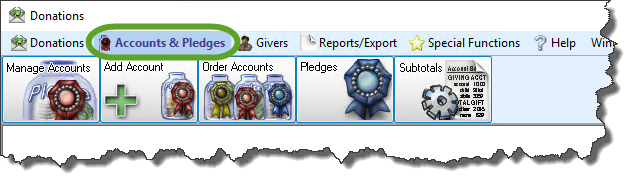
- Click the Accounts & Pledges option in the Button Bar at the top of the screen
- Click the Subtotals button from the options that appear.

- This will open the Subtotals screen:
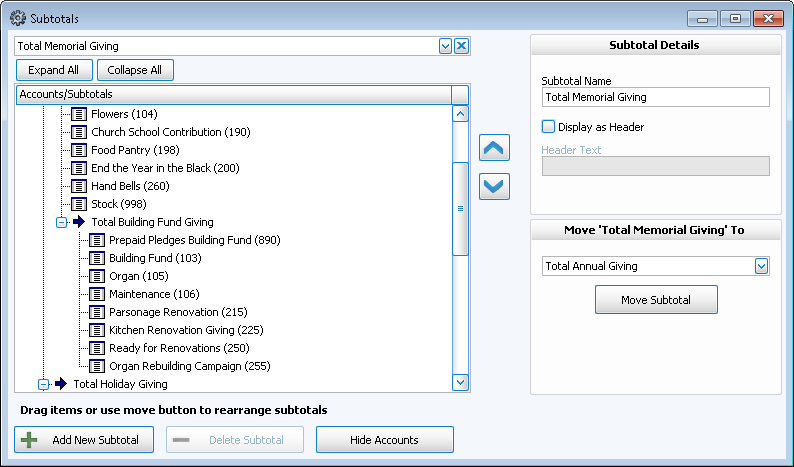
The list of Accounts / Subtotals always has in place a subtotal item that represents the total of all the subtotals you create that serves as a grand total. The subtotal item is originally called Total Giving Accounts, a name that you can change at any time. Click the  expand button to the left of each row to view details (when expanded it will become a
  collapse button).
Working with Subtotals
Click the Show Accounts button at the bottom of the Accounts / Subtotals list to display the accounts entered in your Chart of Accounts. When the accounts appear, you can click and drag them to existing subtotals, or put them into new subtotals you create.
To add a new subtotal item, click the + Add New Subtotal item. After adding or choosing a subtotal, you can also use the  up and down arrow buttons to box to move subtotals to different places. If the subtotal has nowhere to move, these options will be disabled. You can also click the account you want to move and select the desired destination subtotal item from the “Move '...' To” box in the bottom right corner of the screen and click the Move Account button.

If you wish to delete a Subtotal at any time, make sure that the accounts that it contains have been moved to another subtotal. Then click the desired subtotal and click the — Delete Subtotal button.
Subtotal Names and Header Text
Use the Subtotal Details area in the upper right side of the Subtotals screen to give any subtotal selected in the Accounts / Subtotals list a name, and to optionally give it a heading name.

- Subtotal Name: Enter the desired name for your subtotal as you would like it to appear.
- Display as Header: If you would like text to be placed over the accounts that add up to the subtotal item, place a checkmark in this box.
- Header Text: If you placed a checkmark in Display as Header box, place the name you want the header to display in this box. This is the name that appears above the subtotal items.
To see how these items will appear on the report, go to the List Account Balances feature in Reports and run the report to see where these items are displaying. Come back to this screen to make any additional changes as you wish.
