Order Giving Accounts
When you Enter Donations, you have the option of making certain giving accounts appear towards the top of the Account / Pledge box. The Giving Account Order screen sets the order of appearance in which the accounts appear when the Accounts / Pledges dropdown is expanded.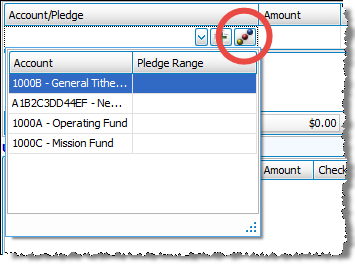
To access the Giving Account Order screen, either click the  button in the Enter Donations screen OR:
- Click Accounts & Pledges in the Button Bar at the top of the screen
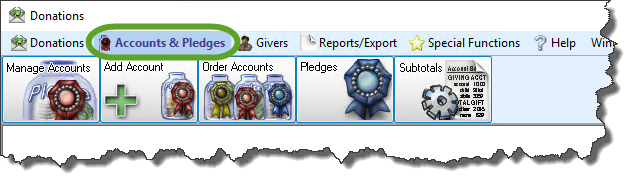
- Click the Order Accounts button from the options that appear underneath.

The Giving Account Order screen appears with the list of accounts in the current order. If you need to locate an account without scrolling to it in the list, enter the name or number in the search box at the top of the screen until the name appears.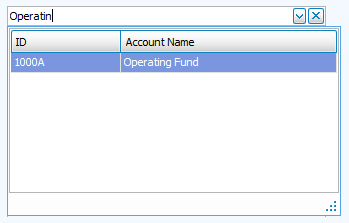
Note:
You might see more accounts in this list than you would when entering donations. This means that some of the accounts have been marked as “Inactive” in the Manage Accounts, which hides them from the Enter Donations screen.
There are several ways that you can organize the accounts in the list:
Sort by Name
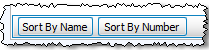
If you want the accounts to be in alphabetical order by account name, click the Sort by Name button.
Sort by Number
If you want the accounts to be in numerical order by account number, click the Sort by Number button.
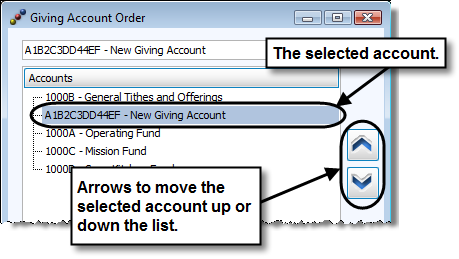
Select the Account and Use the Up and Down Arrows
You can click the desired account once in order to select it. Then use the up and down arrows along the right side of the list of giving accounts to move the account in the desired direction.
When you are finished, click the OK button at the bottom of the screen.
