Correct a Donation
Use the following instructions to correct an individual donation that has been entered into the software with errors. Correcting a donation will give you the opportunity to change any aspect of the donation that was entered incorrectly (e.g. date, Giver, amount, distribution, etc.).
Note the difference:
If you need to correct the date or code of an entire batch of donations, you need to Correct Posted Batches instead of the instructions below. If you need to reverse an individual donation without reversing the entire batch, you need to Reverse a Donation instead. If you need to reverse the entire batch of donations, you need to Reverse Posted Batches instead.
To Correct a Donation:
- From The Initial Portal of Church Windows choose Donations then either:
- Click the Browse Donations button in the in the middle of the screen:

- Click the Browse Donations button in the in the middle of the screen:
- Click Donations
in the Button Bar at the top of the screen:
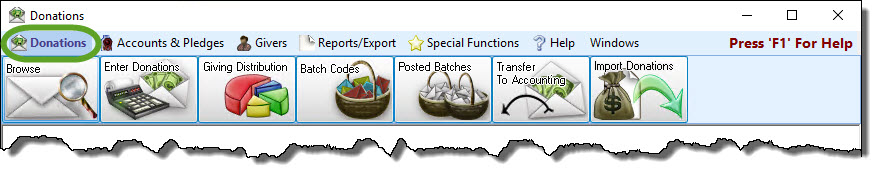
- Then, from the menu options that appear underneath, click
Browse Donations:

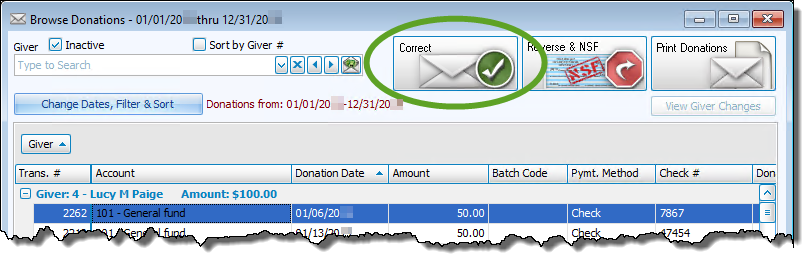
- The Browse Donations screen will appear:
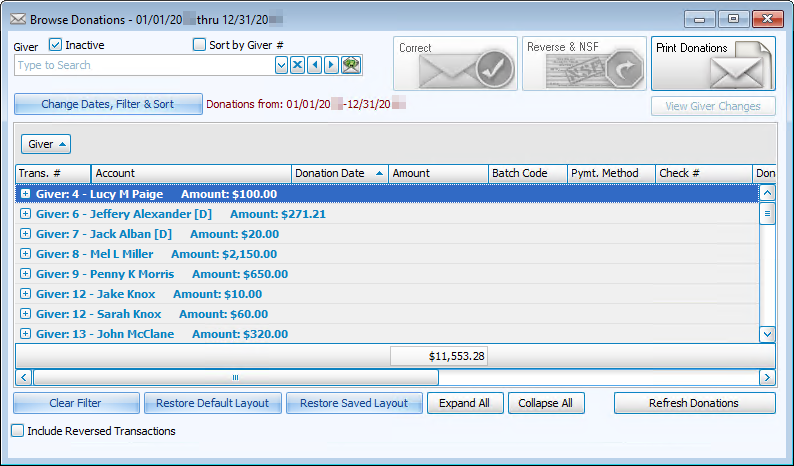
- Click Change Dates, Filter & Sort or type the Giver name at the top of the screen to locate the donation that you want to correct and click the line that identifies that donation:
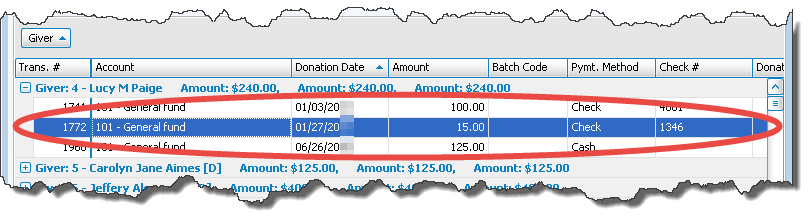
- Click the Correct button at the top the screen:
- The Correct Donation screen will appear:
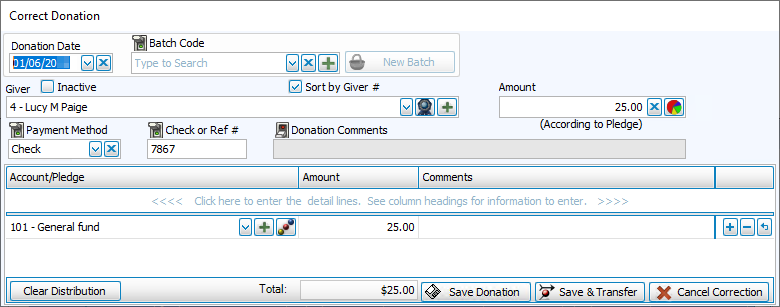
- Make your corrections to the necessary fields on the Correct Donation screen.
- At the bottom of the screen, click either the Save Donation button or Save & Transfer (if you use the Accounting Module) and the following message will appear:
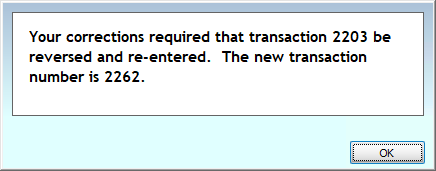
- Click OK and the message will disappear. (If you clicked Save & Transfer, the Transfer Donations to Accounting screen will open for you to click the Post button to transfer the correction to Accounting.)
- Repeat Steps 4-8 if you need to correct additional donations.
OR
Once finished, if you would like to view your transaction corrections, make sure that you take note of the transaction numbers. You can then look up the transactions by Transaction # on the Browse Donations screen.
Important!
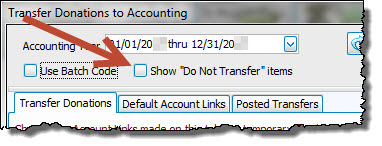
If you change only change the giving account and NOT the amount for either a single donation or a whole batch that was previously transferred to Accounting, it will not automatically show up in Transfer Donations to Accounting. To see any of these corrections where the amount has not changed, you will need to
check the "Show 'Do Not Transfer' items" box on the Transfer Donations to Accounting screen after you save your changes: