Locking Fields
Some fields in the Enter Donations screen contain the same information for every donation that you enter into the batch.
For example, all entries in each batch must have either the same Batch Codes or no Batch Code at all.
So instead of entering the same batch code every time that you enter a donation into the batch, you can lock the information of a field in place. Locking the information of a field in place gives you the ability to refrain from entering the same information into a field and move on to the next field.
Note:
You might find this helpful if you are accustomed to hitting the TAB and ENTER keys, when you enter donations into the batch. By locking a field in place, you can hit the TAB or ENTER keys and completely skip over the field to move on to the next.
The following directions will show you how to lock a field in place:
- Make the desired selection from the desired field.
- Locate the
 ON and
  OFF light switch buttons: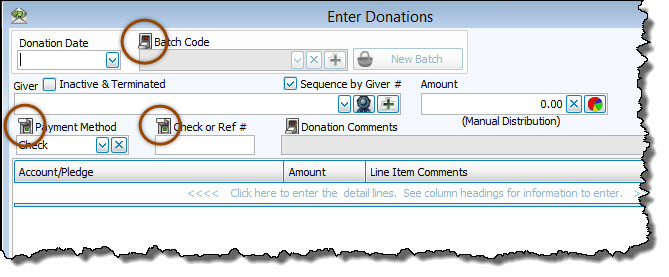
- Click the light switch button located above the field. The background of the field will turn gray in color while the field displays the information you entered.
- The light switch button will now show as being in the OFF position and the information in the field will remain temporarily locked in place.
- If you need to have a field remain unlocked, so that you can change the information it contains, click the OFF switch again, so that it changes to the ON position. The background of the field will turn white and you will be free to make a desired selection.
Skipping More Than One Field at One Time
In addition, you can lock more than one field at one time. And unlike Batch Codes, they do not demand that the whole batch is to contain the same selection from the field.
For example, if the same batch contains donations given in cash and in checks, you can alternately lock and unlock the Payment Method fields and Check or Ref # fields. While the Batch Code will remain the same at all times, you can lock the Cash payment method in place and lock the blank Check or Ref # field (assuming that your cash transactions do not have one). This way, you can enter all your cash donations at once. When finished, you can lock the Check payment method in place and unlock the Check or Ref # field (so that you can enter the number for each check).
Above all, these are just examples intended to give you an idea of how more than one field can be locked at one time.
