Giving Distribution
As you Enter Donations, the software gives you the option to have donations automatically distributed among accounts by pledge or by other means that you are in control to set in the software. You also have the option of distributing the amount of money given manually across the accounts to which the donations are being given.
To access the Giving Distribution screen:
- From The Initial Portal of Church Windows choose Donations.
- Click Donations in the Button Bar at the top of the screen
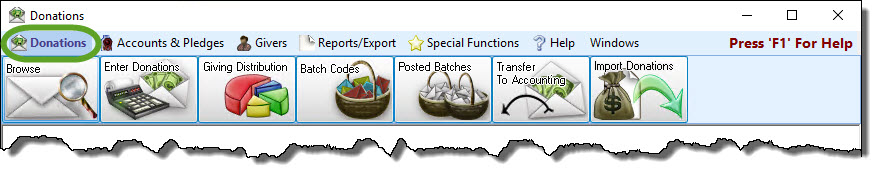
- Then either:
- Click the Giving Distribution button:

- Open the Enter Donations screen and click the
 pie graph button next to the Amount field: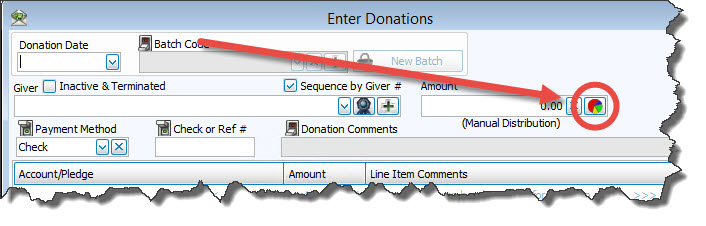
- From the Giving Distribution screen you can do one or more of the following tasks:
- In the Giving Distribution screen, click the
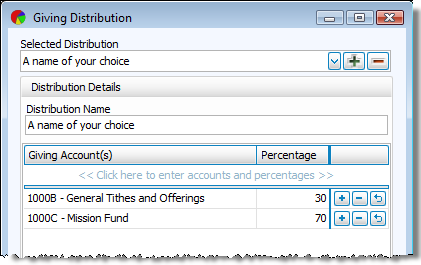
 Add button and enter a name that you would like to use to represent your custom distribution.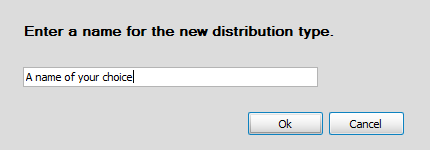
- Press OK and the Giving Distribution screen will make space available for you to enter the accounts and the percentage portions.
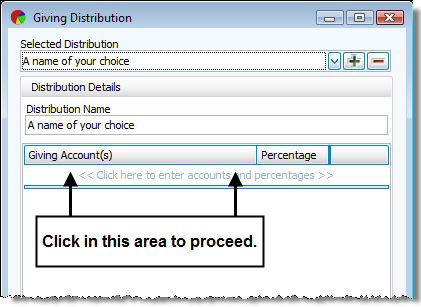
- Enter the desired accounts and the percentage portions.
- If you want these custom settings to be the ones that you primarily use to distribute the donations amount when entering donations, place a
 checkmark in the Save selected Giving Distribution as default box.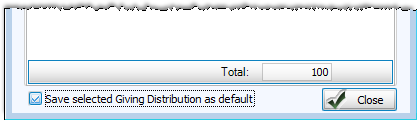
- From the Selected Distribution box, click the
 dropdown button and choose the name whose settings you want to change.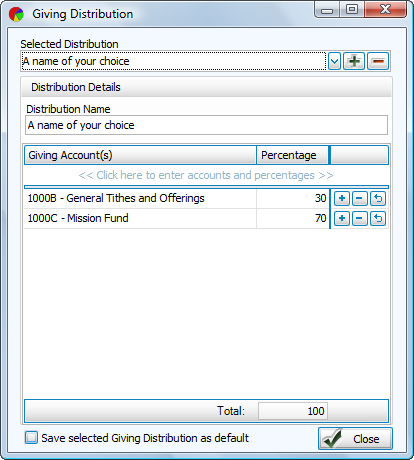
- If you need to change the giving account, click the account and a dropdown button and a
 clear button will appear on the line you clicked.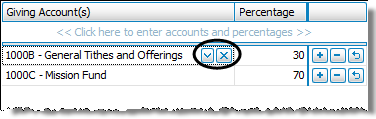
Click the dropdown button to select a different account. - If you need to change the percentage, click the number in the Percentage box and replace it with the desired number.
- From the Selected Distribution box, click the dropdown button and choose the name and settings that you want to remove.
- Press the
 Delete button and the name and its settings automatically disappear.
OR
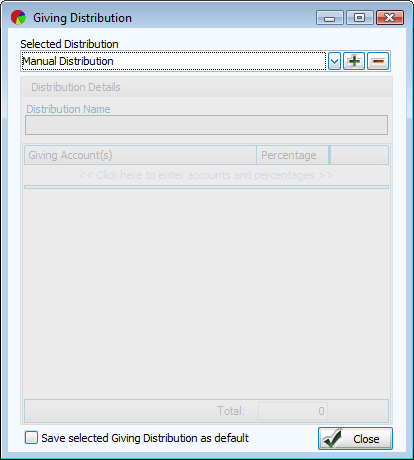
 Setting up a Custom Giving Distribution
You can also add new lines to the distribution by clicking the <<<< Click here to enter the detail lines. >>>> row, or pressing any available  Add button. To discard changes, click the
  Undo button. You can also remove as many lines as you wish by clicking the
  Delete button at the end of the line you wish to remove. When finished, click Close to exit the Giving Distribution screen.
Changing the Giving Distribution Settings
You can also add new lines to the distribution by clicking the <<<< Click here to enter the detail lines. >>>> row, or pressing any available Add button. To discard changes, click the Undo button. You can also remove as many lines as you wish by clicking the Delete button at the end of the line you wish to remove. When finished, click Close to exit the Giving Distribution screen.
Note:
If you want these custom settings to be the ones that you primarily use to distribute the donations amount when entering donations, place a checkmark in the Save selected Giving Distribution as default box.
Removing Giving Distribution Settings
