Browse Donations
All the donations ever recorded in Donations are shown on the Browse Donations screen. Use the screen to look up, confirm, and make Reversals and Corrections After Posting. With the Change Dates, Filter & Sort feature in the Browse Donations screen you can narrow down the donations you want to see, group them together, and change the way that they are listed to any particular order.
To access the Browse Donations screen:
- From The Initial Portal of Church Windows choose Donations then either:
- Click the Browse Donations button in the in the middle of the screen:

- Click the Browse Donations button in the in the middle of the screen:
- Click Donations
in the Button Bar at the top of the screen:
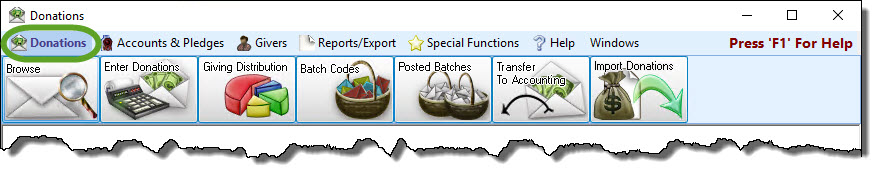
- Then, from the menu options that appear underneath, click
Browse Donations:

- The Browse Donations screen will appear:
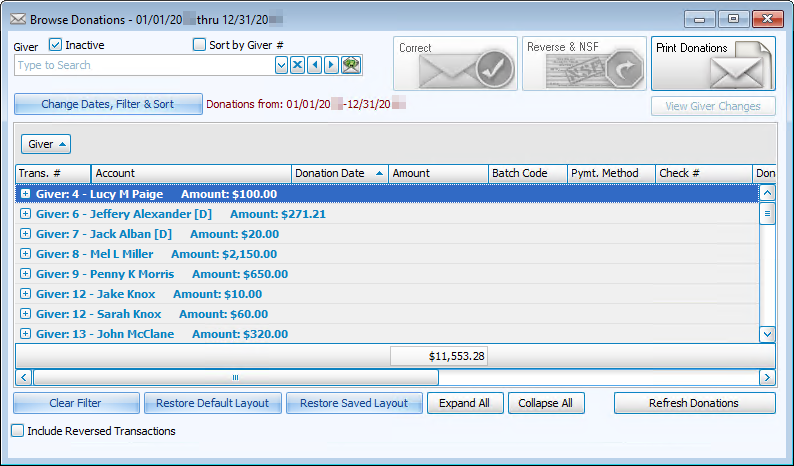
- When you first open the screen, the list will display the donations in order by transaction number.
- If you would like to see the list organized in a different order, you can make several choices to have the software rearrange how the list appears:
OR
Change Dates, Filter & Sort
- You can also search for specific donations, in order to print Reports, Labels, and Statements, Correct a Donation, and Reverse a Donation.
- Find donations by narrowing down the characteristics that the donation(s) you search possesses using the Donation Browser Options.
- Doing so changes the donations that appear on the Browse Donations screen, because of options you make to narrow down the list of donations.
Add a Donation for a Selected Giver
- You can even Enter Donations for Givers from Browse Donations.
- Use the Giver box at the top of the Browse Donations screen to select a Giver.
- Then, click the
button to the right of their name.
- Clicking the button opens the screen for you to enter the donations.
Sorting the List by One or More Columns
Sorting By One Column
Click on the column by which you would like to sort the list and an upward arrow
will appear. This will automatically order your list by that column in ascending order. However, click once more and you will see that the column has reordered the list in descending order, with the arrow pointing downwards
.
If you need to start over or would like to sort the list differently, click the Clear Filter and Sort button and the list will appear as it did when you initially entered the Browse Donations screen.Sorting By Multiple Columns
Click once on the column by which you would like to sort first. Then press and hold the SHIFT key until you select all the columns you need and the order that each one should appear. You must hold down the SHIFT key until you are finished choosing the columns, because otherwise you will lose the order that you want to apply to the list.
For example:
Suppose that you wanted to sort by the transaction number (Trans #), then by the name of the person, family or group making the donation (Giver) and then by the name of the account towards which the Giver made the donation (Account Name)
- Click the Trans. # column once.
- Press and hold the SHIFT key on the keyboard.
- While holding the SHIFT key, click once on Giver and once on Account Name
All three columns will contain an arrow pointing upwards
You will now see an arrow pointing downwards
The Browse Donations screen allows you to also group together your list of donations by the column or columns chosen. Click on the column heading and while holding down the mouse button, drag the column over the text that reads Drag a Column here to group by that column… and release the mouse button. You have the option to repeat this action for as many as three columns. If you need to start over or try another grouping, simply click Restore Default Layout and the list will appear as it did when you entered the Browse Donations screen.

By default, your screen will not show you any donations, place acheckmark in the box labeled Include Reversed Transactions and your reversed donations will appear in the list in red. Otherwise remove the check from the box and you will be returned to a list of donations that have never been reversed.
When a computer screen needs to show you a list of donations, it will never be able to show all the items at one time. So you use the vertical scroll bar to the right of the list and move up and down through the list of donations. Once you find the row containing the information you need, you can use the horizontal scroll bar at the bottom of the list to move from left to right to find additional information about the donations. All the while, the transaction number and the type of transaction will stay in place to allow you to better locate the specific line without losing track of which line it is.

