Add Givers
The software provides you with two categories of Givers, under which you can specify whether you will Enter Donations from the Giver as an individual or as a group. The following instructions are separated into the two categories: Individuals and Groups.
- From The Initial Portal of Church Windows choose Donations
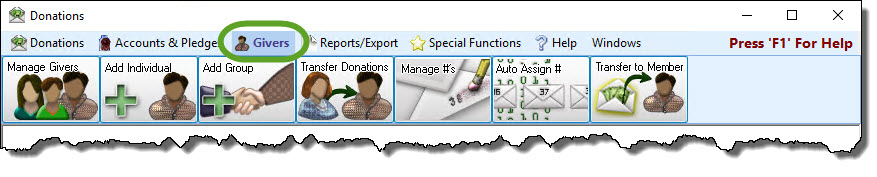
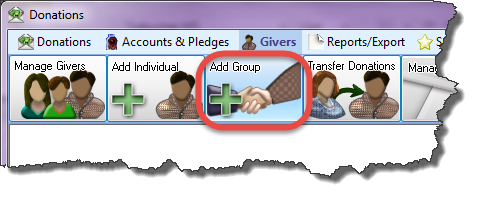
- Click the Givers option in the Button Bar at the top of the screen:
 Add an Individual Giver
Add new contact information and Giving # (if needed) for a new individual who will be making Pledges and/or donations to your Church
- Click the Add Individual button and choose which type of Individual Giver you need to add:
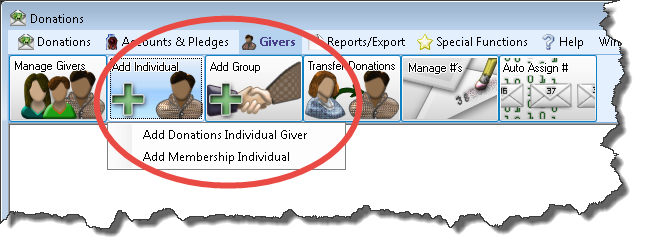
- Depending on your choice to add either a Donations or a Membership Individual Giver, one of two screens will then open and you will perform the following actions:
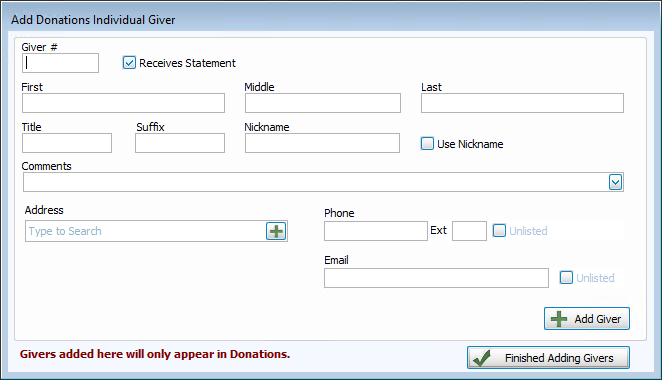
- Donations Individual Givers
- Donations Individuals exist only in the Donations Module, they do not exist in The People File at all.
- Here you can add the Individual Giver information. Enter the information that pertains to the individuals in the fields provided.
- When finished, click OK.
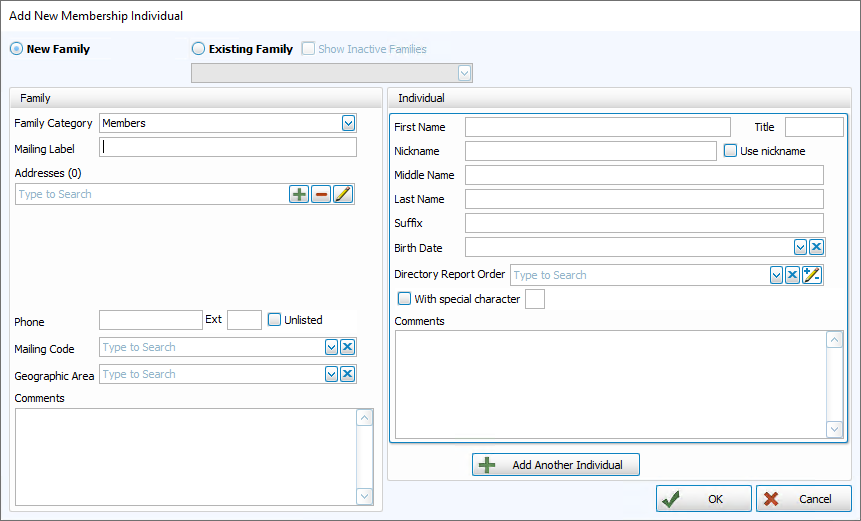
- Membership Individual Givers
- If this person is NOT a member of any other family already in
The People File:
- Click the New family
 radio button to select it.
 - Select one of the Family Categories into which you want to enter the new person.
- You may then type the family information into the left side of the screen.
- Click the New family
- If the person IS a member of a family already in
The People File:
- Click in the Existing family radio button to select it.
- A list of all of the households in the database will appear in the
 dropdown.
 - Scroll through the list to find the appropriate family.
- Click the family name once to select it, and that family's information will appear in the Family information section of the screen (you may edit this information if needed) on the left.
- Click in the Existing family
- Enter the new member's information to the Individual information section of the screen on the right.
- Click OK to save the record to The People File or click Cancel to discard this record.
OR
OR
Add a Group Giver
This will allow you to add new contact information and Giving # for those who will be making pledges and/or donations to your Church as a group of Givers that you want to exclude from the Membership Module.
- Click the Add Group button:
- The Add Group screen will appear:
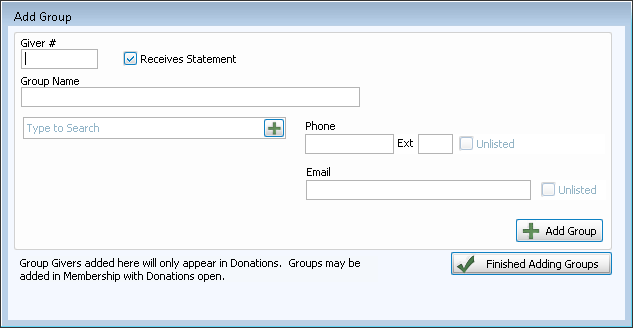
- Enter the information that pertains to the group in the fields provided.
- When finished, click OK.
Once you have added givers, you can view them in Manage Givers and give them credit for their giving through Enter Donations.
