Transfer Attendance
This is a very simple interface which allows you to Transfer Attendance records from one person to another in the Event, for example, if it was entered under the wrong person in Attendance Entry. You can only select one person at a time, but you can choose one, many, or all Events to transfer over.
To access the Transfer Attendance screen:
- From The Initial Portal of Church Windows choose Membership
- Click on Attendance in the Button Bar at the top of the screen
- Then click the Transfer Attendance button
- The Transfer Attendance window opens:
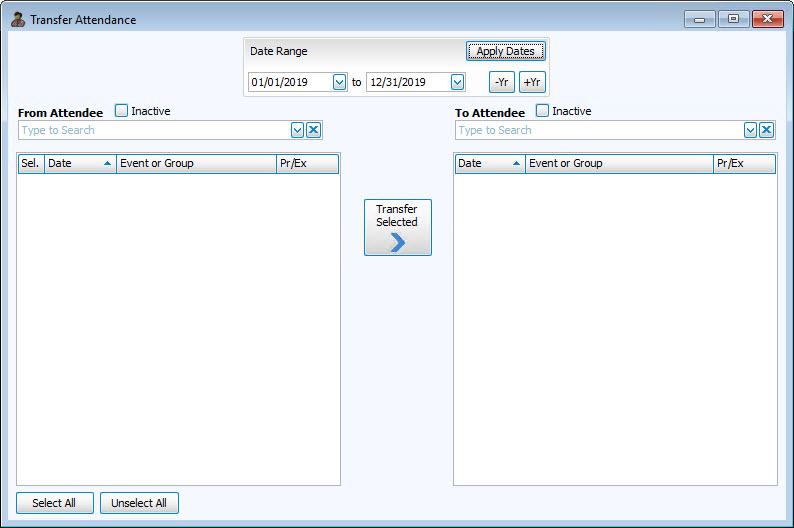
- Date Range - First, enter the dates of which attendance records you want to show by entering the desired dates in the
 dropdown calendar, using the -Yr and +Yr buttons, or by typing the dates (Use a MMDDYYYY date format WITHOUT slashes.) .
 - Click Apply Dates
- From Attendee - Select the person with the incorrect record(s) on the left.
- To Attendee - Select the person who should have the attendance record(s) on the right.
- Inactive - This
 checkbox allows you to either show or hide records that have been marked Inactive (see Inactivate Records). If the box is checked Inactive records will be listed in red; if the box is unchecked Inactive records will be hidden.
 - Then checkmark which Event(s) to transfer. All will be selected by default, you can use the Unselect All button to remove all of the checkmarks or the Select All button to check all events.
- Click on the Transfer Selected button to complete the transfer, or click the red X to cancel the transfer.
- Go to Browse Attendance to view your changes.
