Attendance Options
Options for tracking Attendance and Communion are available in two locations, either from Membership Settings or from the Attendance Entry / Browse Attendance screens.
Each of these screens lets you further customize attendance tracking options.
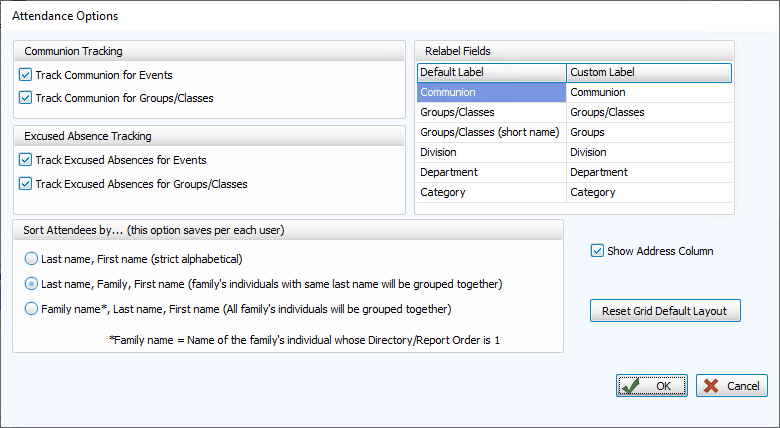
- For both Events and Groups / Classes, you can choose to track Communion, Excused Absences, both, or neither.
- Add or remove
 checkmarks to indicate your desired settings.
 - Choose how to sort the People in the Attendees list using the
 radio button.
 - You can also relabel any of the Attendance fields available in the upper right corner.
To access the Attendance Options screen:
- From The Initial Portal of Church Windows choose Membership,
- Then, you will open Attendance Options either:
- From Membership Settings
- Click Special Functions in the Button Bar at the top of the screen:

- Click Settings
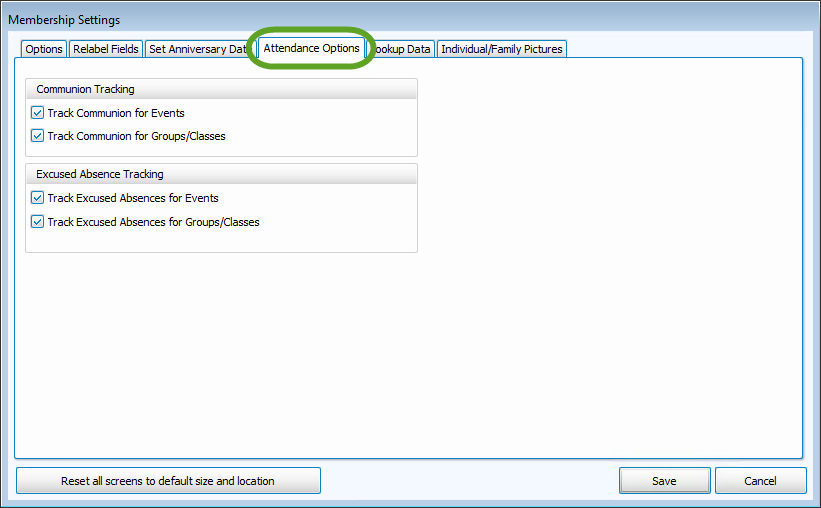
- Then go to the Attendance Options tab:
- From Attendance Entry or Browse Attendance
- Choose either Attendance Entry or Browse Attendance in the Button Bar at the top of the screen
- Click the Options button in either screen to open the following additional options:
OR
Communion Tracking
If you wish to track Communion participation, you need to alert the
system to this fact. Keep in mind that the Communion function can be renamed
to track any additional facet of attendance that your organization may
wish to track.
- Check if you wish to track Communion at Events (such as Sunday worship), for Groups / Classes, or for both.
- Click OK
to exit and save your changes or Cancel
to exit and ignore any changes you have made.
Excused Absence Tracking
If your organization would not need to track anything other than attendance
at Events, you can easily turn off the Communion tracking function. Simply, uncheck the "Track Communion" box(es) if you do not wish to track Communion for Events (such as Sunday worship), for Groups / Classes, or for both.
Relabel Fields
If you would prefer to use different terms, you can
Re-label Permanent Fields including Communion, Groups / Classes, Divisions, Departments, and Categories.
To change these field names:
- In the column titled Custom Label, click the field name that you would like to change; it will be highlighted.
- Begin typing the new field name or delete the name that is in the column using the Delete or Backspace keys.
- Enter the new name.
- The changes will be saved when you move the cursor to another area of the screen or when you click Save.
These are global changes which will affect all Family Categories.
Sort Attendees by...
There are three ways to sort the list of attendees, depending on if you have family members with different last names:
Note:
There are three ways to sort by Name, depending on if you have family members with different last names:
- Last name, First name (strict alphabetical) - families with different last names would be separated and listed in true alphabetical order based on each individuals last, then first name
- Last name, Family*, First name (family's individuals with same last name will be grouped together) - individuals will be sorted by their own last name, then by their family's name, then by their own first name
- Family name*, Last name, First name (all family's individuals will be grouped together) - individuals will be listed in order by their family's last name, then by their own last name, then by their own first name
*The Family name is determined from the Last name of the person in the family who is assigned the Directory/Report Order of 1 — Primary.
After you have made all the changes you wish to make, then click OK to save changes and exit or Cancel to exit ignoring any changes you have made.
